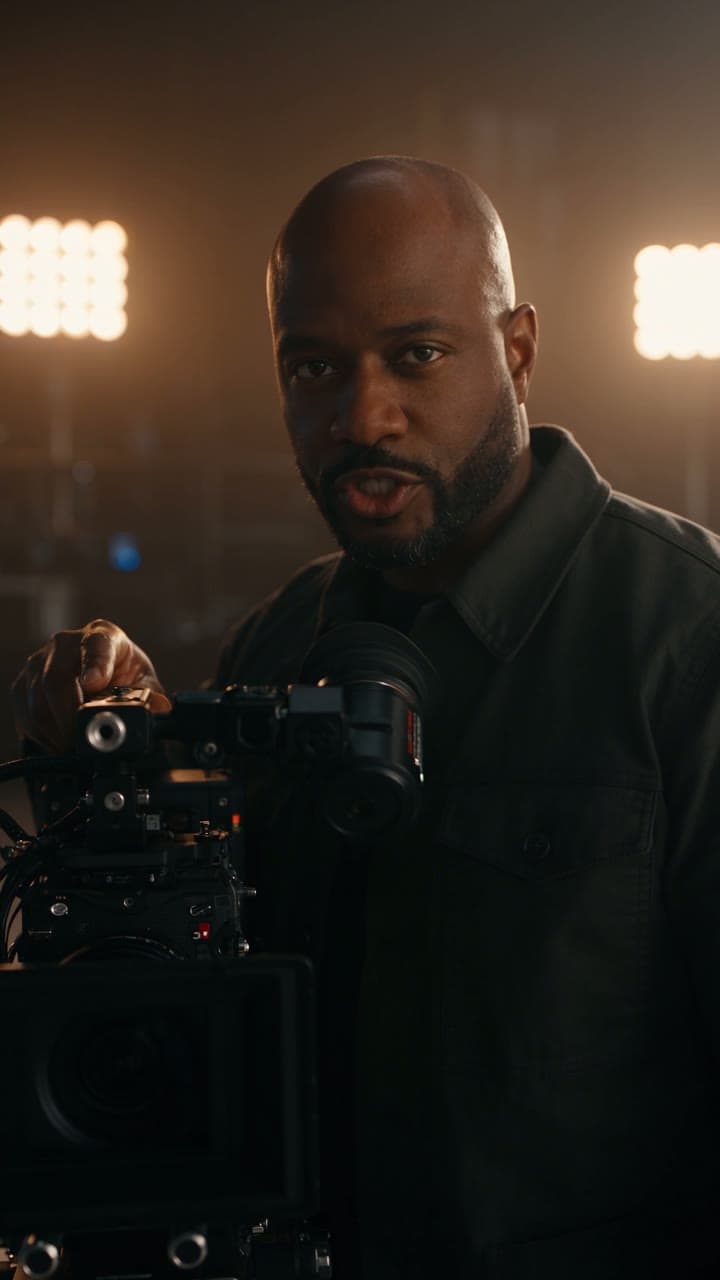
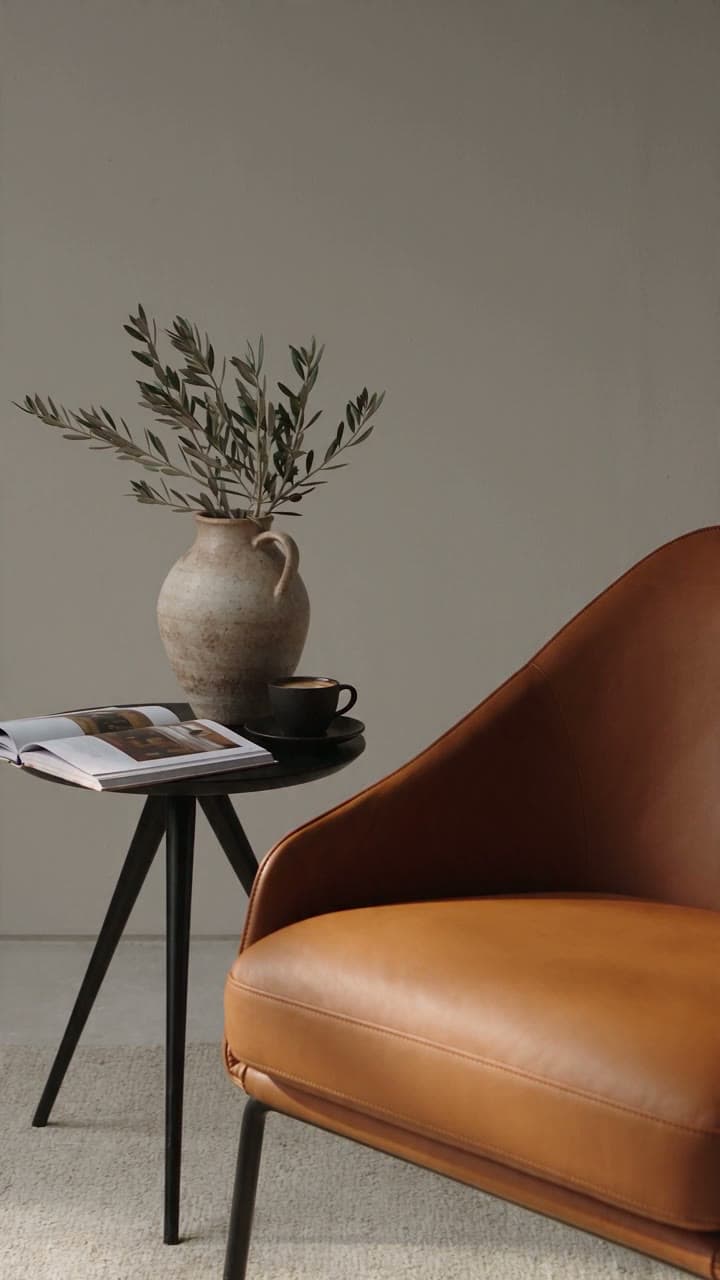
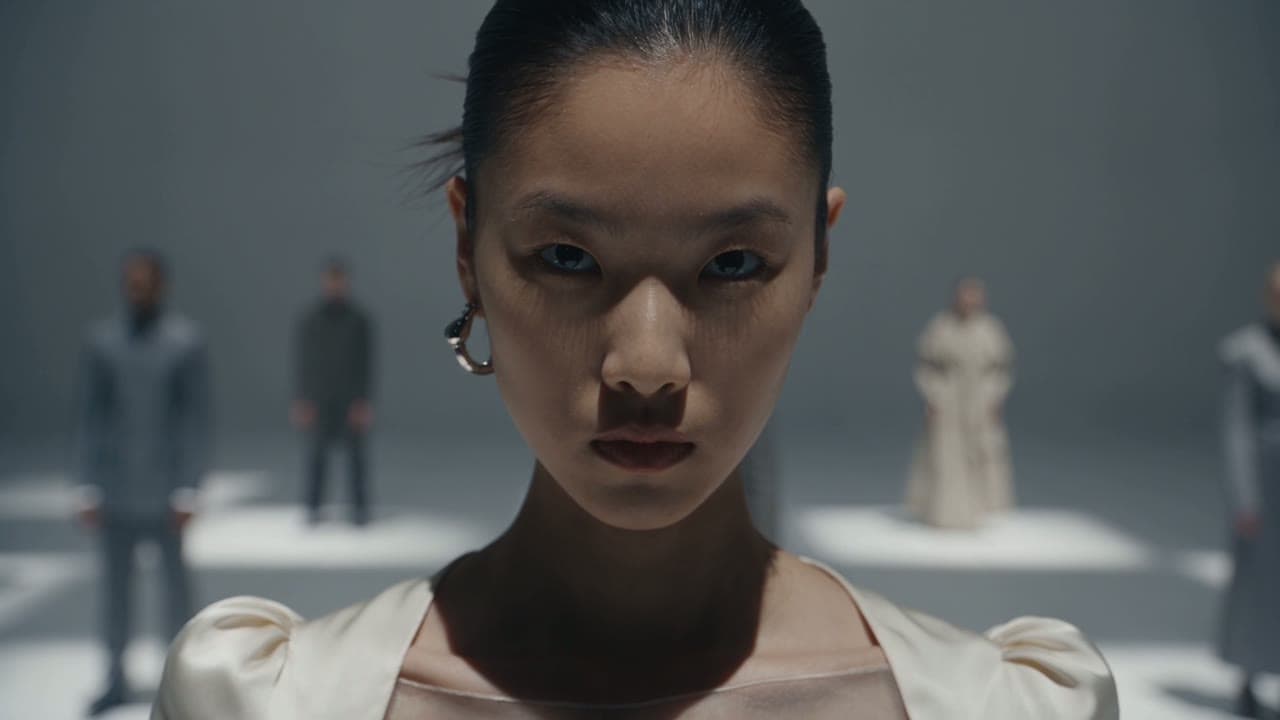
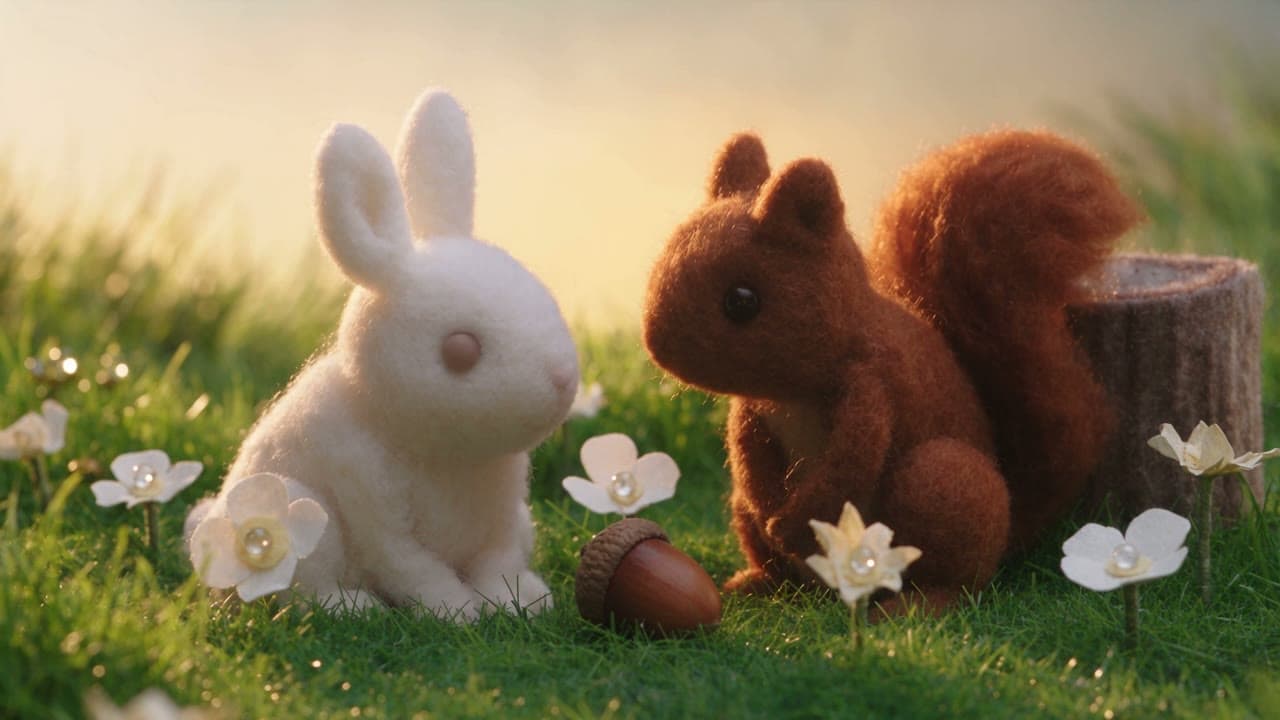
Turn one or more images into product videos, social clips or story scenes with natural motion and sound. Create with Seedance 2.5, Kling 3.0, Veo 3.1, and more in one place.
Stills that start moving: image to video AI examples
Give a still the motion it was missing. A product launch, a campaign visual, a portrait or a piece of concept art: upload it, describe what should move, and Yovid’s image to video generator returns a clip with natural movement, steady detail and sound when you want it, ready for every feed and format.
Keep the texture, colour, light and depth that made the photo worth using. Render at 1080p on most models, 2K on MiniMax H3 or native 4K on Veo 3.1 Fast, depending on your plan, so the clip holds up on a phone and on a big screen. For a sharper export later, run it through the video upscaler.
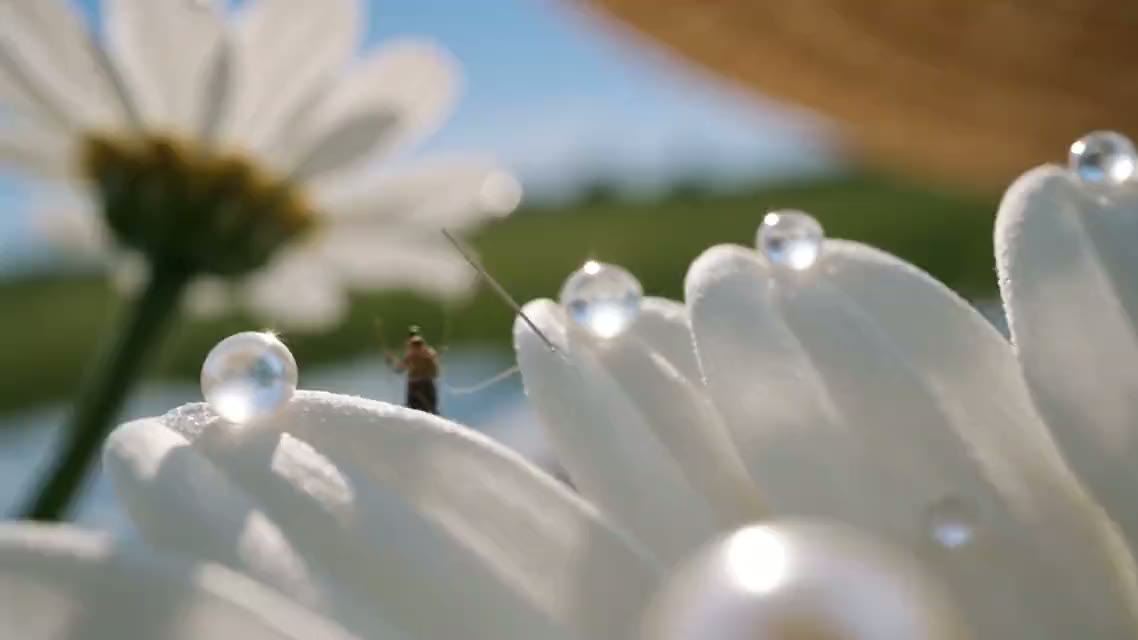
Example prompt: Extreme macro: dew glows like glass beads on the daisy petals while tiny artisans carry pearls across the lace, then glide along the gingham ribbon to the model's blurred smile. Slow push-in, warm side light, film grain. (Seedance 2.5 · 16:9 · 15s · 1080p)
Natural motion that feels filmed
Faces, hair, fabric and objects move with believable weight and timing, so the shot reads as filmed rather than animated. Describe the action and the camera, not the picture: the model can already see the picture.
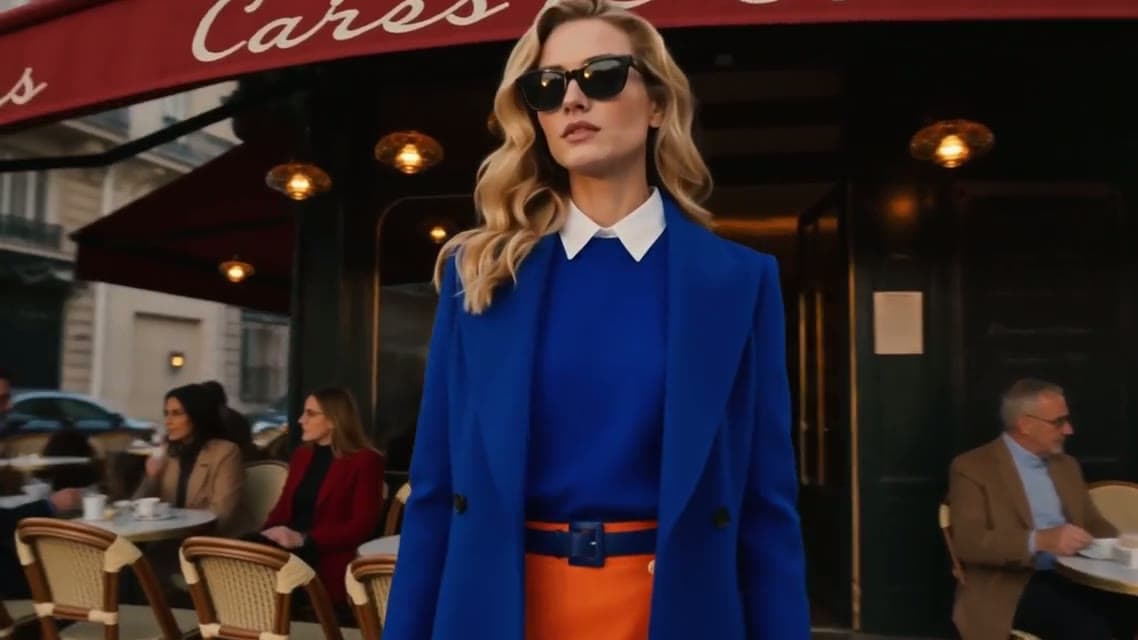
Example prompt: She walks out past the café tables, coat and hair moving naturally in the breeze. Cut to a close-up of her sunglasses, then her blue heels on the cobblestones. Golden-hour light, slow tracking shots. (Seedance 2.5 · 16:9 · 30s · 1080p)
First and last frames for the ending you want
Attach a second image and the clip travels from your first frame to your last, landing exactly where you planned. Seedance, Kling 3.0, Veo 3.1, MiniMax H3 and Wan 3.0 accept the pair, which makes transitions, reveals and before-and-after shots predictable.
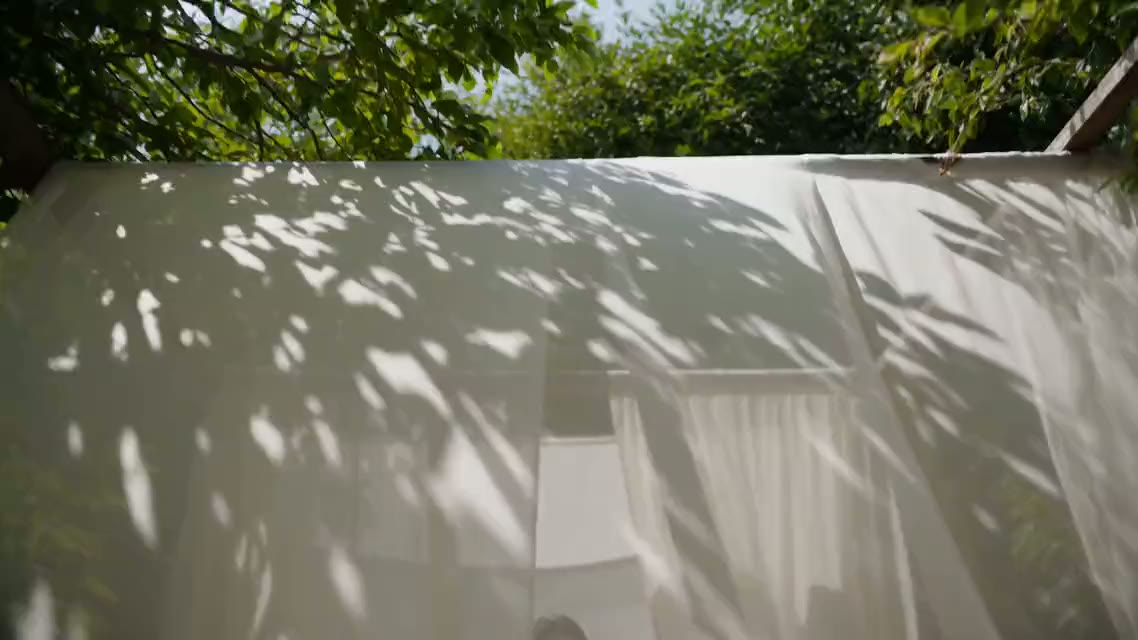
Example prompt: Start on the leaf shadows over the white curtains and end on the close-up of the model by the stream. Sunlight drifts across the fabric, the gauze sweeps the lens to reveal her, and the camera tilts up as she lifts her gaze. (Seedance 2.5 · 16:9 · 15s · 1080p)
Up to 30 references for consistent characters
Upload several reference images of a character, a product or a look and let the model combine them: up to 30 on Seedance 2.5, ten on Wan 3.0, and nine on Seedance 2.0 and MiniMax H3. Faces stay recognisable and products keep their shape as the scene moves.
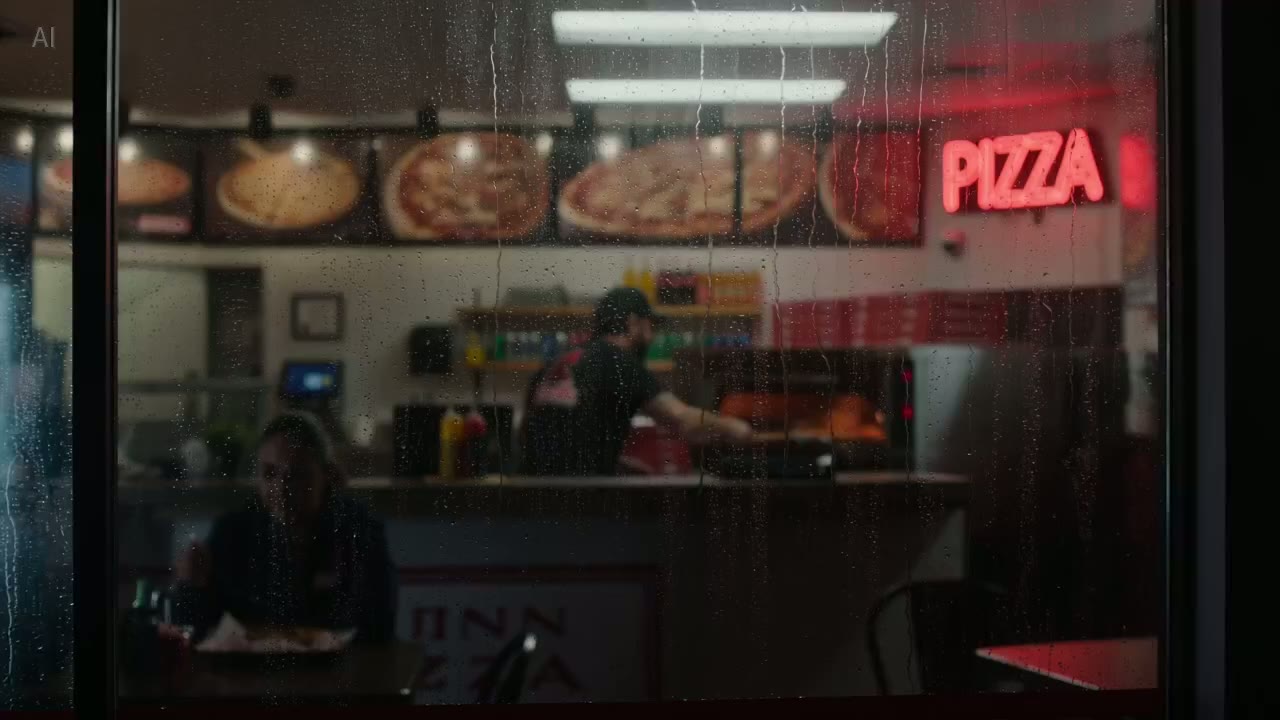
Example prompt: Use the references for the pizza maker and his shop. Seen through the window at night, he slides a pizza from the oven, boxes it and hands it over the counter with a smile. Same face, cap and shirt in every shot, warm neon light. (Seedance 2.0 · 16:9 · 15s · 1080p)
Native audio when the clip needs it
Turn audio on with Seedance, Kling 3.0, Kling O3 or Wan 3.0 and the soundtrack is generated with the motion, ambience and effects in one pass. Leave it off for silent loops, product pages and clips you will score yourself.
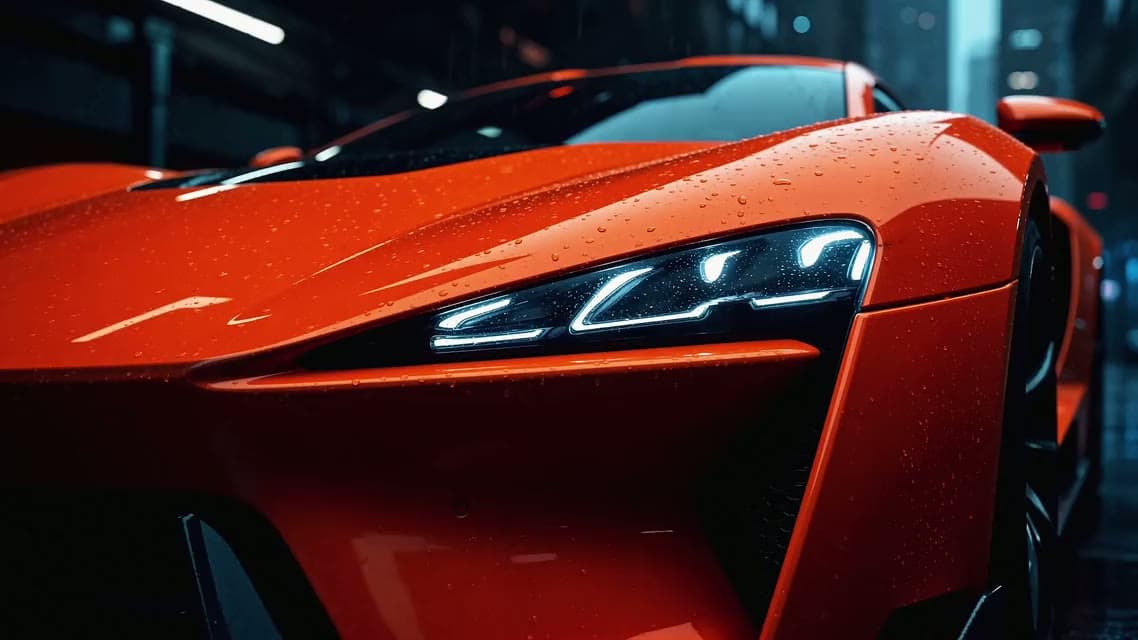
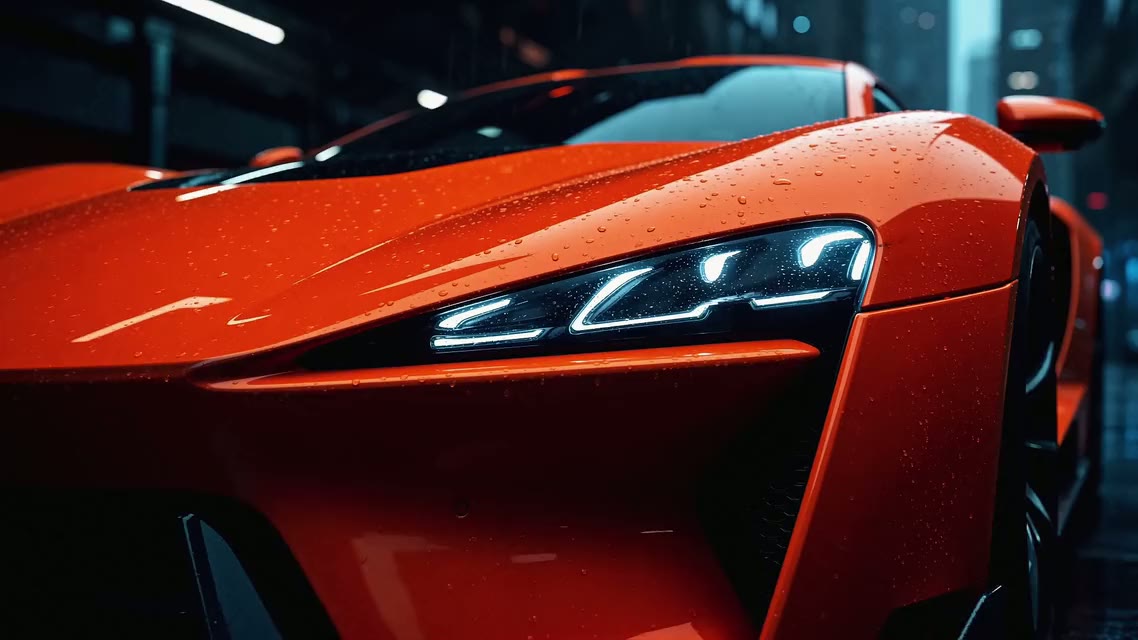
Example prompt: The headlights flicker on and the camera orbits low around the wet body, then pushes in on the front. Rain on the street, a deep engine rumble and tyres hissing on wet asphalt. (Seedance 2.5 · 16:9 · 15s · 1080p)
One photo, every aspect ratio
Turn one photo into a vertical hook, a square post and a widescreen banner. Change the motion, the pace or the camera move and rerun it on another model, so you can test more placements without reshooting or redesigning.
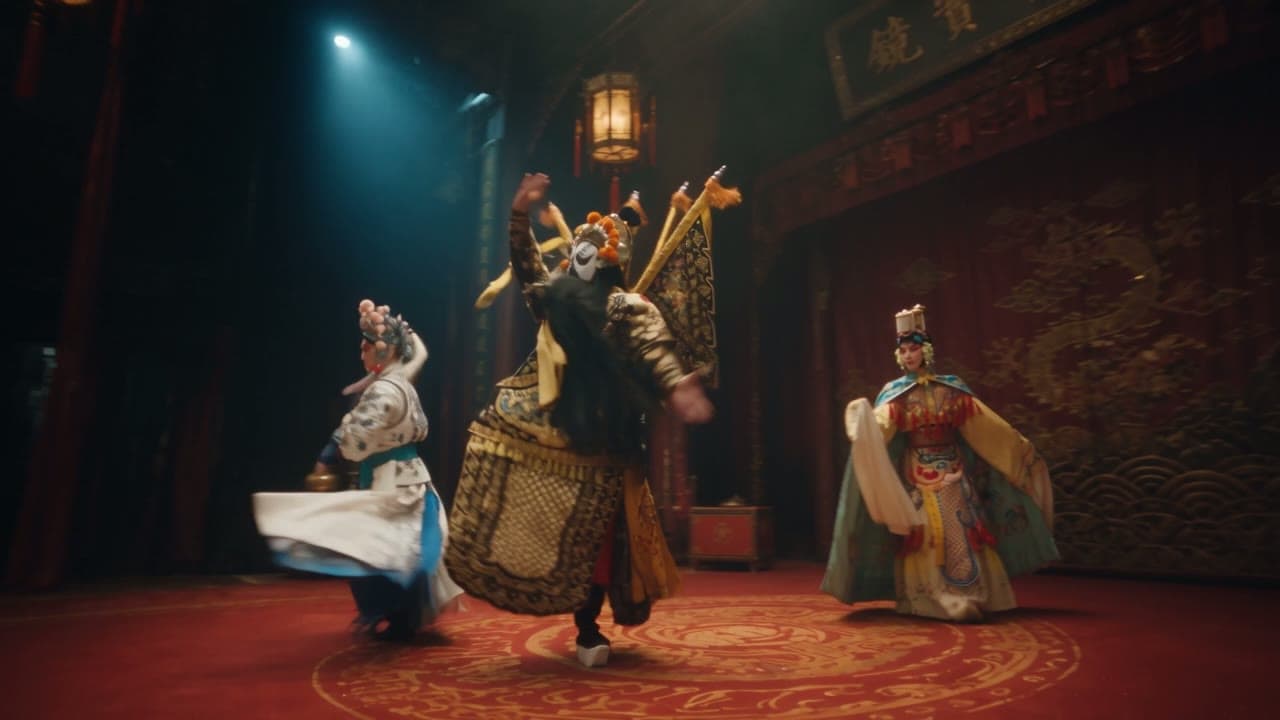
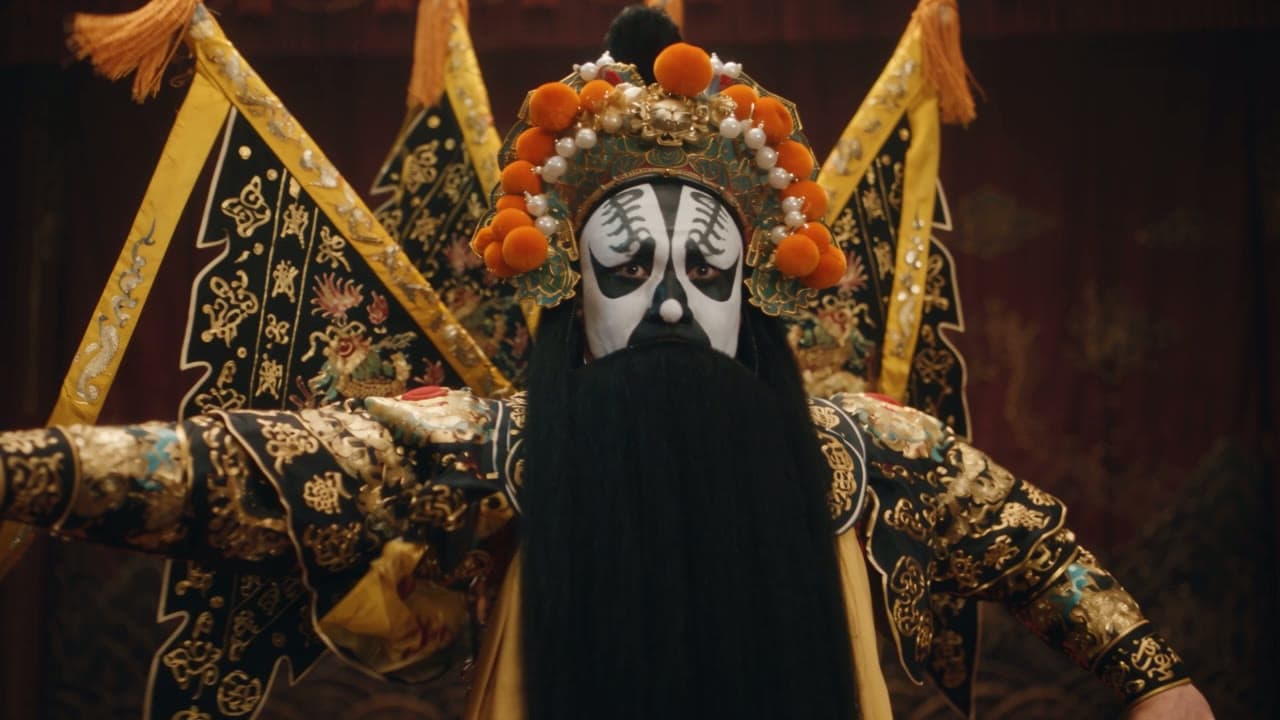
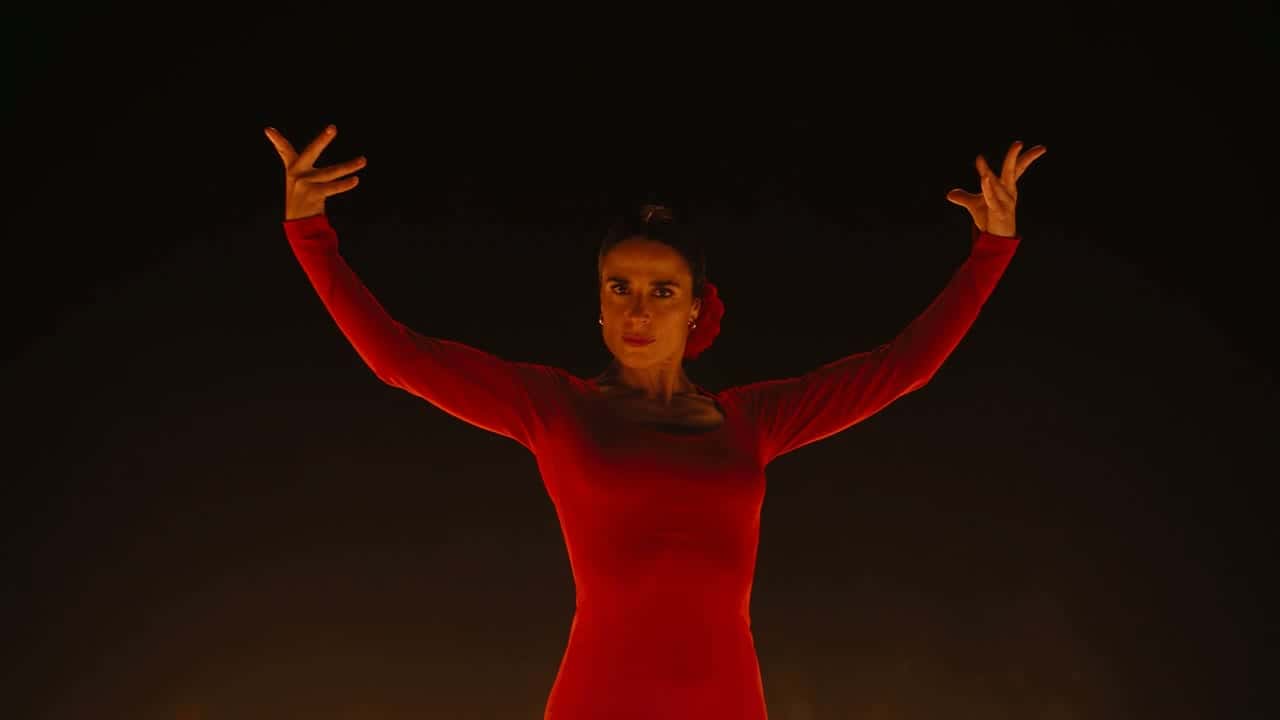
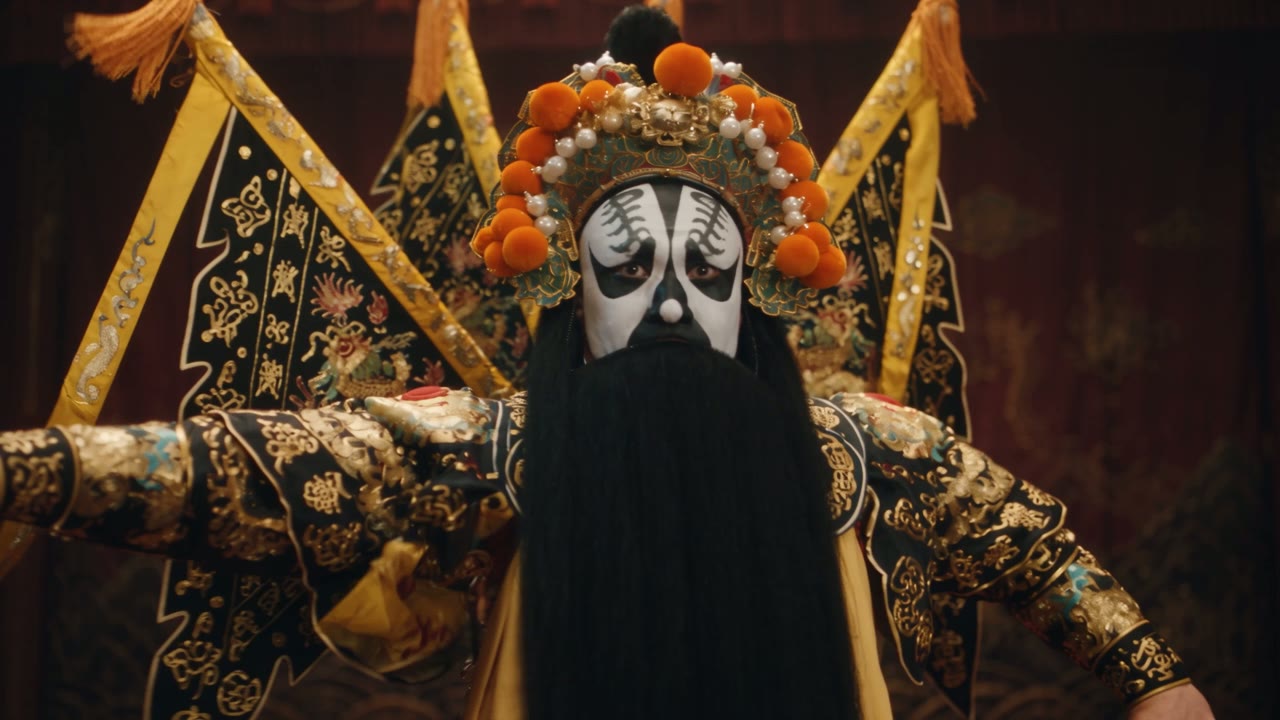
Example prompt: Bring the mask to life: the performer spins and his silk sleeves sweep across the frame while the camera circles fast. Keep the lantern light and the dark stage. (Kling 3.0 · 16:9 · 15s · 1080p)
Which model should animateyour image?
Every model below can animate a still. Pick Kling 3.0 or Veo 3.1 for a fixed first and last frame, Seedance 2.5 or Wan 3.0 for 30-second takes, and Seedance 2.0 Mini to test on free credits.
Image to video models compared: frames, references and credits
All 14 models in the composer can start from your image. This is what each one adds on top, read from the live model settings, so it changes when the models do.
Credits are the standard rate for a 5-second clip at 720p (2K on MiniMax H3, its only setting), before plan discounts; the composer shows the exact cost for your settings. The top resolution you can pick also depends on your plan: free credits stop at 720p, and 4K on Veo 3.1 Fast needs Premium or a credit pack. “No” under Audio switch means you cannot turn sound on or off yourself; Veo 3.1, for one, adds its own native audio.
Who it’s for
Image to video AI use cases
Photo to video for every feed
Turn travel shots, selfies and everyday moments into Reels, TikToks and story updates, keeping the subject and the mood you already like.
On-brand campaign teasers
Give a key visual motion for launch teasers, seasonal reveals and paid social, and test more directions without sending the team back to production.
Product showcases that sell
Animate catalogue images into short clips that show shape, finish, scale and use across listings, storefronts and ads.
Artwork with movement
Bring character designs, posters and concept frames to life for portfolios, pitches and title sequences, without drawing every frame.
Story shots to share early
Turn a storyboard frame into a moving reference, so collaborators can react to camera, pacing and atmosphere before production starts.
Image to video AI animates a still picture. You upload a photo, an artwork or a product shot, describe the motion and the camera, and a video model generates a clip that starts from your image. On Yovid you choose from 14 models, add sound on the models that support it, and download without a watermark.
Which models can animate a photo on Yovid?
Fourteen today: Seedance 2.5, 2.0, 2.0 Fast, 2.0 Mini, 1.5 Pro and SeeDance 1 Pro Fast, Kling 3.0 and Kling O3, Veo 3.1 Fast and Veo 3.1 Pro, Sora 2 and Sora 2 Pro, MiniMax H3, and Wan 3.0, all in the same model picker. The comparison table above shows how they differ on length, resolution, frames, references and credits.
Can I set both the first and the last frame?
Yes, on most models. Upload a second image and the clip travels from your first frame to your last. Seedance 2.5, 2.0, 2.0 Fast, 2.0 Mini and 1.5 Pro, Kling 3.0, Kling O3, Veo 3.1 Fast and Pro, MiniMax H3 and Wan 3.0 accept the pair; SeeDance 1 Pro Fast and the Sora 2 models take a first frame only.
How many reference images can I add?
Up to 30 on Seedance 2.5, 10 on Wan 3.0, and 9 on Seedance 2.0, 2.0 Fast, 2.0 Mini and MiniMax H3. Upload several angles of the same character or product, and faces and shapes stay consistent while the scene moves.
What should an image to video prompt describe?
The motion, not the picture: the model can already see the picture. Build the prompt around one shot, with the subject’s action, the camera move, the pace and the ending, for example “The camera slowly orbits the bottle as a line of light sweeps across the glass.” Each demo above shows the full prompt it ran with.
Which photos animate best, and what are the upload limits?
Sharp images with one clear subject, clean edges and some room for movement. Portraits, product photos, illustrations and landscapes all work. The Seedance models take JPG, PNG or WebP up to 30 MB with at least 300 pixels on each side; Kling 3.0 takes JPG or PNG up to 10 MB.
Can I animate a photo for free?
Yes. New accounts get free credits with no credit card, and all three free entry models accept a photo as the first frame, at up to 720p. Free videos carry no watermark. Choose a plan or a credit pack for longer, sharper clips and the flagship models.
Which models add sound to an animated photo?
Seedance 2.5, 2.0, 2.0 Fast, 2.0 Mini and 1.5 Pro, Kling 3.0, Kling O3 and Wan 3.0 have an audio switch. Turn it on and describe the sound in your prompt; the soundtrack is generated in the same pass as the motion, so it is timed to the picture.
Why does my animated photo drift or warp?
Usually the prompt asks for too much in one shot. Pick one subject and one main action, add a camera move and an ending that support it, and stop there. Big motion on a small or blurry photo also makes faces drift, so start from the sharpest image you have.
Can I use the clips in ads and client work?
Commercial use is included with Pro, Premium, annual Lite and one-time credit packs; free credits and monthly Lite do not include it. Make sure you own or have the rights to the image you upload, because a licence for the output does not cover a photo that is not yours.
Should I start from an image or from text?
Start from an image when you already have the picture and want it to move, so the product, the face or the artwork stays recognisable. Start from text when you only have an idea and no source image. Both run on the same models in the same composer.
 Seedance 2.5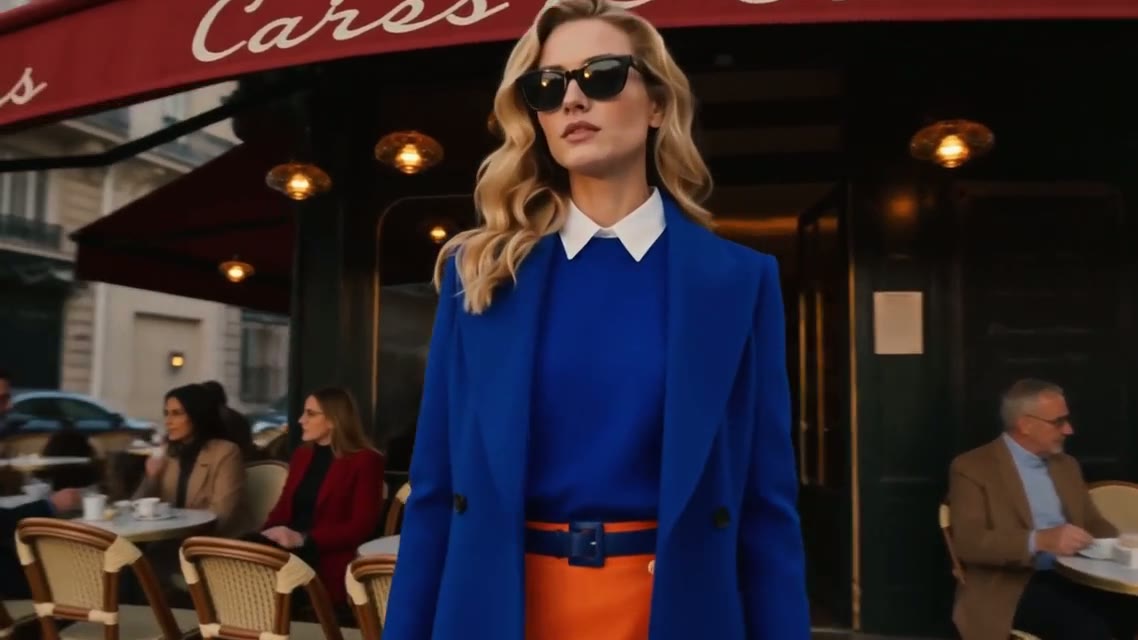
 Kling 3.0