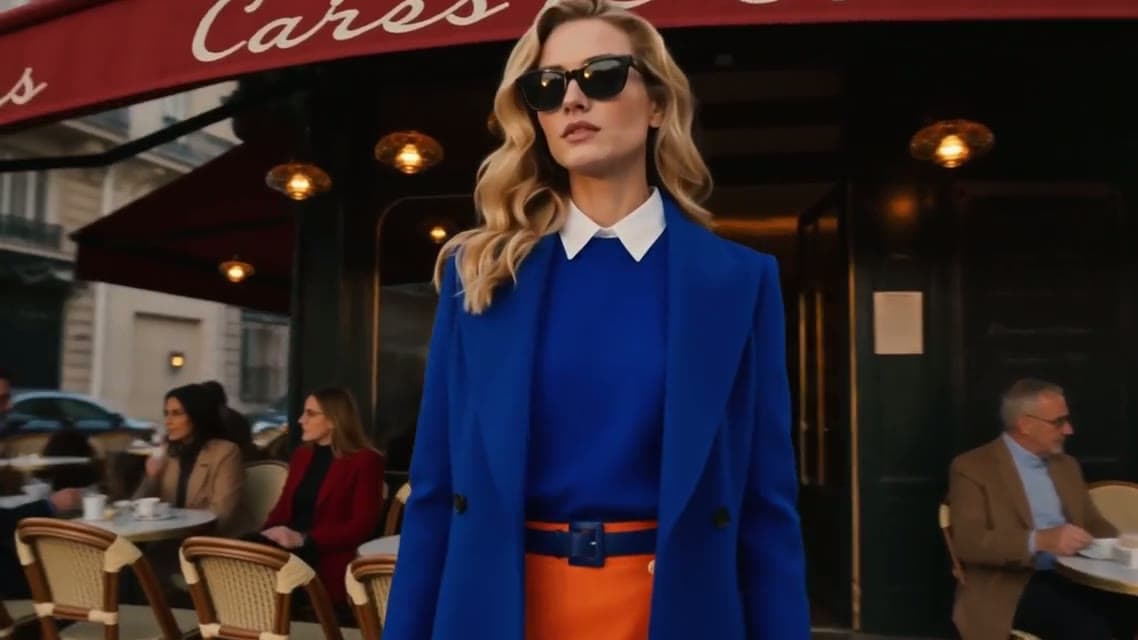
Decide where the shot begins and where it lands. Upload two keyframes, describe the journey between them, and Yovid renders every frame in the middle on Kling 3.0, Veo 3.1, Seedance 2.5 and more.
Two keyframes, one shot that lands on cue
Give a video model one photo and it decides on its own how the clip ends. Give it a closing keyframe as well and the ending is no longer a guess: the model only has to invent the camera path, the motion and the change of light that join your two pictures. Reach for it whenever a clip has to finish on an exact composition, such as a reveal, a product turn, a location change or a before-and-after.
You only have the opening picture
Animate one still and let the model choose where the shot goes. Best for bringing a single photo, poster or product image to life.
Keyframe to keyframe: see the in-between frames appear
Lock the opening and the closing shot
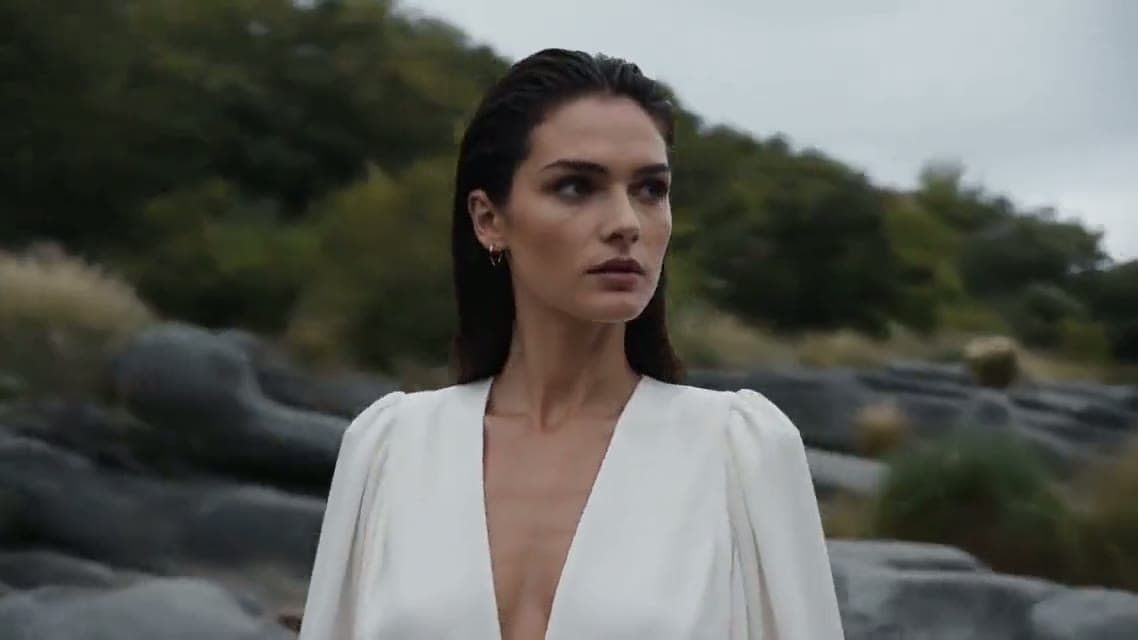
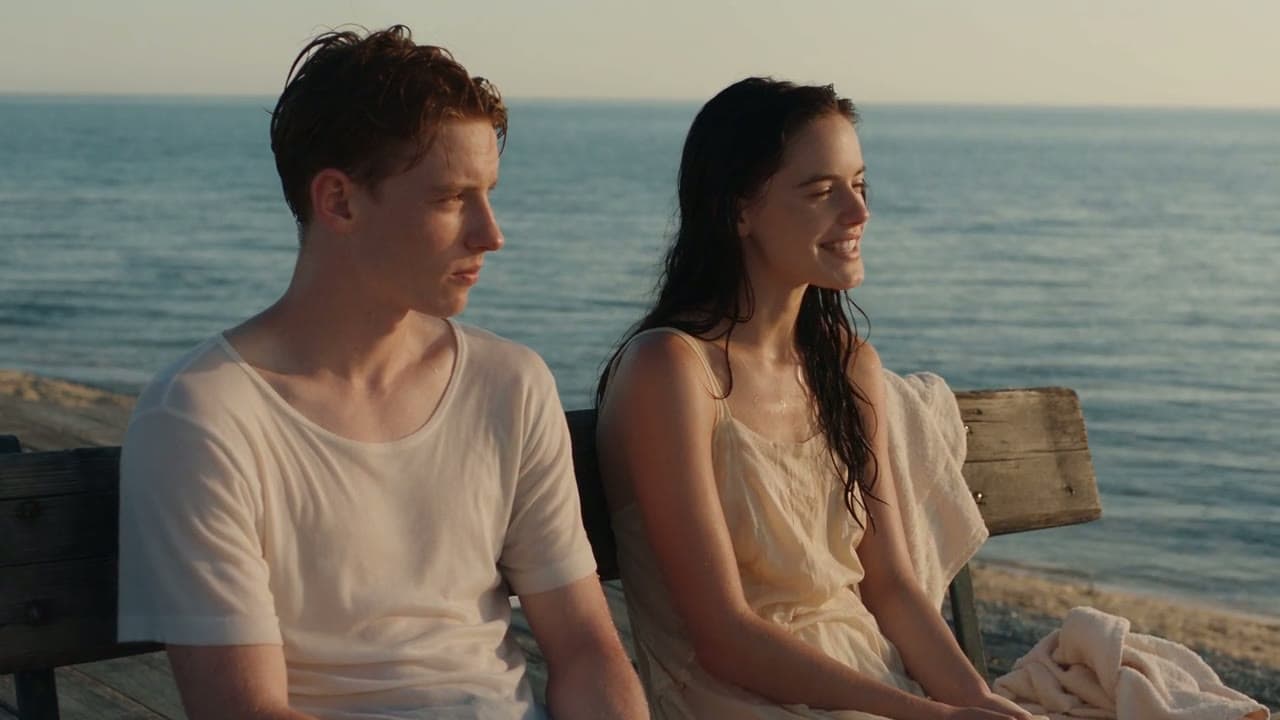
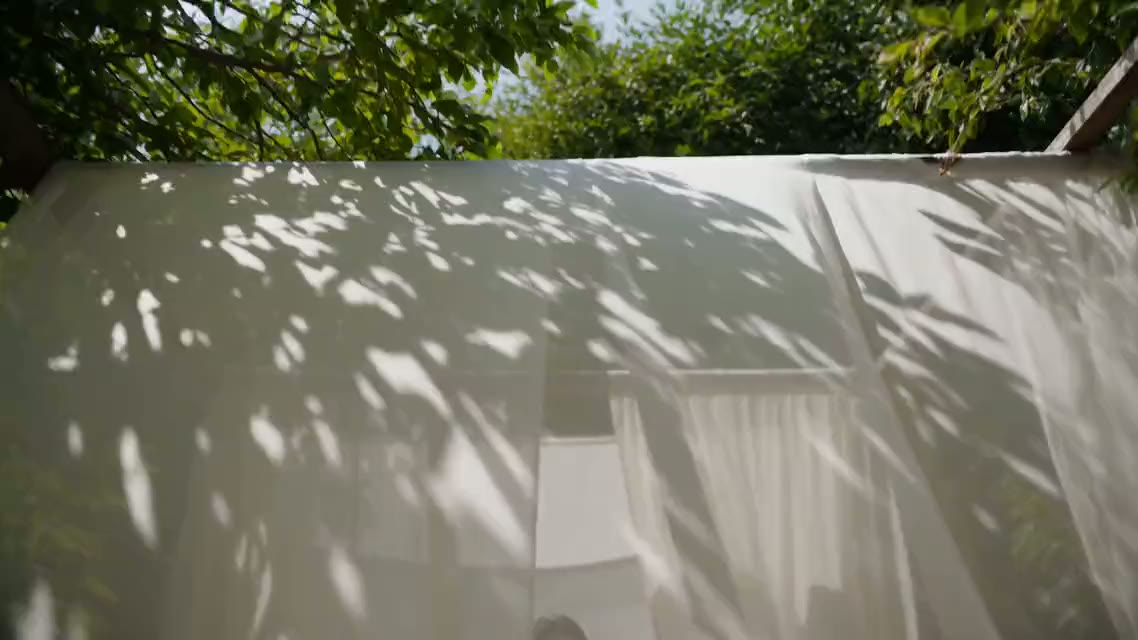
Image one sets the composition the clip starts on, image two the composition it must reach. In this Seedance 2.5 run the camera opens on leaf shadows over white curtains and finishes on the model beside the stream, with a sweep of gauze across the lens doing the hand-off.
Example prompt: Start on the leaf shadows over the white curtains and end on the close-up of the model by the stream. Sunlight drifts across the fabric, the gauze sweeps the lens to reveal her, and the camera tilts up as she lifts her gaze. (Seedance 2.5 · 16:9 · 15s · 1080p)
Cross a location in a single move
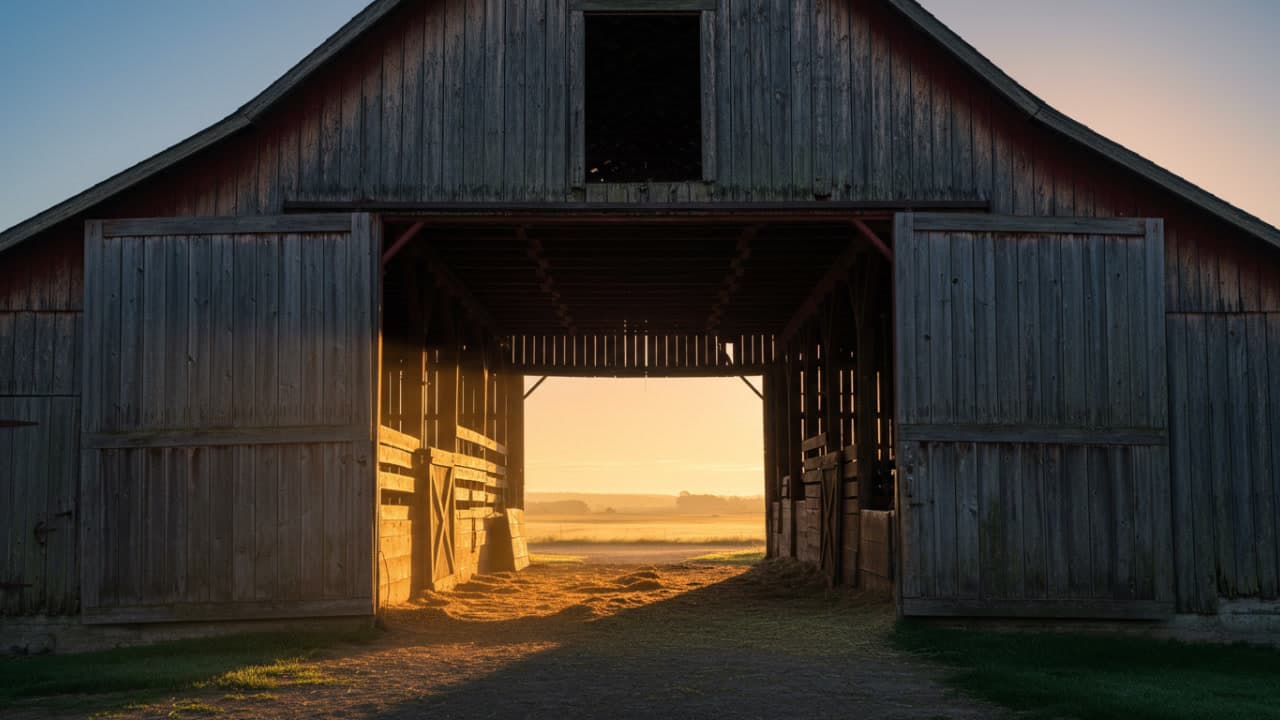
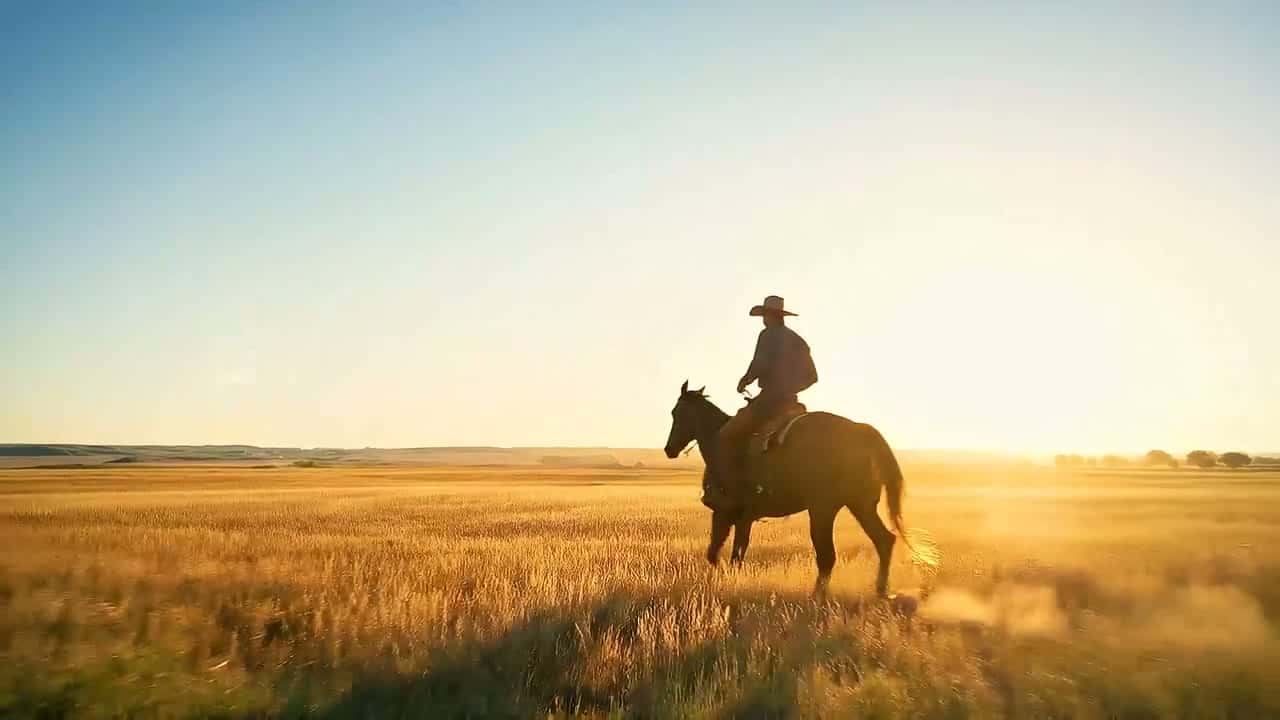
The two keyframes can be different places entirely. Google’s Veo 3.1 example begins outside a barn at sunrise and ends on a rider crossing the prairie; the model works out the push through the barn and the spill of light from the far doors on its own.
Example prompt: One continuous move: the camera glides through the open barn toward the sunrise and out onto the prairie, where a cowboy rides past at a slow trot. Warm backlight, drifting dust, no cuts. (Veo 3.1 · 16:9 · 8s)
Every model here takesa start and an end frame
Eleven models in the Yovid composer accept a keyframe pair. Kling 3.0 and Veo 3.1 are the go-to choices for tight transitions, Seedance 2.5 and Wan 3.0 for long ones, and Seedance 2.0 Mini or Seedance 1.5 Pro for a first try on free credits.
Credits per second are catalogue rates with both keyframes attached, before plan discounts; the composer prints the exact cost for your settings before you generate. The end frame is free: each rate equals that model’s image to video rate. Free credits stop at 720p, Seedance 1080p needs Pro, Premium or a credit pack, and 4K needs Premium or a credit pack. A “No” under Audio switch means sound is not yours to toggle: Veo 3.1 and MiniMax H3 add their own.
Use cases
Where a fixed ending pays off
Transitions between scenes
Move from an exterior to an interior, day to night or one set to the next in a single camera move instead of a hard cut.
Product reveals and turns
Start on the packshot, end on the hero angle, and let the model rotate, open or light the product on the way.
Before-and-after stories
Renovations, makeovers, seasons and edits read best when both states are pinned and the change plays out between them.
Storyboards that move
Two storyboard panels become a moving beat, so clients and crews can judge pacing before anything is shot.
Same aspect ratio, light from the same side, the same subject or place. Photos, renders and AI images all work as JPG, PNG or WebP.
Step 2
Load them as start and end frame
In the Image to Video workspace, add the opening image, then the closing one. On Kling, Veo and Seedance 1.5 Pro, switch the frame menu to First + Last Frames first.
Step 3
Write the route, then generate
Describe the camera path and what changes along it, pick a length and resolution, check the credit cost and press Generate.
It is image to video with a second picture for the ending. You upload the keyframe the clip opens on and the keyframe it closes on, explain the move that connects them, and the model renders everything in between. Other tools call it start and end frame, keyframe interpolation or keyframe video.
Which AI video models on Yovid accept a start and end frame?
Eleven of them. From ByteDance: Seedance 2.5, Seedance 2.0 with its Fast and Mini versions, and Seedance 1.5 Pro. From Kuaishou: Kling 3.0 and Kling O3. From Google: Veo 3.1 in its Fast and Pro tiers. Plus Alibaba’s Wan 3.0 and MiniMax H3. The older SeeDance 1 Pro Fast animates a single opening frame. The table above has the length, resolution and rate of each.
Do I pay more for the end frame?
No. A keyframe pair costs the same credits as an image to video run on that model with the same length and resolution. Plan discounts apply as usual, and generations that fail are not charged.
Can I make a first and last frame video for free?
Yes. Every new account gets free credits, and two keyframe-capable models accept them: Seedance 2.0 Mini and Seedance 1.5 Pro, at up to 720p. Kling, Veo, Wan, MiniMax H3 and the bigger Seedance models unlock with any paid plan or credit pack. Free videos carry no watermark.
How long can a keyframe clip be?
Seedance 2.5 and Wan 3.0 reach 30 seconds. The Seedance 2.0 family, both Kling models and MiniMax H3 stop at 15, Seedance 1.5 Pro at 12, and Veo 3.1 offers fixed lengths of 4, 6 or 8 seconds. A big change of place looks more natural with more time.
Can I upload just an end frame?
On MiniMax H3, yes: it can build a clip that arrives at your closing image without an opening one. The other ten models need a first frame, and treat a second image as the last frame.
How is this different from image to video?
Image to video fixes only the start, so the model picks the ending. First and last frame fixes both, so you control where the shot finishes. If the identity of a person or product matters more than the exact framing, reference to video is the better fit.
Why do my two pictures blend instead of the camera moving?
Usually the keyframes share too little for any real camera move to link them, or the prompt leaves the route out. Pick frames from one scene with matching light, write down the path the camera takes and what changes on it, and give a big move at least 8 seconds.
 Seedance 2.5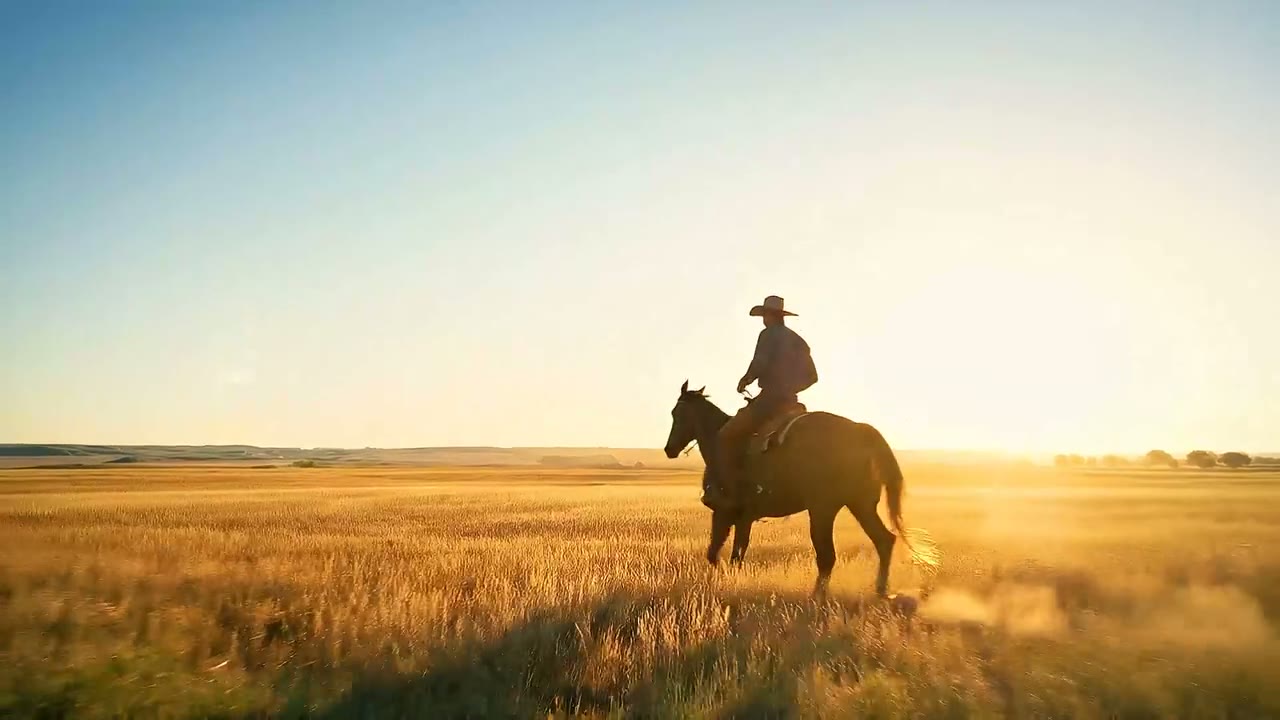
 Veo 3.1