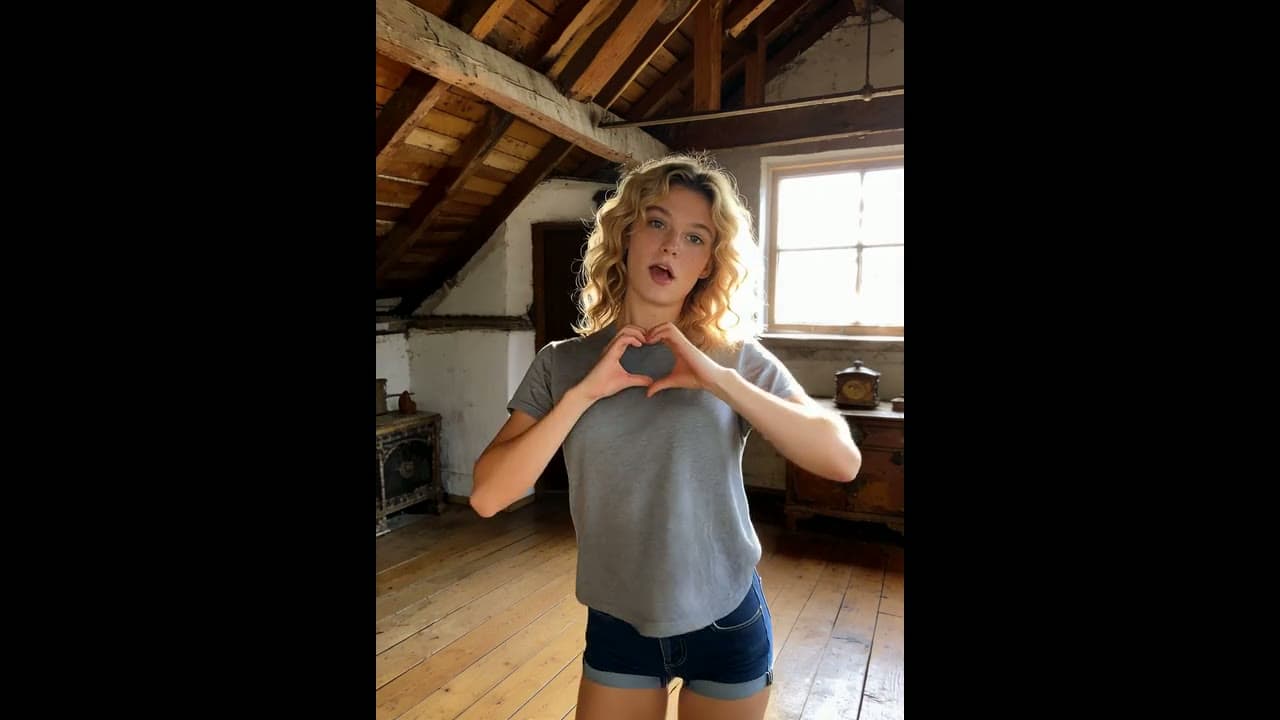
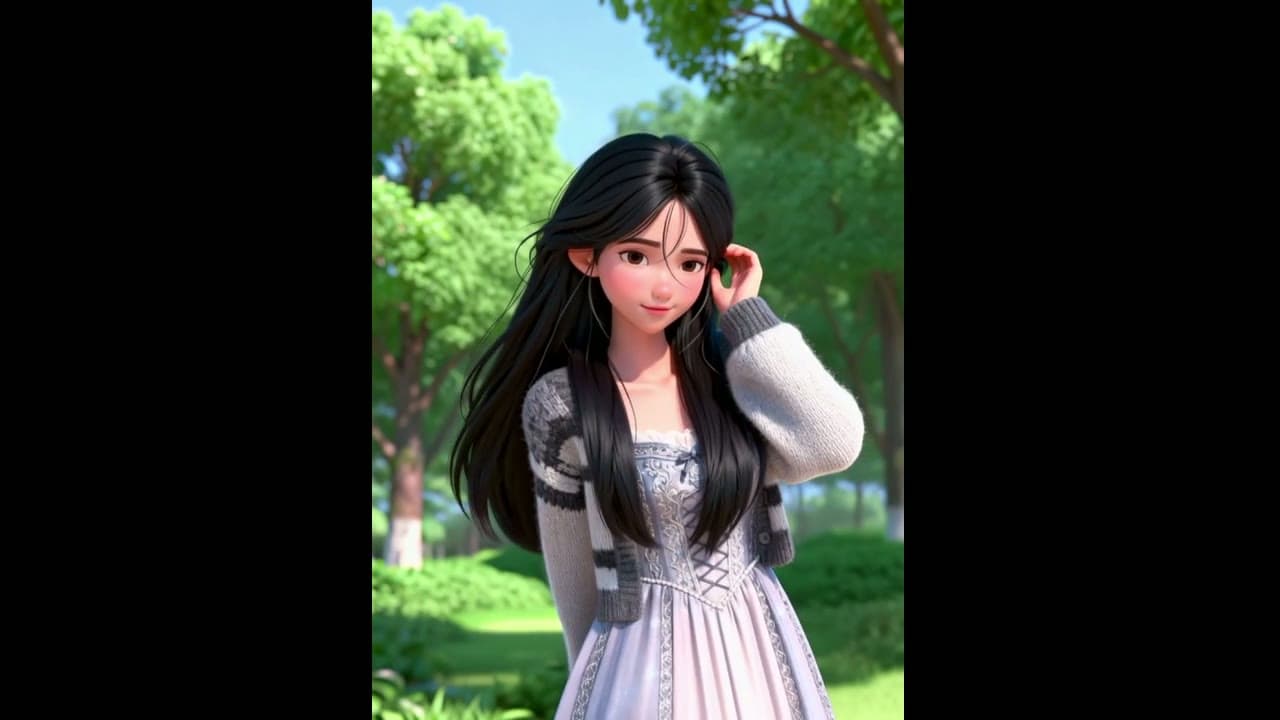
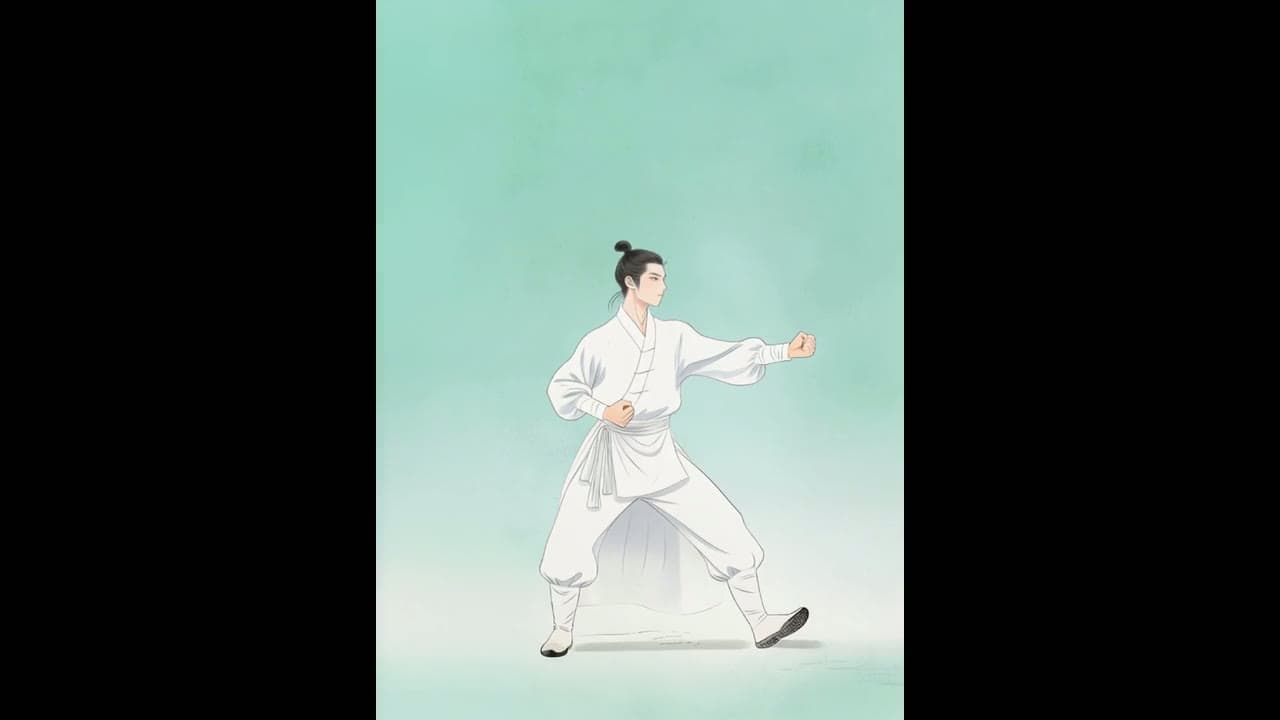
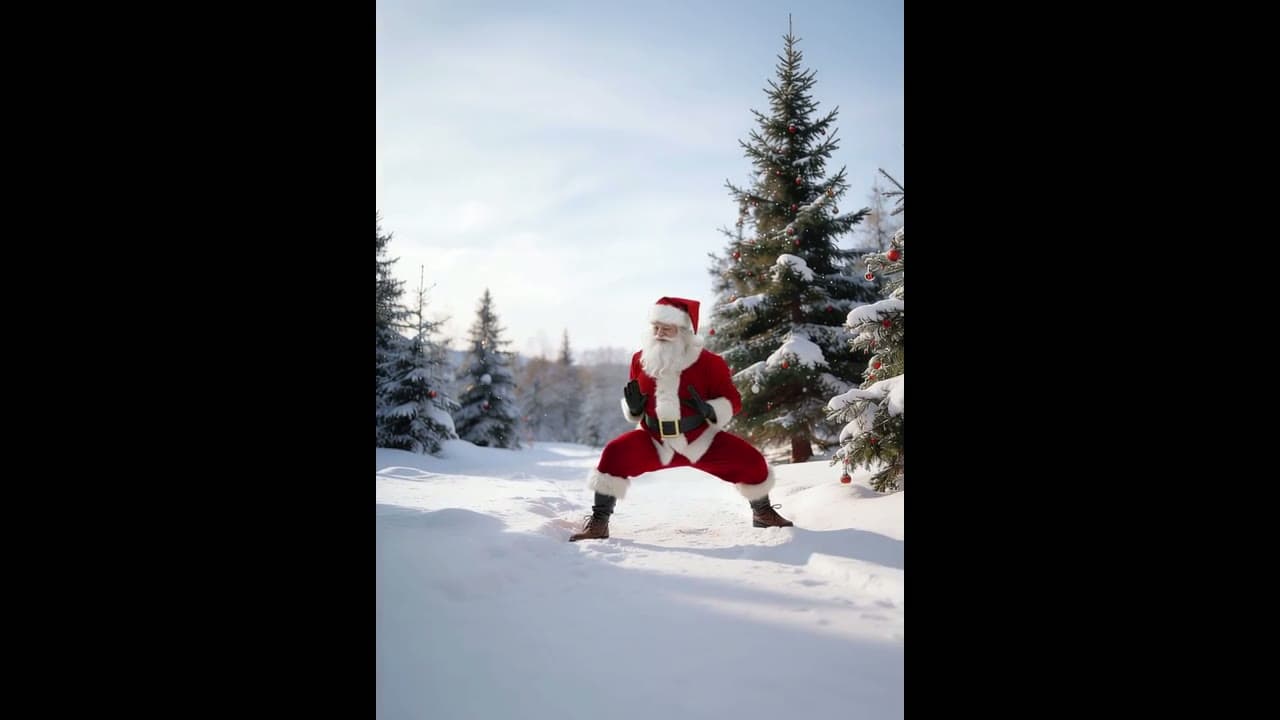
Record the movement once, even on a phone, and add a picture of whoever should perform it. Kling Motion Control on Yovid hands the rhythm, poses and hand work of your clip to that character, in 720p or 1080p.
Their moves, your character
Motion control splits a shot into two uploads. A clip of a real performer settles what happens: every step, turn, wave and pause, on the beat it happened. One picture settles who it happens to: the face, outfit, build and drawing style. Kling Motion Control combines the two into a new clip of your character acting the take out. Reach for it when a movement is easy to film and hard to put into words, like a dance routine, a run of hand signs or a presenter’s gestures.
Nobody has filmed the move yet
Write the action into a prompt and let the model work out the motion from your still, no footage needed.
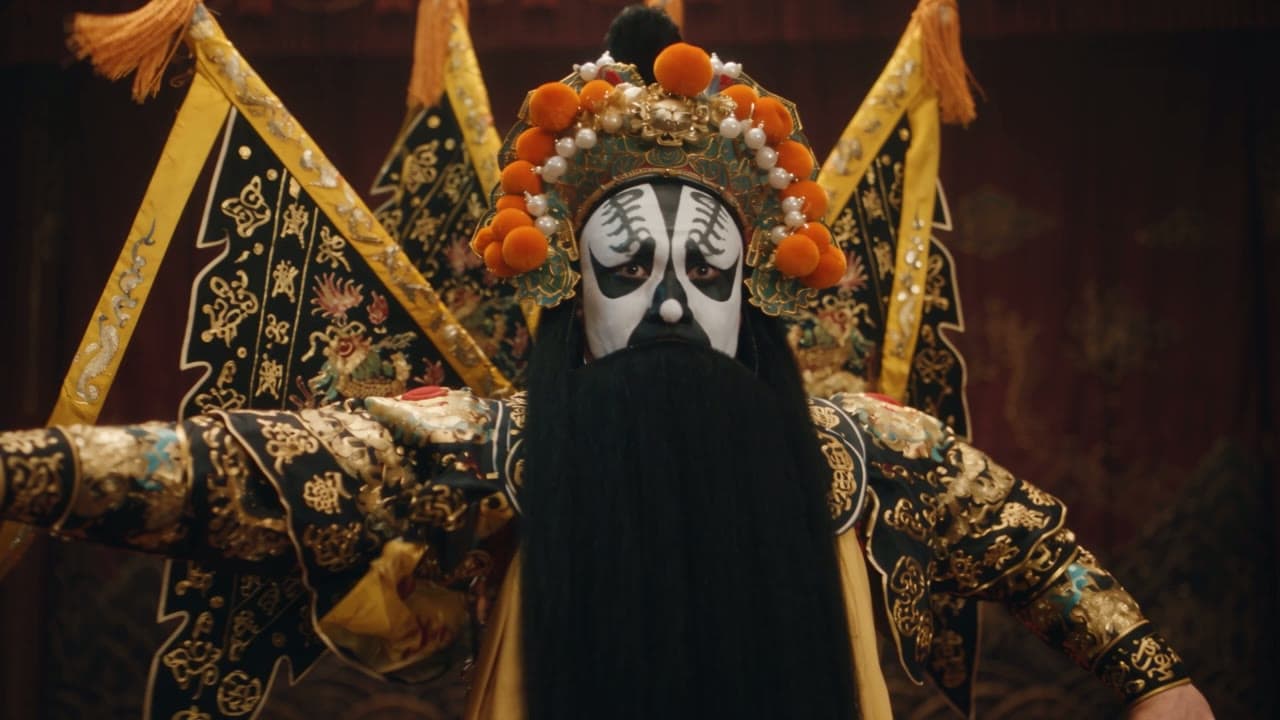
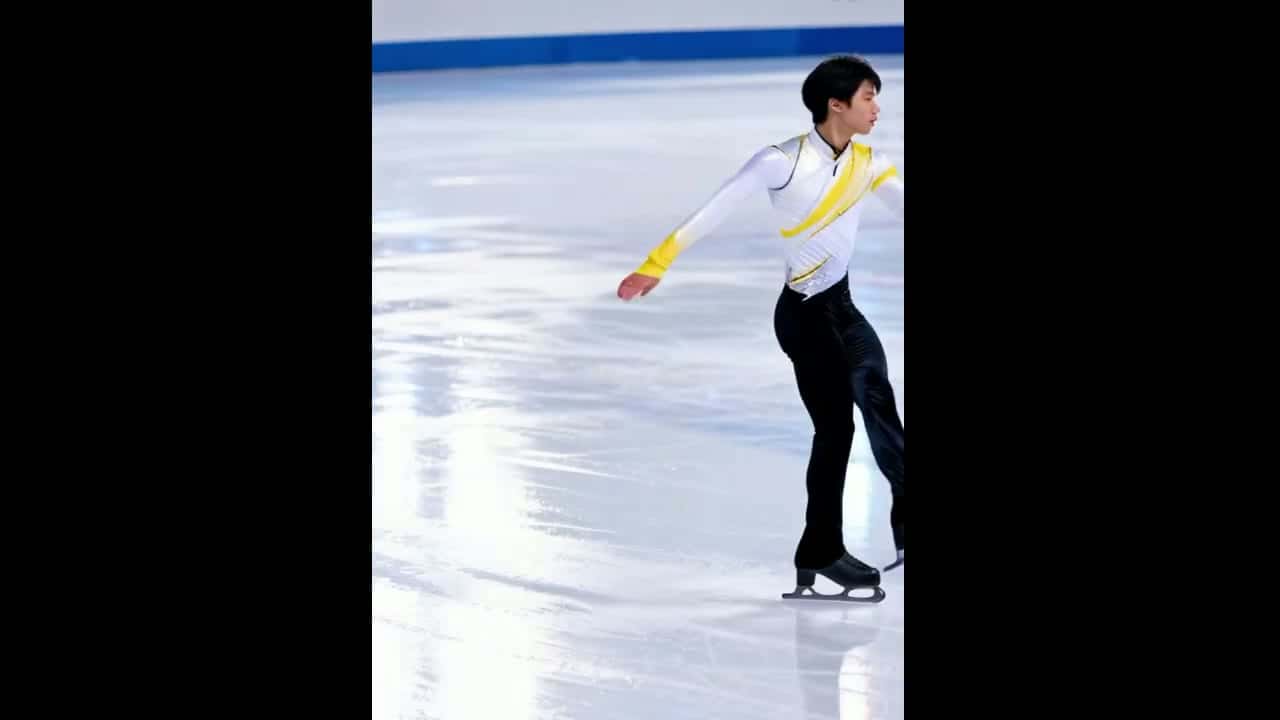
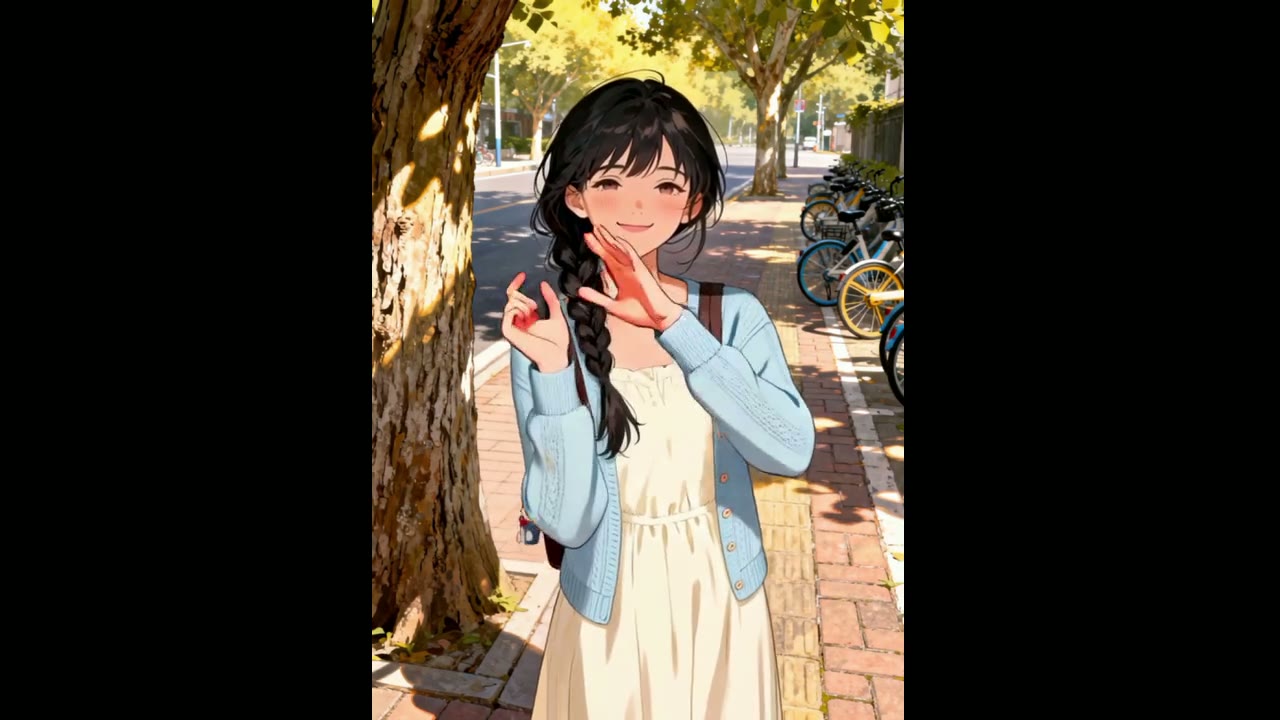
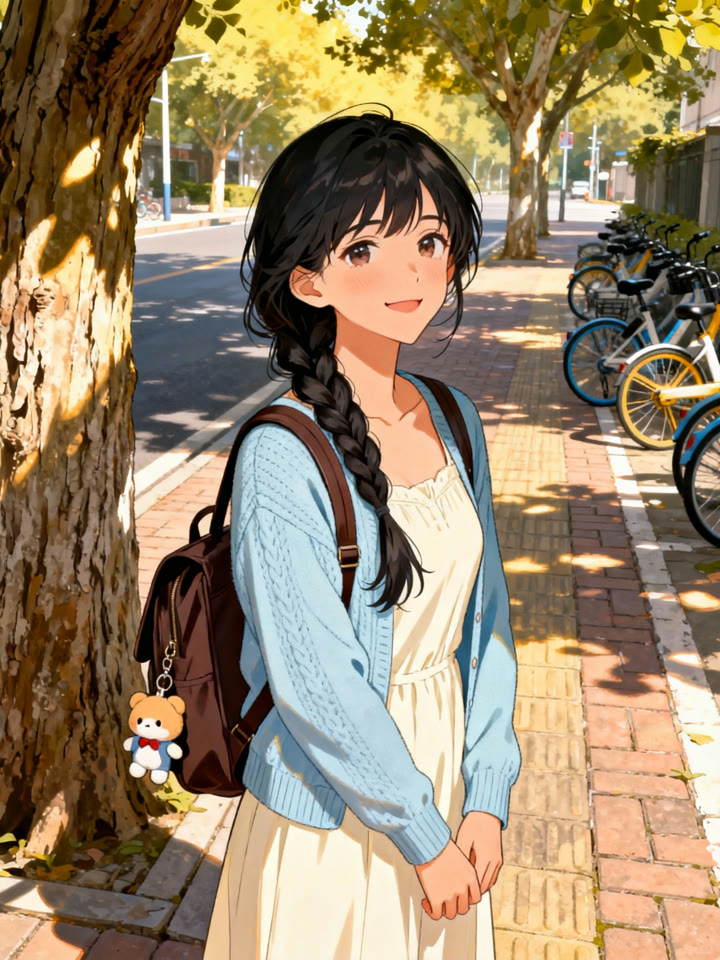
Kling paired footage of a young woman running through a playful hand routine in a park with an illustration of a girl beneath a street tree. In the output the drawing keeps its face, braid and backpack, while every hand shape and the wave that closes the routine land on the same beat as in the footage.
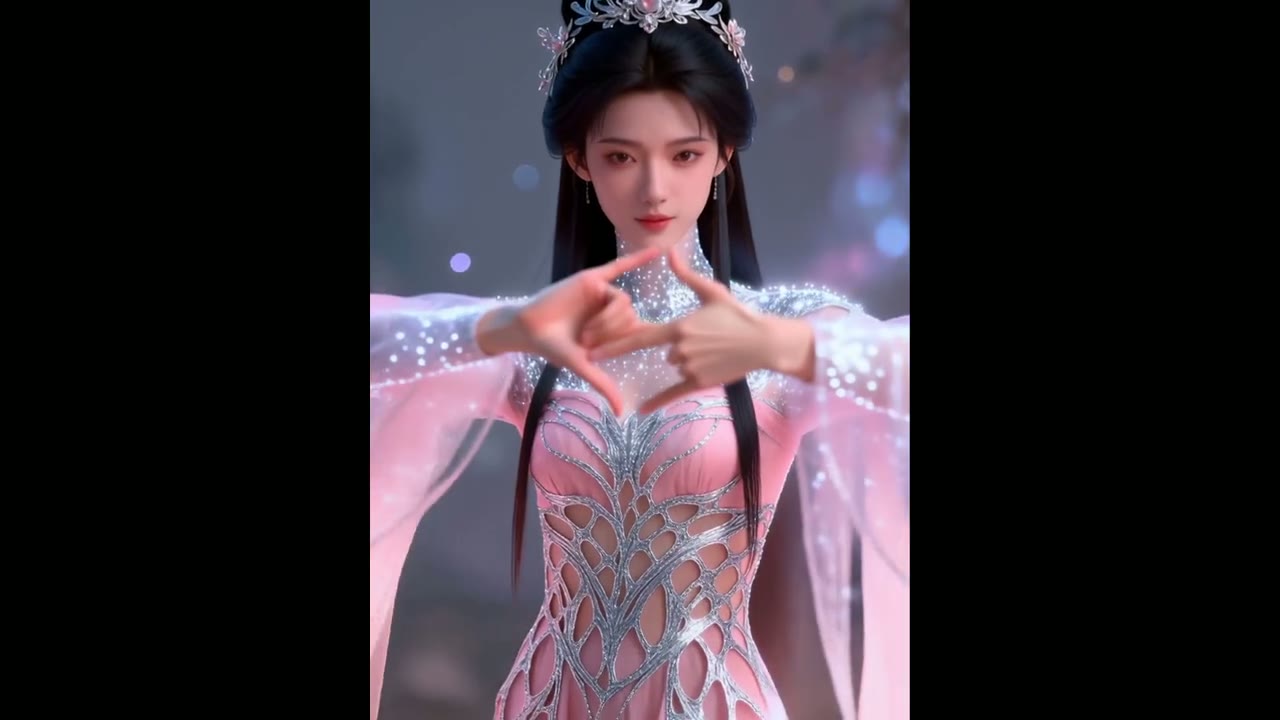
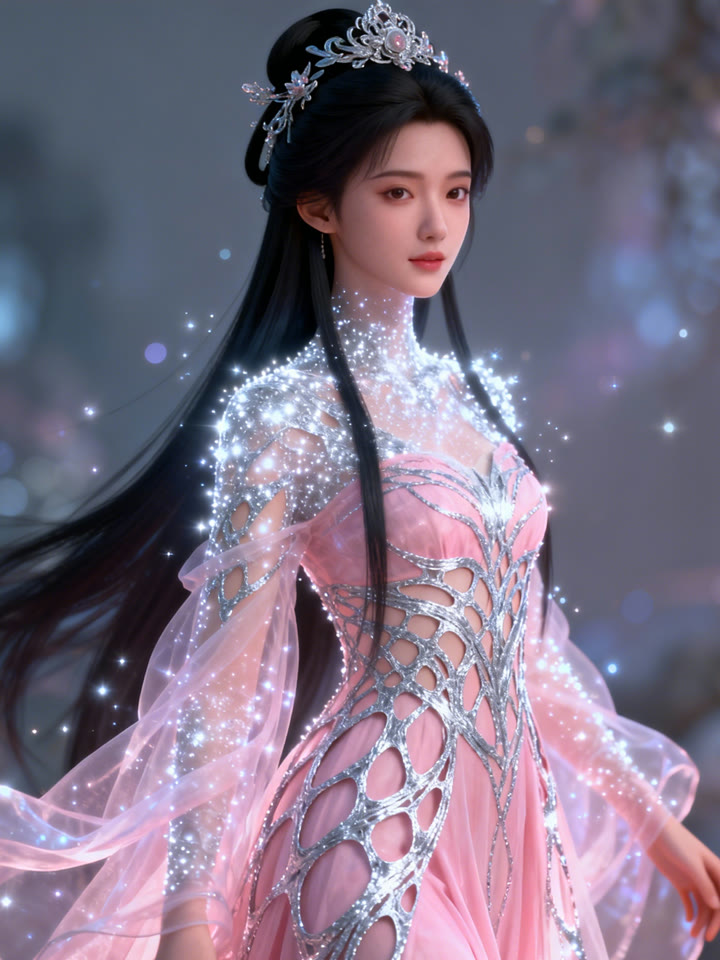
Close-up hand work is the hardest part of copying motion. Here a sequence of hand seals from a performer in white robes is carried over to a woman in a pink gown and a tiara, and the finger shapes are still clear. Choose a still where both hands are in view so the model has fingers to work with.
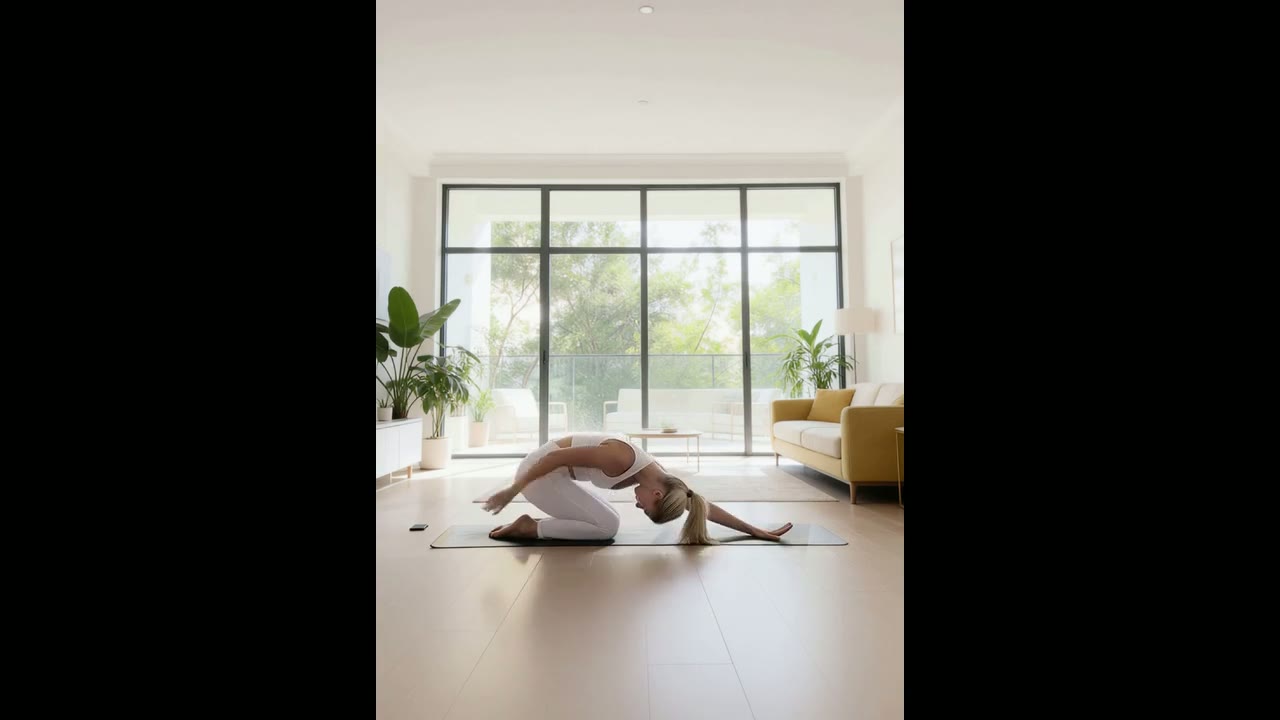
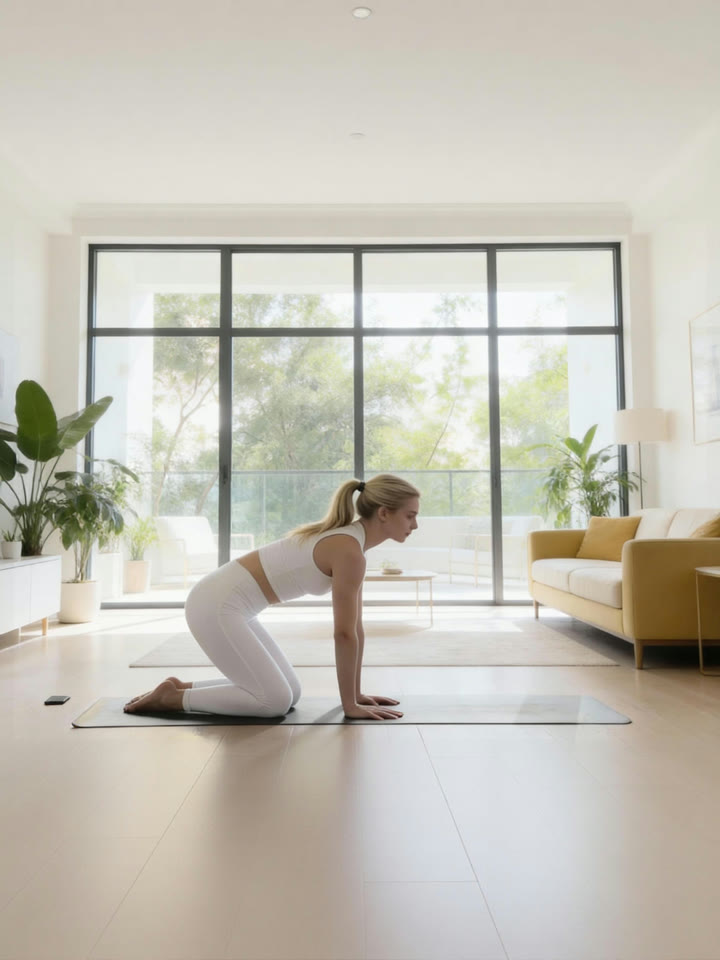
There is no length setting: the output follows your motion clip, up to 30 seconds. Kling’s yoga example moves a whole stretching sequence from an outdoor lawn into a bright living room in one take. On Yovid any clip over 10 seconds needs Character Orientation set to video.
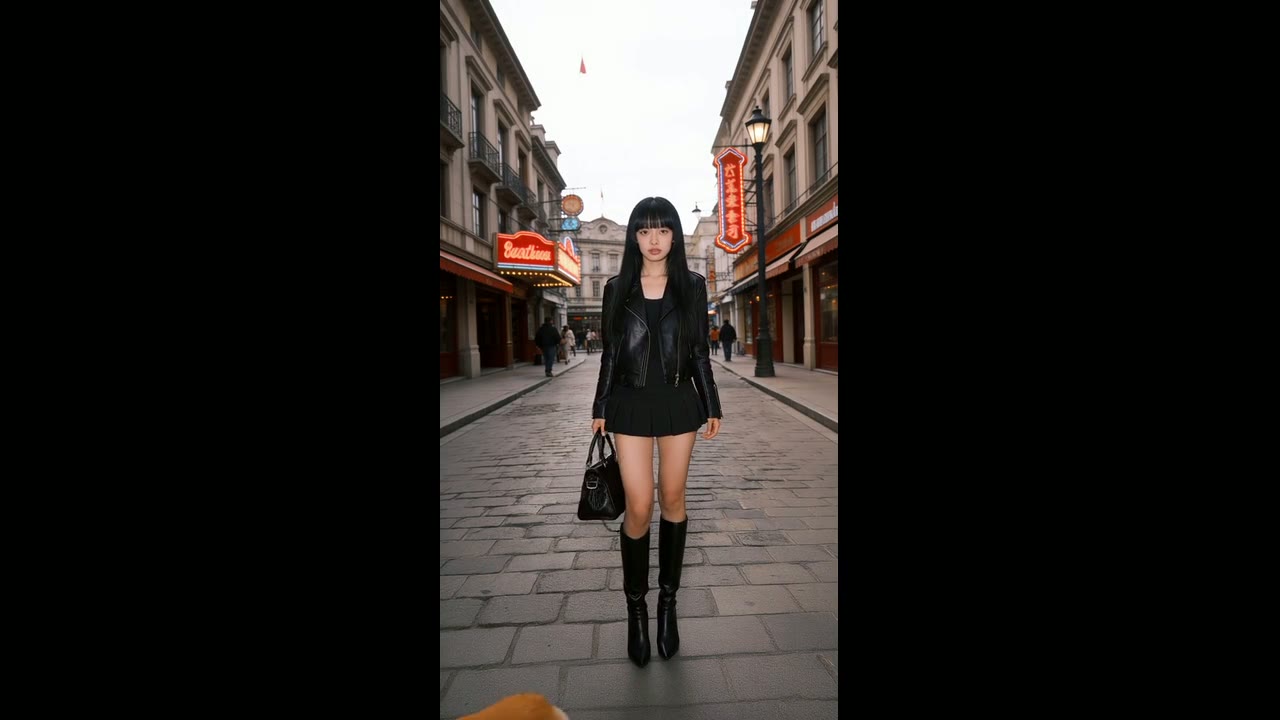
The prompt is optional and never has to describe the moves. Spend it on what the clip cannot supply. Kling added one line to a clip of a woman slowly turning on the spot, and a corgi trots in and circles the character’s feet while her full turn keeps following the reference.
Prompt: A corgi runs in, circling around a girl's feet. (Kling 2.6 Motion Control · 11s)
Character Orientation: image or video
One switch in the composer decides whose framing the result follows, and with it how long your motion clip may run. Yovid starts on image.
Image
Keep the pose of your picture
The character faces the way it does in your still, and the camera takes direction from the prompt: push in, pull back, rise, lower or stay put. Motion clips can be 3 to 10 seconds. Best for gestures, speaking and dances that stay front-on.
Video
Follow the performer around
The character turns, travels and is framed as the performer was. Motion clips can be 3 to 30 seconds. Pick it for spins, walks across the frame, full-body choreography and anything longer than 10 seconds.
Kling Motion Control on Yovid: rates and access
The two models accept the same files and clip lengths; they differ in rate and in which purchases unlock them. Every figure comes from the generator’s own pricing, so a rate change shows up here too.
Kling 3.0 Motion Control and Kling 2.6 Motion Control on Yovid: list credits per second at 720p and 1080p, credits for a 10-second clip at 720p, motion clip length, and the subscriptions and credit packs that run each model
A run is billed on the seconds of your motion clip; the figures above are list rates. Your plan changes them when you generate, and not by the same amount for both models: on some subscriptions Kling 2.6 Motion Control ends up dearer than Kling 3.0 Motion Control, so check the quote in the composer. Failed generations are not charged.
Use cases
Film it yourself, cast someone else
Trends without your face
Record a trend’s moves at home, then post them performed by an avatar or a drawn persona instead of yourself.
A mascot with a presenter’s moves
Give a 3D or illustrated brand character the gestures of a real person, with no rigging or keyframes.
Blocking before animation
Act a scene out on a phone and watch it played by the final character design before an animation pass.
Seasonal greetings
Turn one recorded routine into a card-ready clip starring Santa, an elf or your team’s mascot.
Choose Kling 3.0 or Kling 2.6 Motion Control, then upload one JPG or PNG of the character: 10 MB at most, 300 px or more on each side, between 2:5 and 5:2, with every limb that will move in view.
Step 2
Attach the motion clip
Add one MP4 or MOV of the movement, 3 to 30 seconds and up to 100 MB, then set Character Orientation: image for clips up to 10 seconds, video for anything longer.
Step 3
Prompt if you like, then generate
Optionally describe the backdrop, extra details or a camera move in up to 2,500 characters, choose 720p or 1080p, check the credit quote and generate.
A way to animate a character by example. You upload a picture of the character and footage of a person moving, and the model generates the character performing that movement. Yovid runs it on two models from Kuaishou: Kling 3.0 Motion Control and Kling 2.6 Motion Control.
How do I make a motion control video on Yovid?
Open the generator on a Kling Motion Control model, add a character image and a motion clip of 3 to 30 seconds, set Character Orientation, write an optional prompt, pick 720p or 1080p and generate. The Generate button stays locked until both files are in, and the credit cost shows before you confirm.
Is motion control free?
No. Free sign-up credits cover the entry models, not motion control. Kling 3.0 Motion Control needs a Lite, Pro or Premium subscription; Kling 2.6 Motion Control also runs on the Creator, Studio, Max and Agency credit packs. The Starter pack unlocks neither. Every purchase that does is watermark-free, so motion control results never carry one.
How many credits does motion control use?
You are billed for the seconds in your motion clip. At list rates Kling 3.0 Motion Control takes 3 credits a second at 720p and 4 at 1080p; Kling 2.6 Motion Control takes 2 and 3.2. A 10-second clip at 720p is therefore 30 or 20 credits before your plan adjusts it, and the composer shows the exact figure.
How long can a motion control video be?
The output matches the motion clip, which can run 3 to 30 seconds when Character Orientation is on video and up to 10 seconds when it is on image. Kling notes that very fast or complicated movement can come back a little shorter than the upload.
Kling 3.0 or Kling 2.6 Motion Control: which should I pick?
They take the same files and lengths. Kling 3.0 Motion Control is the later release, and Kling credits it with steadier faces through turns, changing angles and long takes. Kling 2.6 Motion Control has the lower list rate and also runs on larger credit packs. Plan pricing treats the two differently, so compare the composer’s quote on your plan.
Does the result keep the sound?
Yes. The audio of your motion clip passes through, so a dance stays on its music. Neither model writes new sound; for generated audio, use a model such as Seedance 2.5 or Kling 3.0 in text or image to video.
Can the character be a cartoon or a painting?
Yes. Performer and character need not share a style: Kling’s examples drive illustrated, 3D and ink-wash characters with ordinary footage. Results are most dependable when the character has a roughly human build.
Why won’t my motion control video start or finish?
Check that both files are attached, that the clip lasts at least 3 seconds and stays within its orientation limit (10 s for image, 30 s for video), and that the picture is a JPG or PNG under 10 MB and the clip an MP4 or MOV under 100 MB. The model provider can also refuse real people’s faces and protected characters. Failed generations are not charged.
 1
 Kling 2.6 Motion Control
 Kling 3.0 Motion Control