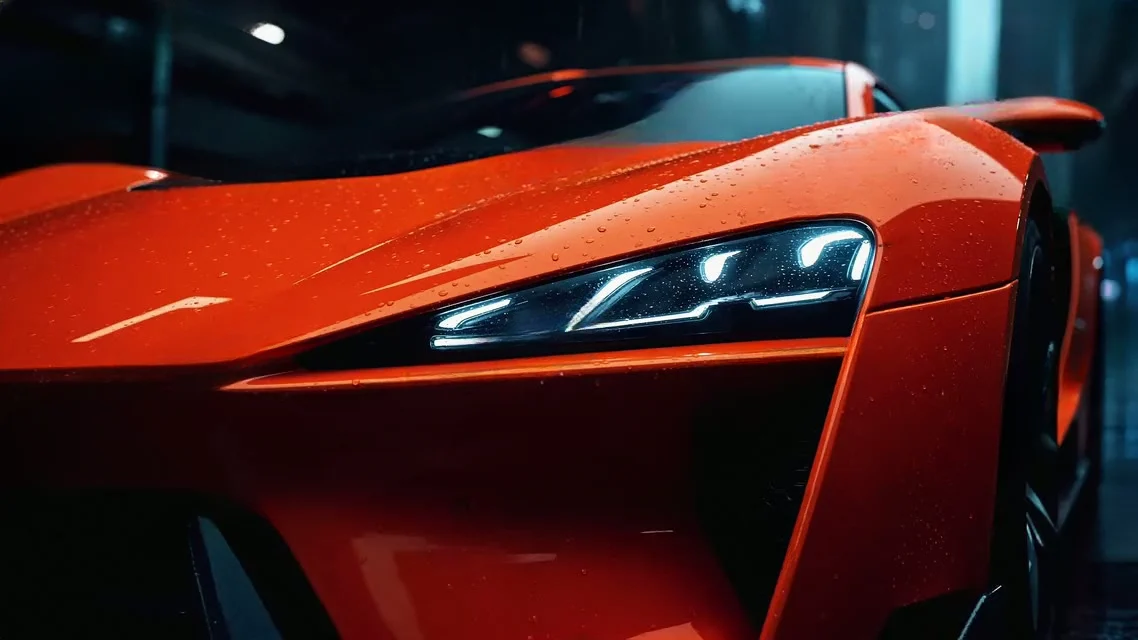
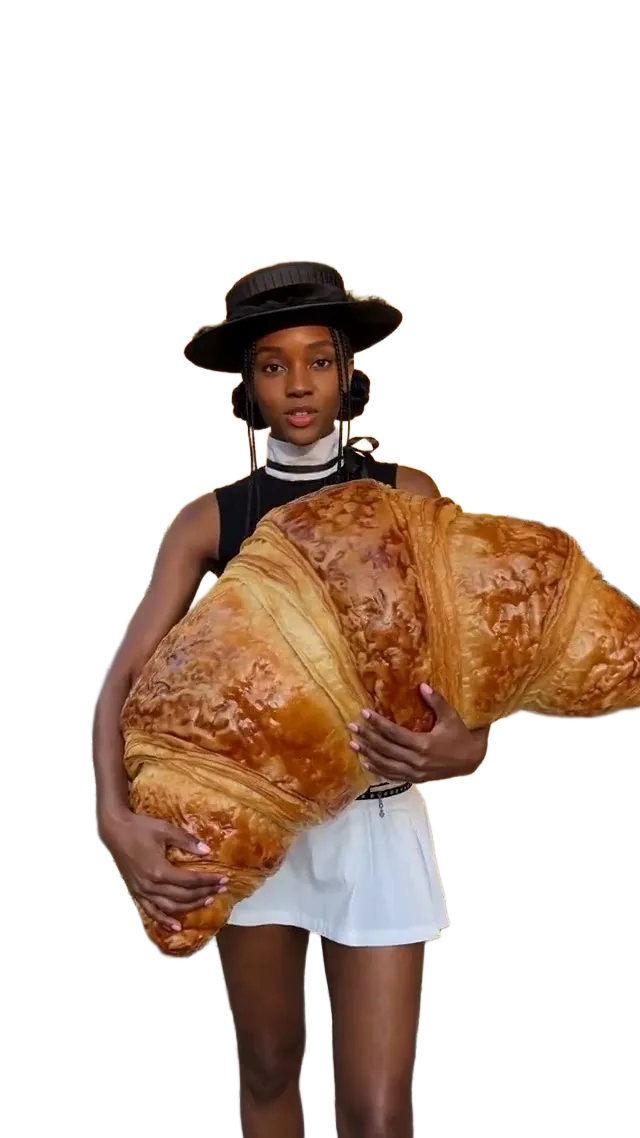
Free AI Image Extender: Uncrop and Expand Photos Online

Change a photo’s shape without cropping it. Choose 16:9, 9:16, 1:1, 4:3, 3:4 or Zoom out, and the AI paints the missing edges in the same light and texture. New accounts get free credits; each image costs 1 credit.
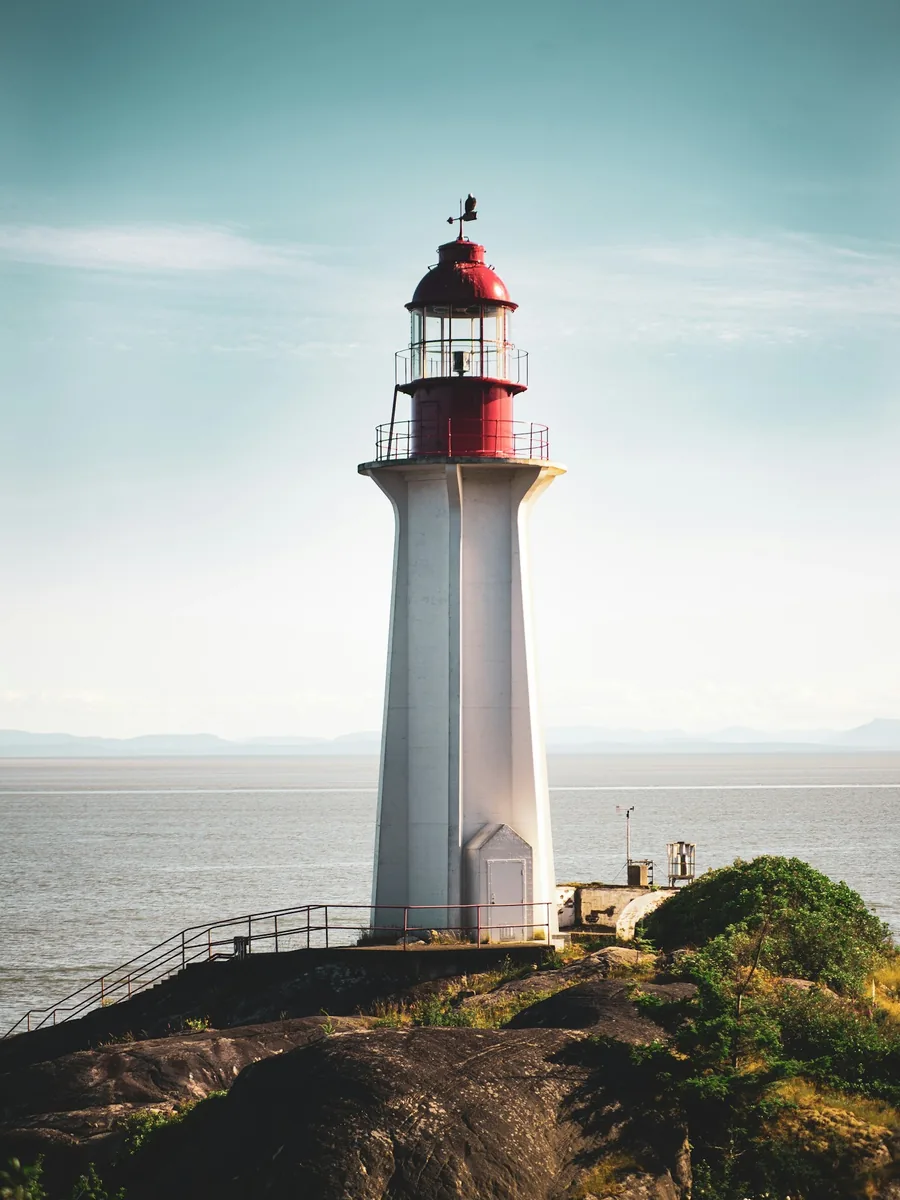
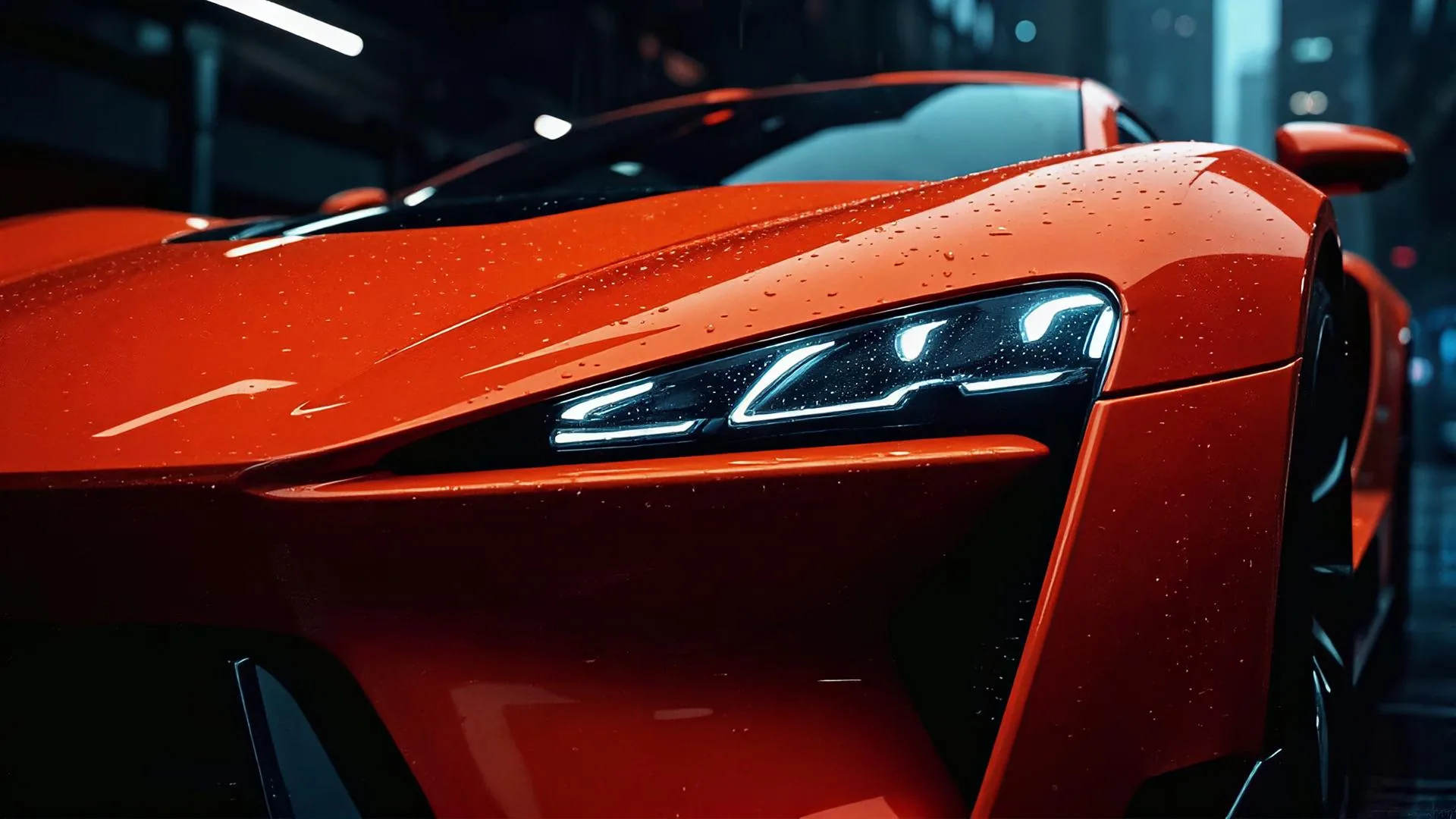
Result
Original
OriginalResultExample

Outpaint Beyond the Original Frame

Fitting a photo into a new format normally means trimming part of it off. Yovid’s image extender goes the other way: the whole picture stays, and fresh content is generated around it to match its light, colour and grain. Pick a target ratio or Zoom out, and download the larger frame.

Your photo stays whole

The original sits untouched in the centre of the new canvas; only the added margins are generated.

See it before you spend

The canvas marks where the new edges land and shows the final size, so there are no surprises when you press Extend.

One credit per image

Most runs finish in 10 to 20 seconds. When a run fails, its credit is returned straight away.

01

Make Portrait Shots Landscape

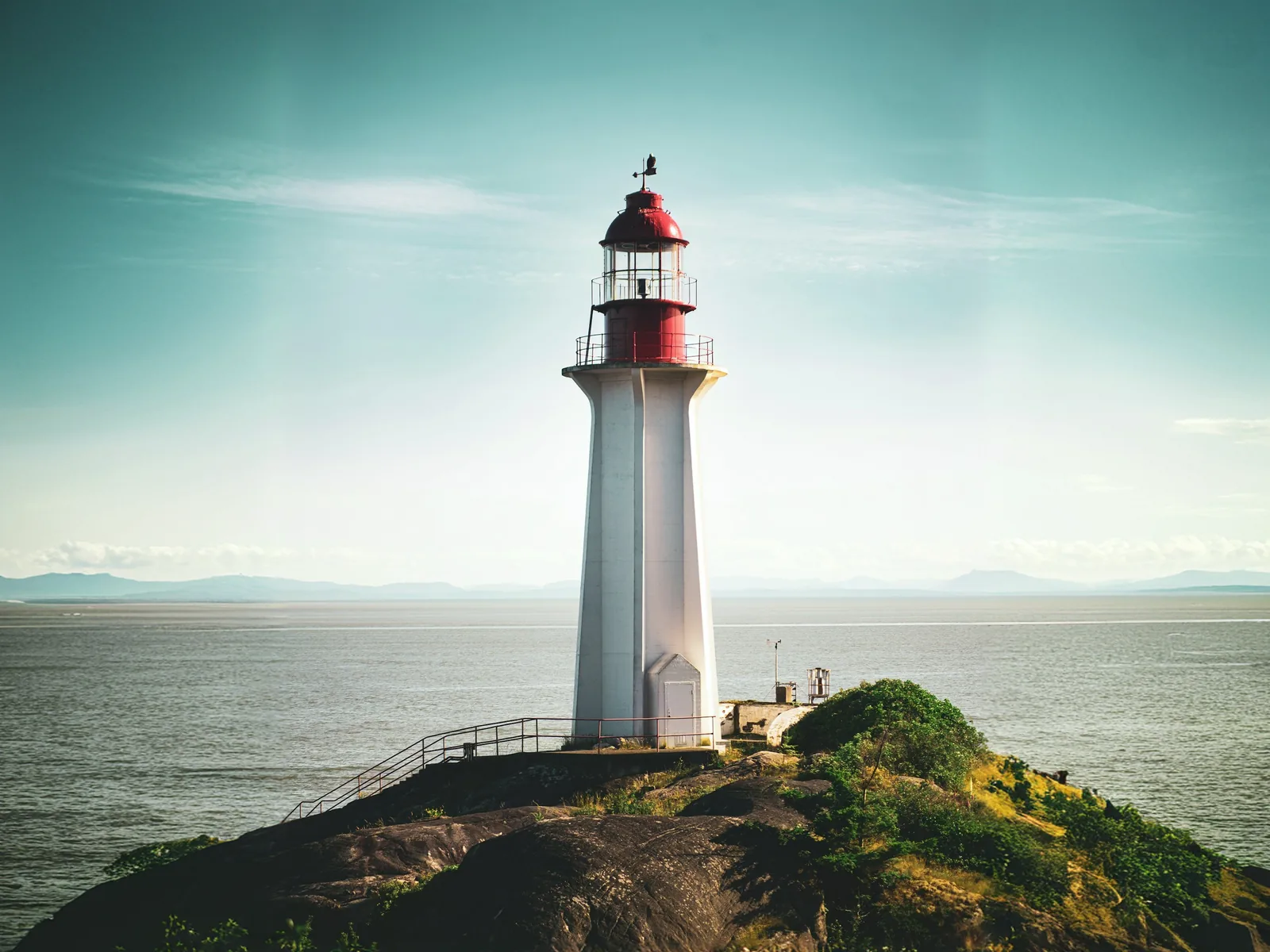
Select 4:3 or 16:9 and scenery grows on both sides, so a vertical phone picture fits a presentation, website header, video thumbnail or desktop background with the subject still fully in frame.

02

Square Up a Wide Shot

Select 1:1 and the extender adds sky on top and ground underneath, turning a panorama into a square for feeds and product grids while every part of the original scene stays visible.

03

Stretch Square Posts into Vertical Stories

Select 9:16 and a square image becomes a full-height story, Reel or Short. The picture carries on above and below, so you can skip blurred bars and solid-colour padding.

04

Zoom Out for Breathing Room

Zoom out adds an even margin all round, as though the camera had stepped back. It frees space for a headline, rescues a crop that touches the edges, and gives you a wider starting frame for a slow push-in in a video.

What People Extend Images For

Whenever a picture has the wrong proportions for its destination and a crop would lose something important.
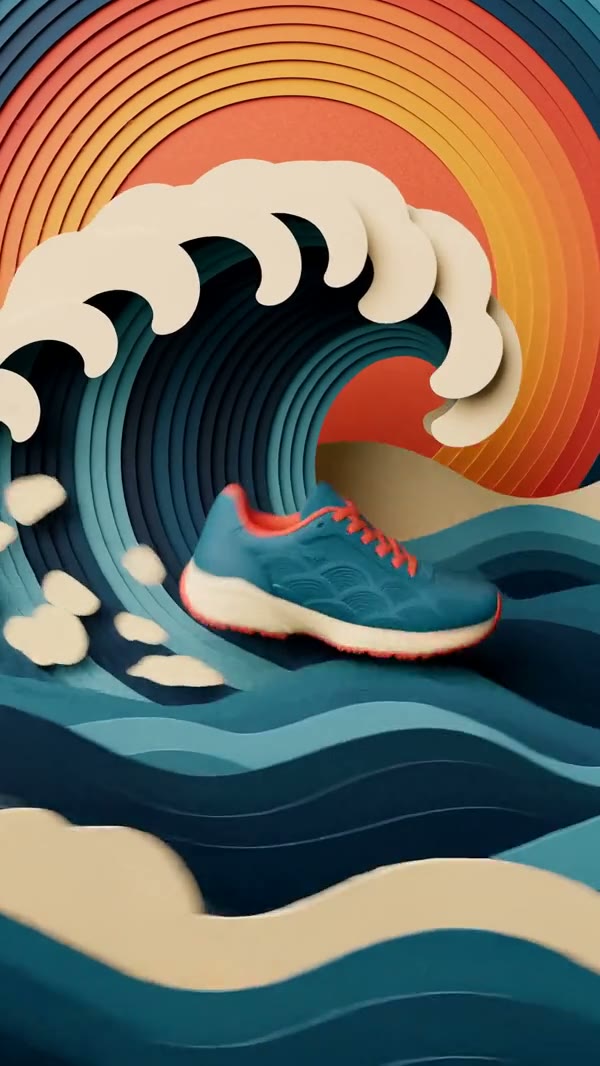
Thumbnails and decks

Thumbnails and decks

Take phone pictures out to 16:9 for video covers, slides and site banners.
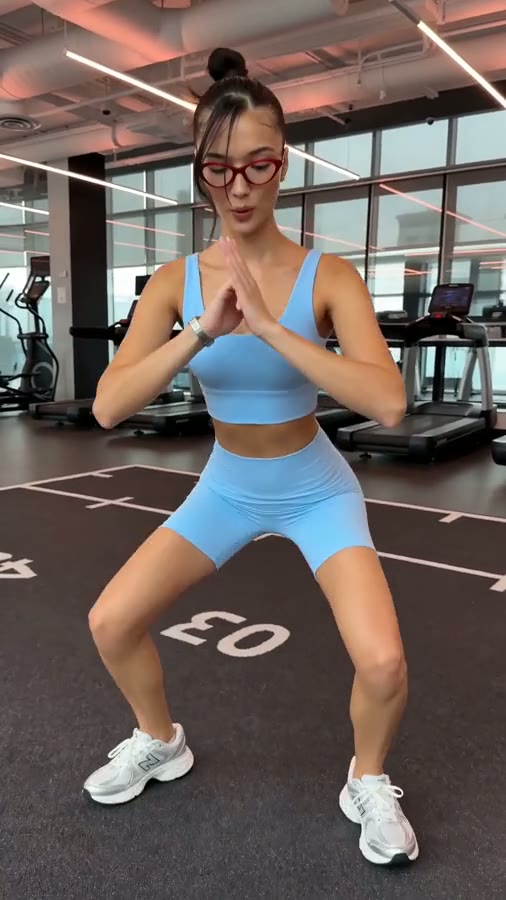
Vertical social formats

Vertical social formats

Grow square or wide shots to 9:16 so they fill a phone screen edge to edge.
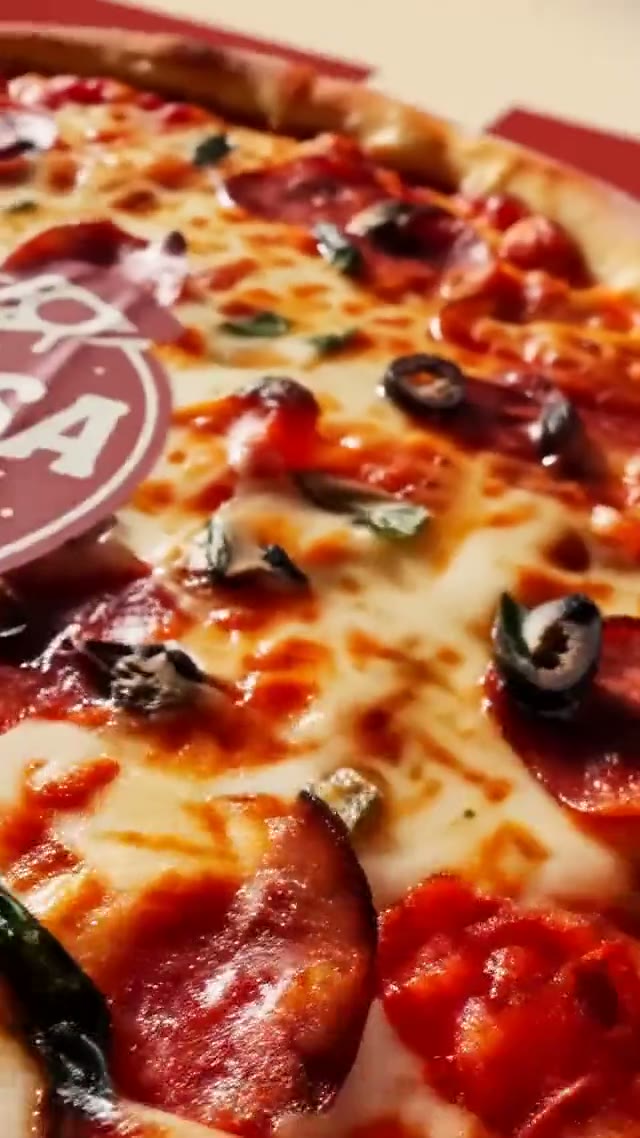
Feeds and catalogues

Feeds and catalogues

Turn any picture into a 1:1 tile for a feed or a product grid without cutting the subject.
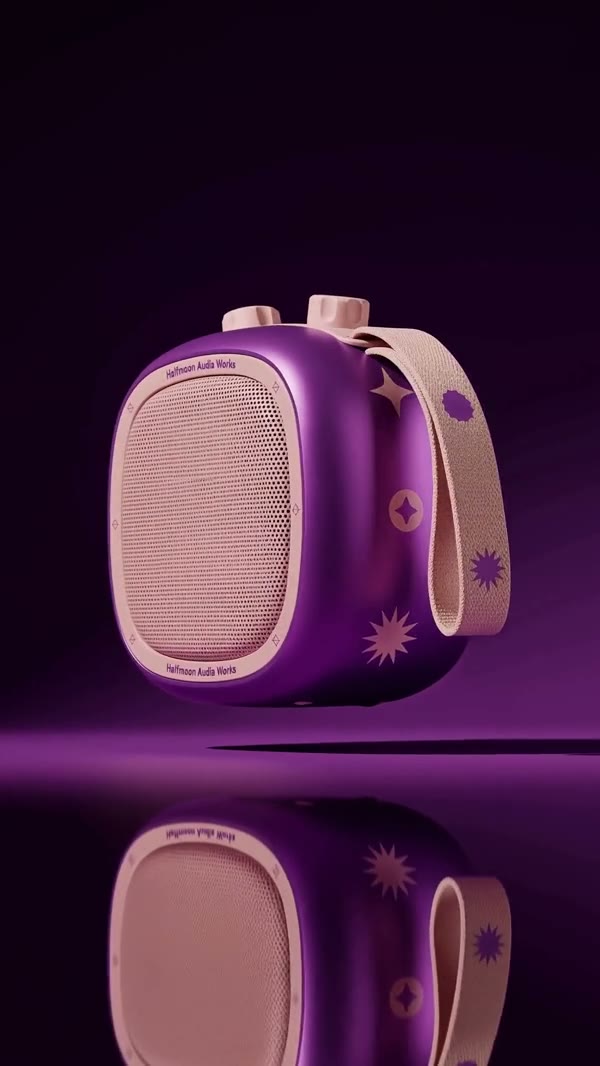
Opening frames for AI video

Opening frames for AI video

Reshape a still to the ratio your clip needs, then use it as the first frame in a video generation.

Extend an Image in Three Steps

It all happens in the editor at the top of the page, and each result is kept in My Assets.

  1. 1

    Add your photo

    Click the upload area, drop a file in or paste from your clipboard. JPG, PNG or WebP, 20 MB max.

  2. 2

    Choose the shape

    Landscape, portrait, square or Zoom out. The canvas outlines your photo inside the new frame and shows the final size.

  3. 3

    Extend and save

    Press Extend, flip between original and result, then download it or keep extending.

Image Extender Questions

How uncropping works, what it costs and how to get extensions that blend in.

Updated:

Also known as an uncrop or outpainting tool, it enlarges the canvas of a photo and fills the new space with generated content. Nothing from your original is cut away; the added margins are drawn to continue the scene, so you get a different shape without losing any of the picture.

Yes. Every new Yovid account receives free credits and one extension costs 1 credit, which covers several images before you pay anything. Failed runs are refunded automatically, and you can top up on the pricing page when you need more.

The AI reads the colours, lighting, textures and lines along each edge of your photo and continues them outward, smoothing the join so the new area looks like part of the same shot. You set the target shape, and the canvas previews where the new borders will be.

JPG, PNG and WebP, 20 MB at most. Photos, packshots, illustrations and AI-generated images all work. If either side exceeds 2560 px, the source is shrunk before extending.

For most photos, yes. Edges that continue easily, such as sky, water, walls, fields or fabric, extend most convincingly. If the border cuts through a face, hand or sign, the missing part must be imagined from scratch, so look closely at those spots and run again if needed.

No. The tool cannot see what the camera missed; it paints a believable continuation. Use it to complete a composition or fit a format, not to reveal hidden details.

That follows from the shape you pick: 16:9 and 4:3 add width, 9:16 and 3:4 add height, 1:1 grows the shorter dimension, and Zoom out adds an equal margin on all four sides. Extend the result again to keep growing in the same direction.

A single run adds no more than 40% of the shorter side to each edge. A very tall image may need two passes to reach 16:9; the note under the canvas warns you beforehand, and Keep editing this result picks up where the last run stopped.

Start from the biggest, sharpest version you have and keep the subject away from the borders. Simple, continuous backgrounds give the most natural results. For a larger final file, enlarge the extended image with the image upscaler.

Designers, marketers and creators use it to adapt one photo to many placements, from video thumbnails and 9:16 stories to square posts and banners, and to prepare opening shots for the AI video generator. Check fine detail near the old borders before publishing.

Press Download as soon as the run finishes. Each result is also saved in My Assets, so you can grab it later or reopen it here to extend further.

AI image extender

Give Every Photo the Right Shape

Add a photo, choose 16:9, 9:16, 1:1, 4:3, 3:4 or Zoom out, and save the bigger frame.

Upload a Photo