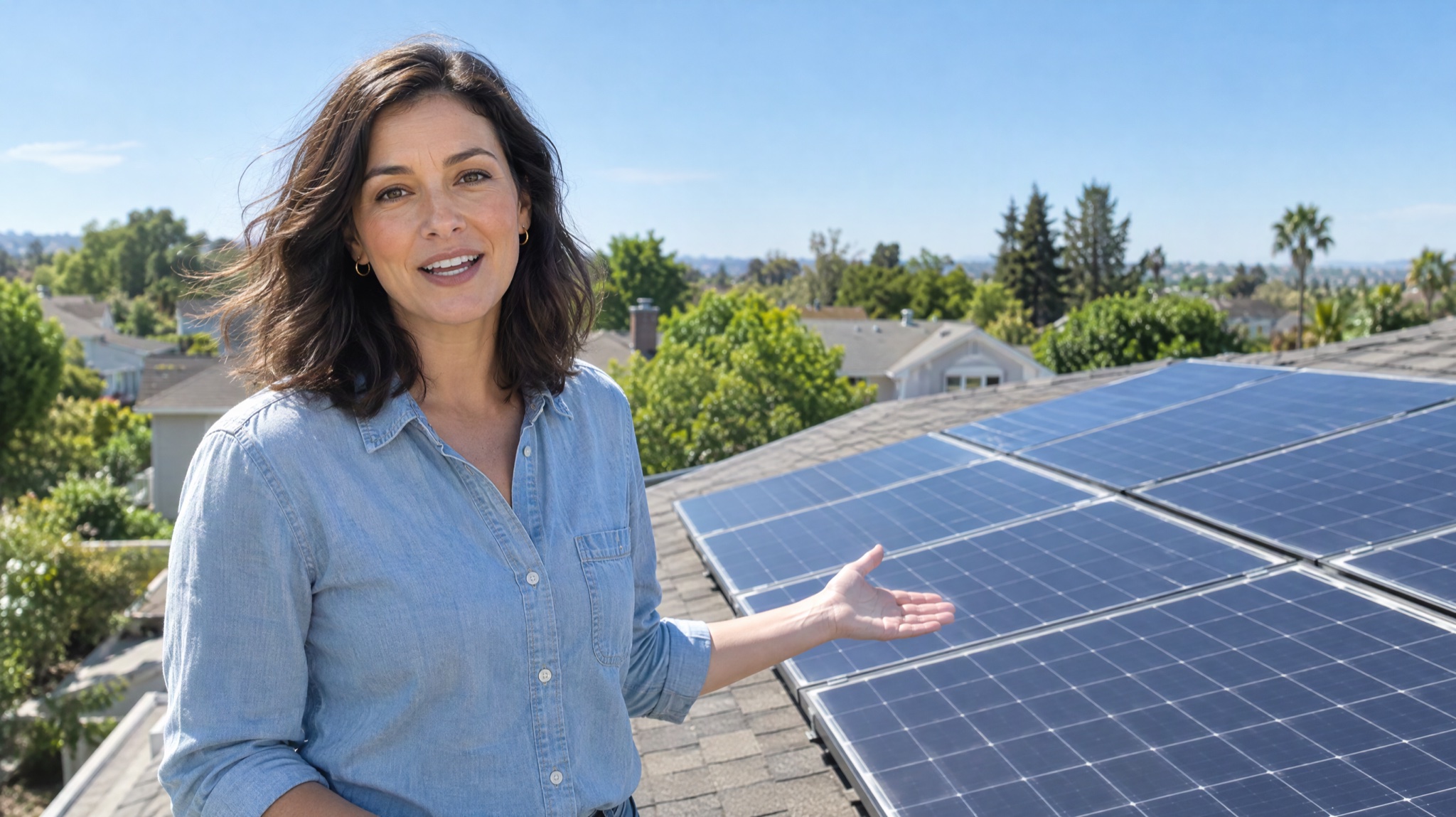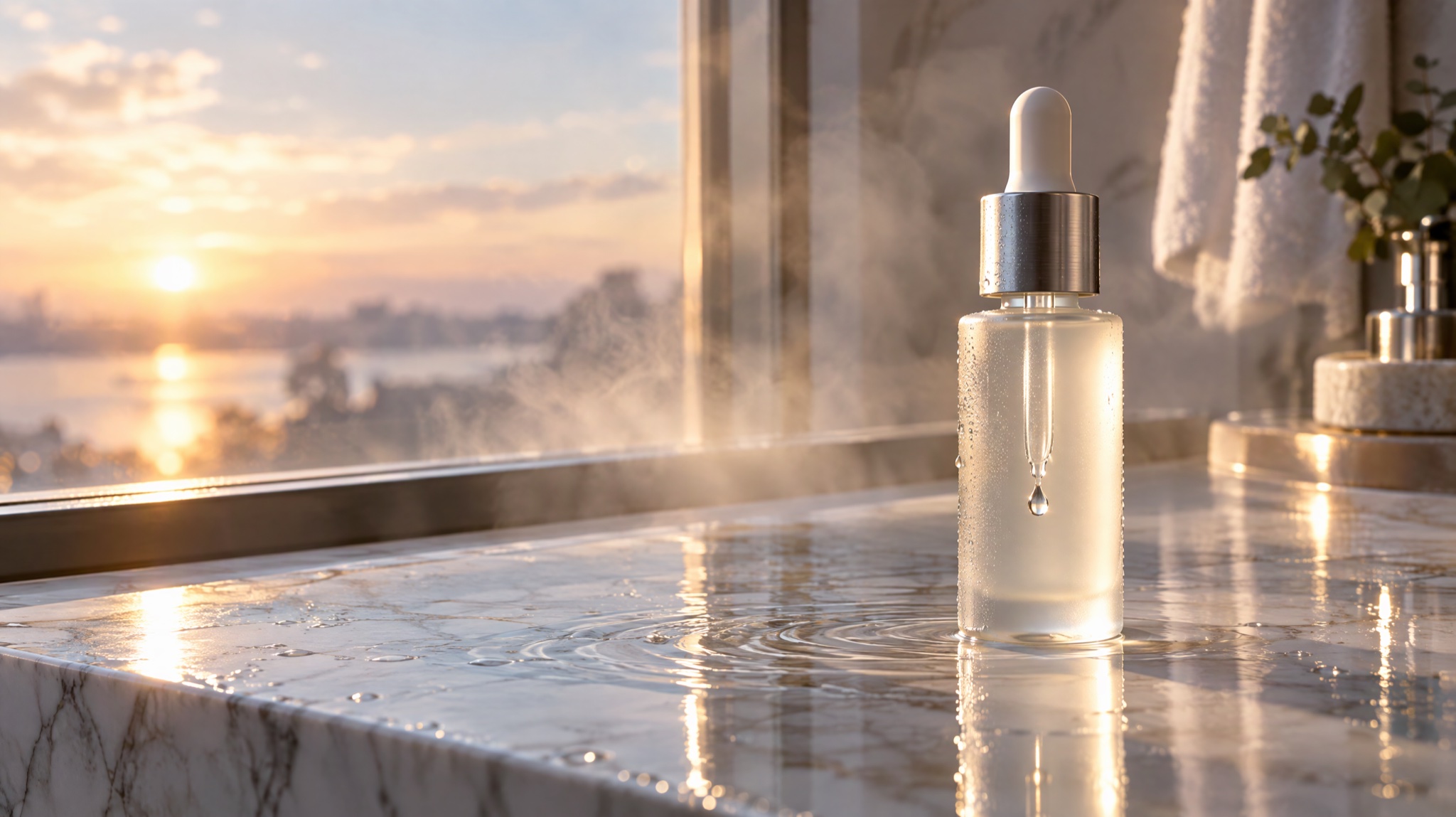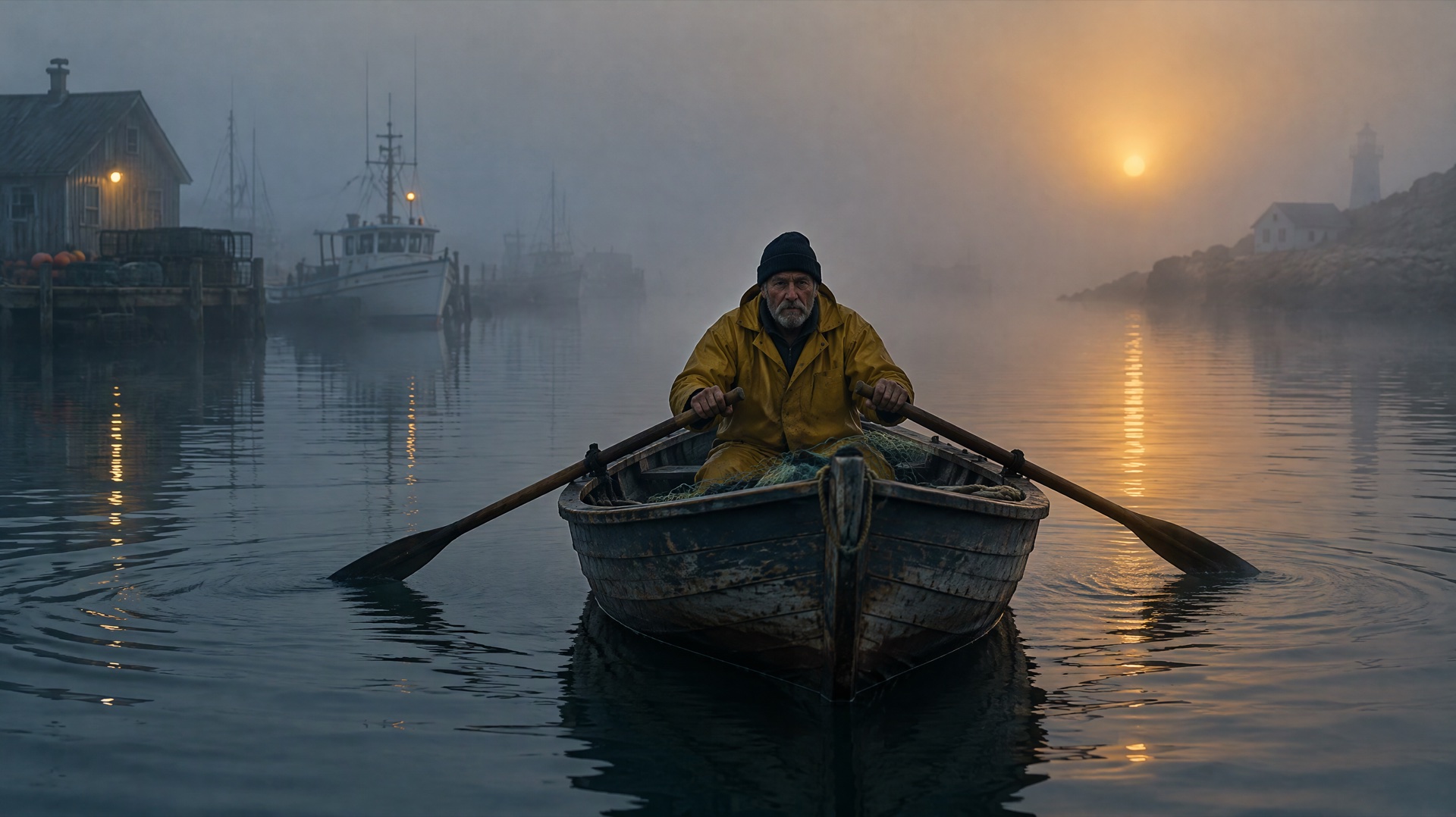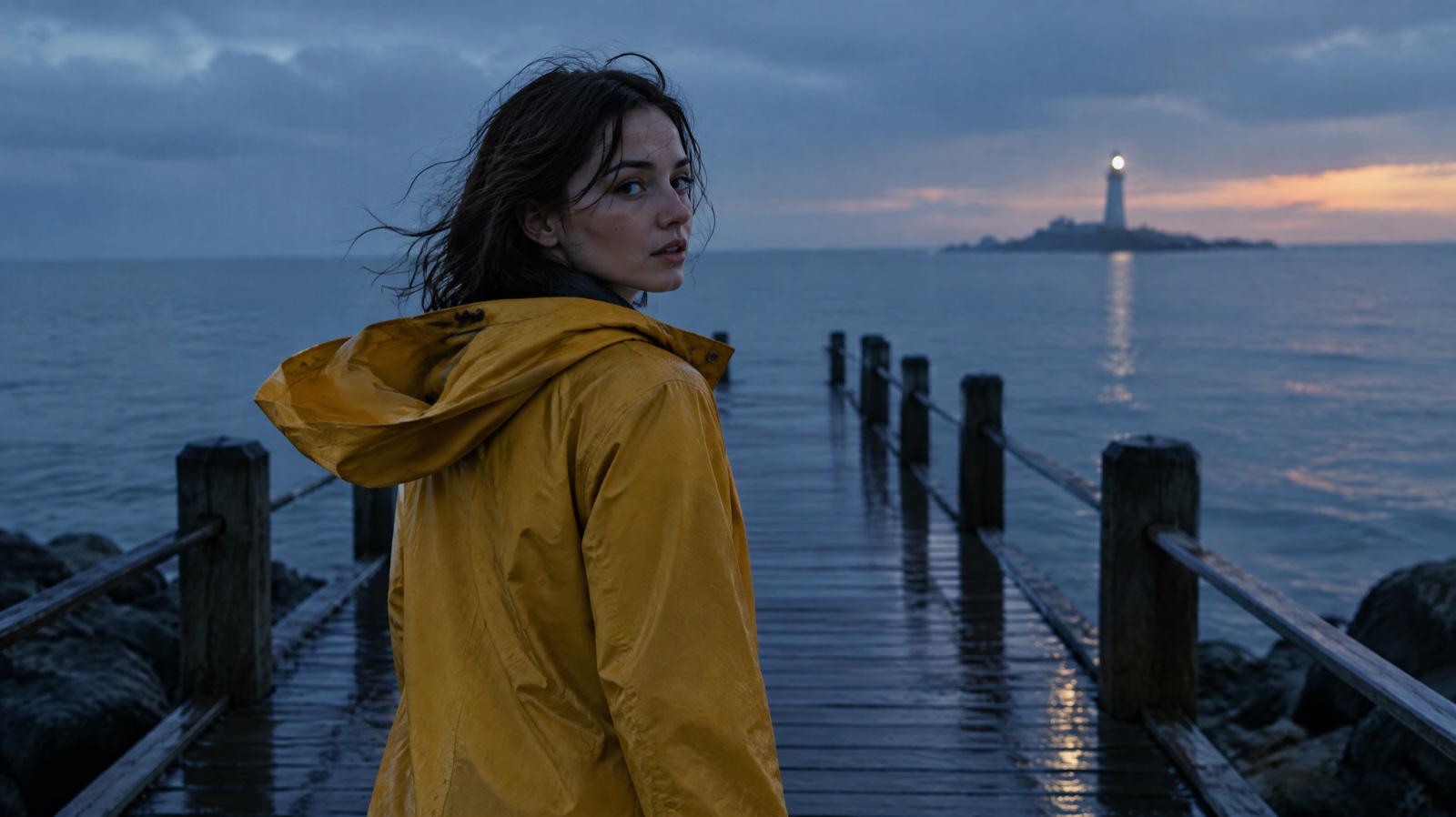
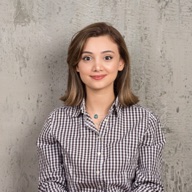
Direct answer: To turn a photo into a video with Kling 4.0, do three things. First, pick a sharp photo in the frame shape you want, because the clip takes its aspect ratio from that first frame. Second, choose a length from 3 to 30 seconds and 720p or 1080p, then write a prompt about what moves, how the camera moves and what the clip sounds like, not about what is already in the picture. Third, test at 5 seconds and 720p, change one thing per rerun, and only then render the long or 1080p version. Add an optional last frame when the shot has to end somewhere specific. Most failures come from the source photo or the prompt: a small or side-lit face drifts, a busy or compressed background flickers, and a prompt that only describes the scene gives you a near-still clip.
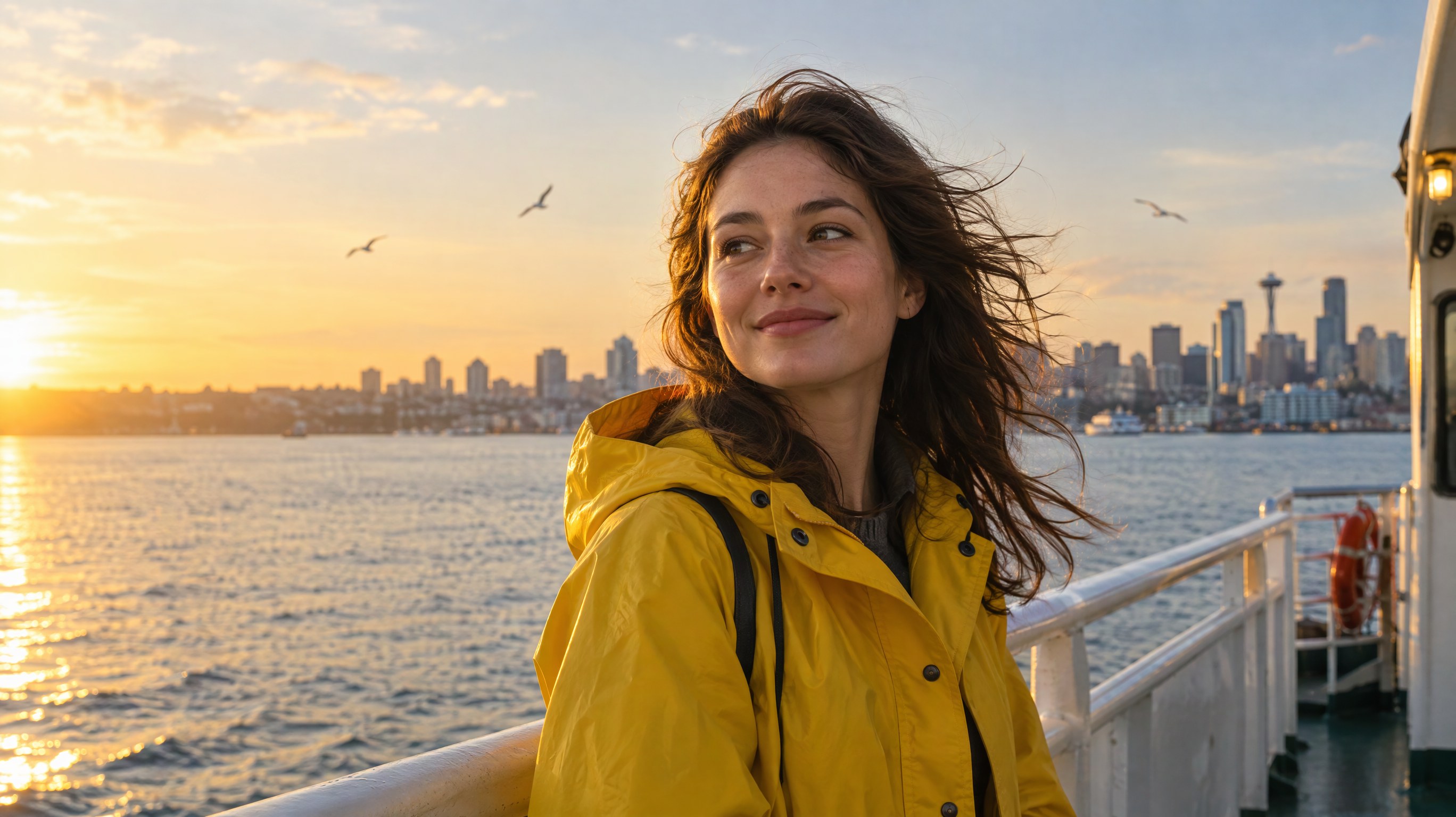
Image prompt: Cinematic photograph, a young woman in a bright yellow raincoat stands at the rail of a small ferry crossing a harbor at golden hour, her hair lifted by the wind, a city skyline and calm water behind her, she looks slightly off camera with a soft smile, warm low sun from the left, medium shot framed at chest height with open sky above her head, natural skin texture, 35mm lens look, shallow depth of field.
Last verified: 2026-11-18. Model facts come from Kling's Kling 4.0 user guide; lengths, resolutions and credits come from Yovid's generator settings on the same day.
Kling 4.0 image to video settings at a glance
| Setting | Kling 4.0 image to video |
|---|---|
| Input | One first frame, plus an optional last frame |
| Aspect ratio | Follows the first frame you upload |
| Length | 3 to 30 seconds, in whole seconds |
| Resolution | 720p or 1080p |
| Sound | Always generated, in stereo: dialogue, effects, ambience, and music if you ask for it |
| Speech languages listed by Kling | Chinese, English, Japanese, Korean, Spanish, Portuguese, German, French, Hindi |
| Prompt length | Up to 2,500 characters |
Step 1: choose the right photo for Kling 4.0 image to video
The photo decides more than the prompt does. Kling 4.0 keeps the look of your first frame and invents only the motion, the camera path and the sound, so every problem in the photo carries into the clip.
Check these five things before you upload:
| Check | Why it matters for Kling 4.0 image to video |
|---|---|
| Frame shape | The clip copies the first frame's aspect ratio. Crop to 16:9, 9:16, 1:1 or 21:9 before you upload, not after. |
| Subject size | A face that fills a good part of the frame keeps its identity better than a small face in a wide shot. |
| Room to move | Leave space in the direction of the motion: sky above a head that will turn, floor in front of a subject that will walk. |
| Sharpness | Use the largest, least compressed version you have. Blocky JPEG noise and blur turn into shimmer once things move. |
| Lighting | Even, readable light on the subject. Hard shadows across a face give the model less to hold on to. |
The ferry photo above works well as a first frame: the face is large and lit from the front-left, the wind already suggests motion, and there is open sky above her head for a camera push-in.
Step 2: set Kling 4.0 length and quality, then write the motion prompt
Pick the length to fit one clear action. A head turn and a smile need 5 seconds; a slow orbit around a product reads well at 8 to 10; a scene that changes, like lights switching on across a skyline, needs 10 or more. Start at 720p. Move to 1080p for the final render, or when fine texture such as hair, fabric or water is the point of the shot.
Then write the prompt about change. Kling's guide asks for concrete visual description rather than abstract style words, and says to name the camera move explicitly: push-in, pull-out, pan, tracking or orbit. It also says only two negative instructions are usually needed: no subtitles and no background music, because the model may add them by default.
How do I write a Kling 4.0 image to video prompt for a person?
Describe one main action, the camera move and the sound. For the ferry photo:
The woman at the ferry rail turns her head slowly toward the camera and her smile widens as the wind lifts her hair. The camera pushes in gently from chest height to a close-up of her face. Gulls cross the sky behind her and the water glitters in the low sun. Sound: steady wind, the low hum of the ferry engine, distant gulls. No subtitles, no background music.
How do I write a Kling 4.0 prompt for a product photo?
Products look best with slow, controlled moves and a background that stays put.
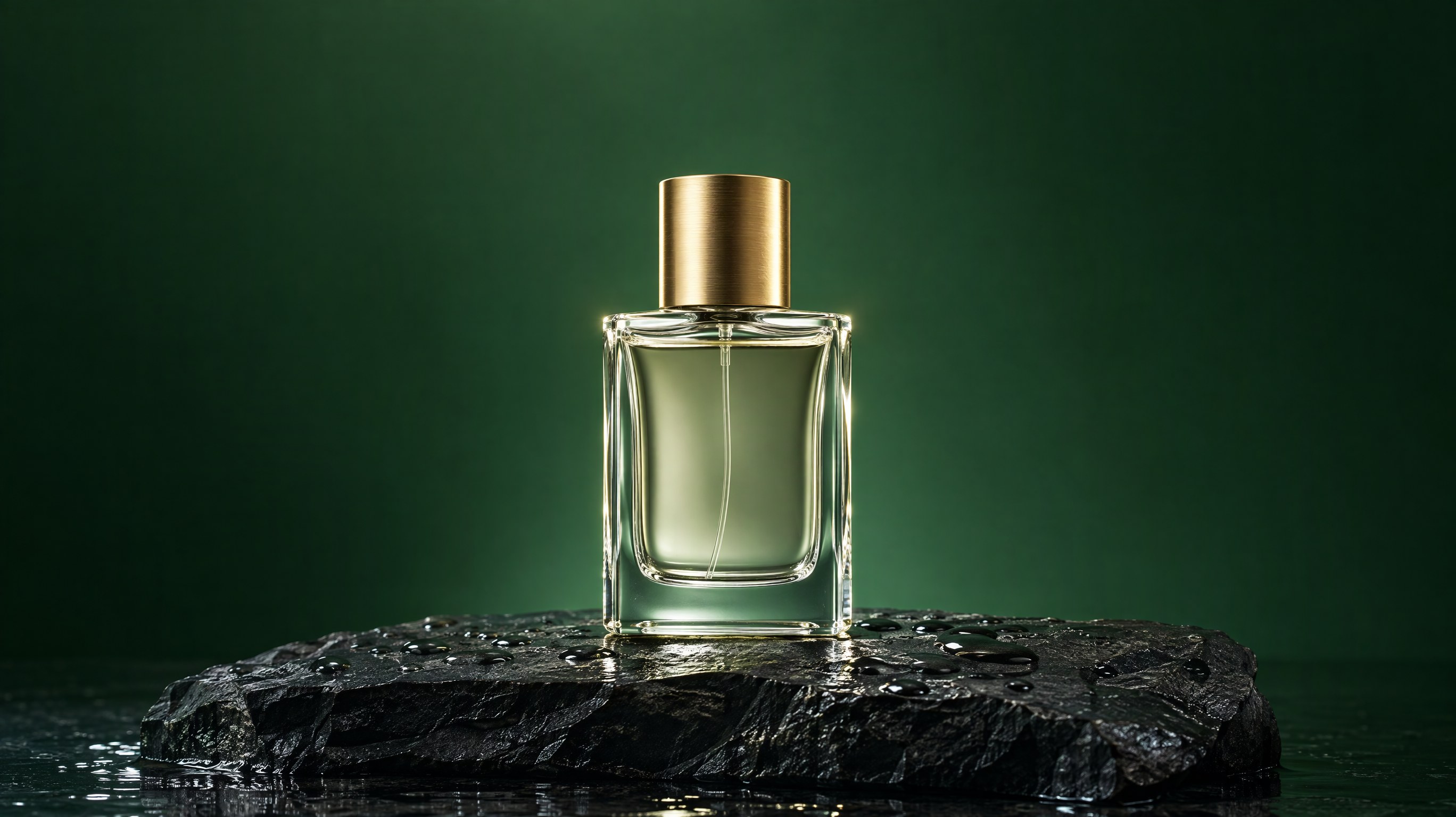
Image prompt: Product photograph, a clear glass perfume bottle with a brushed gold cap stands on a dark wet slate stone, soft rim light from behind outlining the glass, a few drops of water on the stone, a plain deep green backdrop with gentle gradient and generous empty space around the bottle, centered composition, crisp focus on the bottle, studio lighting, realistic reflections, no logo, no lettering on the bottle.
The camera orbits slowly around the perfume bottle, a quarter turn over the whole clip, keeping the bottle centered and in sharp focus. A single drop of water slides down the slate and catches the rim light. The green backdrop and the lighting stay exactly as they are. Sound: a soft low room tone and one quiet water drop. No subtitles, no background music.
How do I make a landscape photo move over time?
For a scene that changes, put the beats in order and give each one a rough time. Kling's guide uses the same pattern for timed actions.
Start on the harbor skyline at golden hour, locked-off wide shot, ferries crossing slowly in the foreground. Around three seconds in, the camera begins a slow pan to the right along the skyline while lights switch on window by window. In the last two seconds the camera holds still as the sun touches the water. Sound: harbor ambience, lapping water, one ferry horn in the middle of the clip. No subtitles, no background music.
If the clip has to finish on a planned image, such as a product packshot or a character in a final pose, upload that image as the last frame and describe the move between the two frames.
Step 3: generate, review and rerun a Kling 4.0 clip
Treat the first render as a test, not a result:
- Generate at 5 seconds and 720p first. It is the cheapest way to see whether the motion idea works.
- Watch it three times: once for the subject (face, hands, product shape), once for the background, once with sound on.
- Change one thing per rerun: the photo, the action wording, the camera move or the length. If you change everything, you will not know what fixed it.
- Keep the prompt that worked and only then raise the length or move to 1080p.
- If two reruns fail the same way, the photo is usually the cause. Go back to Step 1 before rewriting the prompt again.
Fix common Kling 4.0 image to video failures
Why does the face change or look distorted?
The face is the part viewers check first, and it drifts most when it is small in the frame, turned far from the camera, half in shadow, or asked to make a big movement.
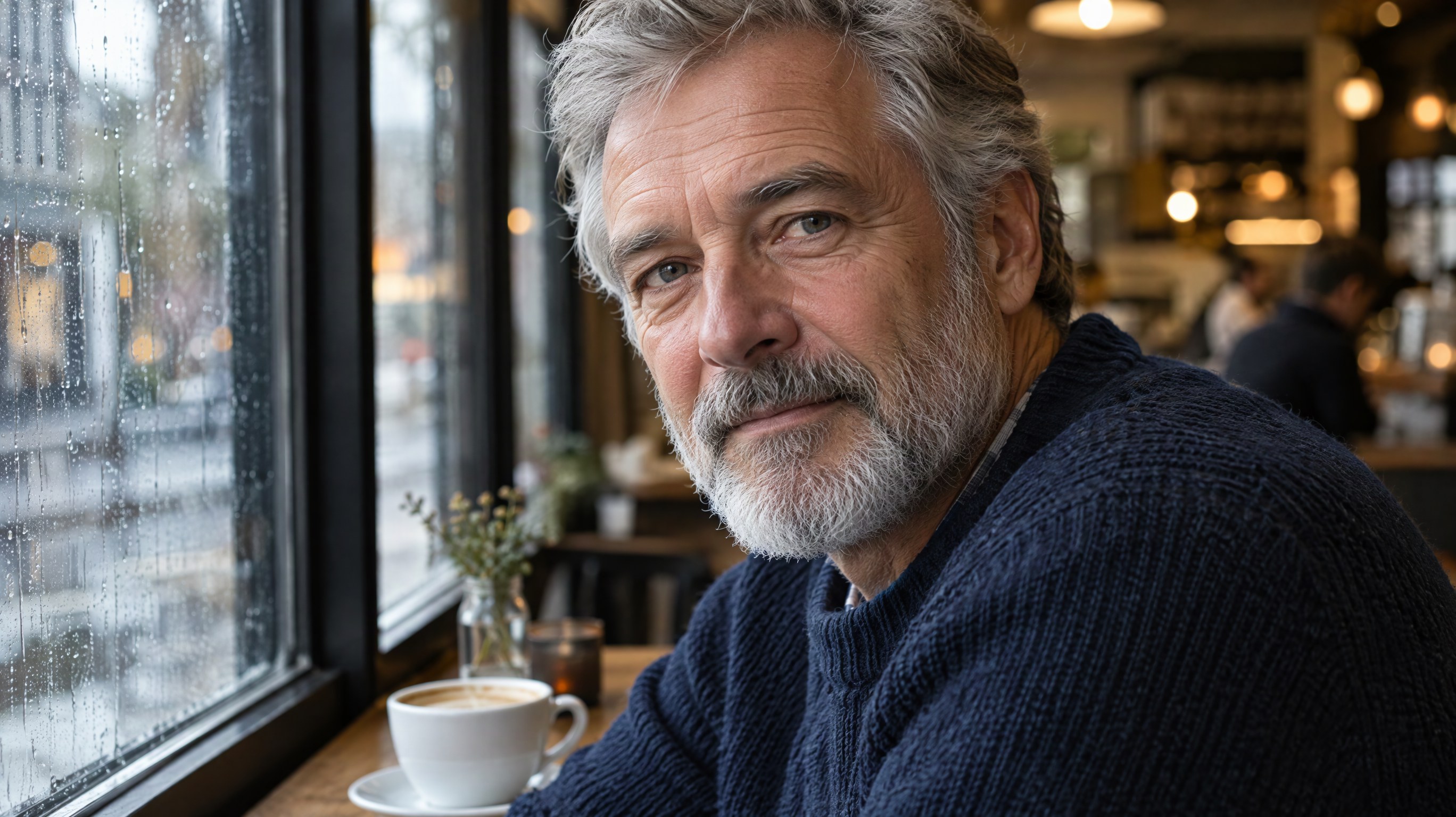
Image prompt: Cinematic portrait photograph, a man in his sixties with a grey beard and a navy knit sweater sits beside a rain-streaked café window, his face turned three-quarters toward the camera and lit evenly by soft daylight from the window, calm expression, eyes clearly visible, a cup of coffee on the wooden table in front of him, head and shoulders framing with the face large in the frame, natural skin texture, 50mm lens look.
Fixes, in order:
- Use a photo like this one: the face is large, evenly lit and both eyes are visible.
- Ask for small movements. "Turns his head slightly toward the window" holds up better than "turns around".
- Keep close-ups short, around 5 to 8 seconds.
- Add a last frame from the same photo shoot when the person must still look like themselves at the end.
The grey-bearded man by the café window lifts his eyes from the table and looks slightly toward the window, then back to the camera with a faint smile. His face, beard and sweater stay exactly as in the photo. The camera stays still at head-and-shoulders framing. Rain runs down the glass. Sound: soft rain on the window, quiet café chatter, a cup set down on wood. No subtitles, no background music.
Why does the background flicker or shimmer?
Flicker usually comes from a background with fine repeating detail (leaves, crowds, tiled walls), a heavily compressed or upscaled source photo, or a fast camera move across that detail. Upload the cleanest version of the photo, describe the background in the prompt and say that it stays still, slow the camera down or lock it off, and try 1080p when the detail is fine.
Why does the subject barely move?
When the prompt only repeats what is already in the photo ("a woman on a ferry at sunset"), the model has no action to perform. Write verbs, put them in order, name the camera move, and give the action enough time: a 3-second clip has little room for a full gesture. A last frame that shows the end state also forces visible motion, because the model has to get from one picture to the other.
What if my photo contains text or a logo?
Kling's guide says its text rendering stays clear through camera and character movement, but text in the photo is still a weak spot when it is small. Keep lettering large and facing the camera, avoid a camera move that sweeps across it, and add a line such as "the label text stays unchanged and readable" to the prompt.
Kling 4.0, Kling 4.0 Flash or Seedance 2.5 for image to video?
Kling 4.0 is not the only way to animate a photo. On Yovid, two other models take a first frame:
| Image to video | Kling 4.0 | Kling 4.0 Flash | Seedance 2.5 |
|---|---|---|---|
| Frames | First, optional last | First only | First, optional last |
| Length | 3–30 s | 3–20 s | 4–30 s |
| Resolution | 720p, 1080p | 720p | 480p, 720p, 1080p |
| Sound | Always on | Always on | On or off |
| 5 s at 720p, credit-pack rate | 15 credits | 9 credits | 31 credits |
Kling 4.0. Best for: long single takes up to 30 seconds, shots that must end on a set frame, and 1080p product or portrait clips. Not for: silent output, since sound is always generated.
Kling 4.0 Flash. Best for: cheap first tests of a motion idea and short social clips at 720p. Not for: last-frame control, 1080p, or clips over 20 seconds.
Seedance 2.5. Best for: clips you want silent or at 480p for drafts, and buyers on the Starter pack, which does not include Kling models. Not for: the lowest credit cost per second at 720p.
Kling 4.0 image to video credits on Yovid by clip length
Here is what a Kling 4.0 image-to-video clip costs on Yovid, read from the generator's own pricing on 2026-11-18. Adding a last frame does not change the price.
| Kling 4.0 clip | Credit pack | Lite | Pro | Premium |
|---|---|---|---|---|
| 5 s, 720p | 15 | 14 | 11 | 10 |
| 10 s, 720p | 30 | 27 | 21 | 21 |
| 15 s, 720p | 45 | 41 | 31 | 31 |
| 30 s, 720p | 90 | 81 | 63 | 62 |
| 5 s, 1080p | 25 | 23 | 18 | 17 |
| 10 s, 1080p | 50 | 45 | 35 | 35 |
| 15 s, 1080p | 75 | 68 | 53 | 52 |
| 30 s, 1080p | 150 | 135 | 105 | 103 |
Plan figures are for monthly billing; Premium figures are for subscriptions started now. Kling 4.0 needs a paid plan (Lite starts at $14.90 a month for 100 credits) or the Creator credit pack ($49.90 for 375 credits) or a larger pack; the free plan and the Starter pack do not include it. At each option's own credit price, the 5-second 720p test from Step 3 costs about $2.00 on the Creator pack, $2.09 on Lite, $1.60 on Pro and $1.15 on Premium. A 30-second 1080p final costs 150 credits on a pack, so it pays to get the motion right at 5 seconds first.
To run it, open the image-to-video generator, upload your photo as the first frame, add an end frame if you need one, pick Kling 4.0 in the model menu, set the length and quality, paste your prompt and press Generate. The credit cost shows on the button before anything is spent. Plan details are on the pricing page.
FAQ
What aspect ratios does Kling 4.0 image to video support?
The clip follows your first frame, so crop the photo first. Kling 4.0 renders 16:9, 9:16, 1:1 and 21:9; an image-to-video run takes its shape from the uploaded frame instead of a separate ratio setting.
Can I set both a first and a last frame in Kling 4.0?
Yes. The first frame is required and the last frame is optional. Use the same lighting and style in both pictures, and describe the motion between them in the prompt. Kling 4.0 Flash takes a first frame only.
How long can a Kling 4.0 image-to-video clip be, and how many credits does it use?
From 3 to 30 seconds. On Yovid it costs 3 credits per second at 720p and 5 per second at 1080p on a credit pack, less on Lite, Pro and Premium. A 5-second 720p test is 15 credits on a pack.
What should I do if my image has text in it?
Keep the text large and facing the camera, avoid camera moves that sweep across it, and say in the prompt that the text stays unchanged. If it must be perfect, add the text in an editor after generation.
Can Kling 4.0 add sound to an image-to-video clip?
Yes, every Kling 4.0 clip comes with stereo sound generated with the picture. Describe it in a "Sound:" line, put dialogue in quotation marks and name the language, and write "no background music" if you do not want a score.
Turn your first photo into a Kling 4.0 clip
Pick one sharp photo, copy the prompt above that matches it, and run it at 5 seconds before you go long. For more ideas, the 30 Kling 4.0 prompts cover text-to-video and reference shots, the image-to-video prompt examples work across models, and Video Workflows has more step-by-step guides. When your photo is ready, open the AI video generator and choose Kling 4.0.