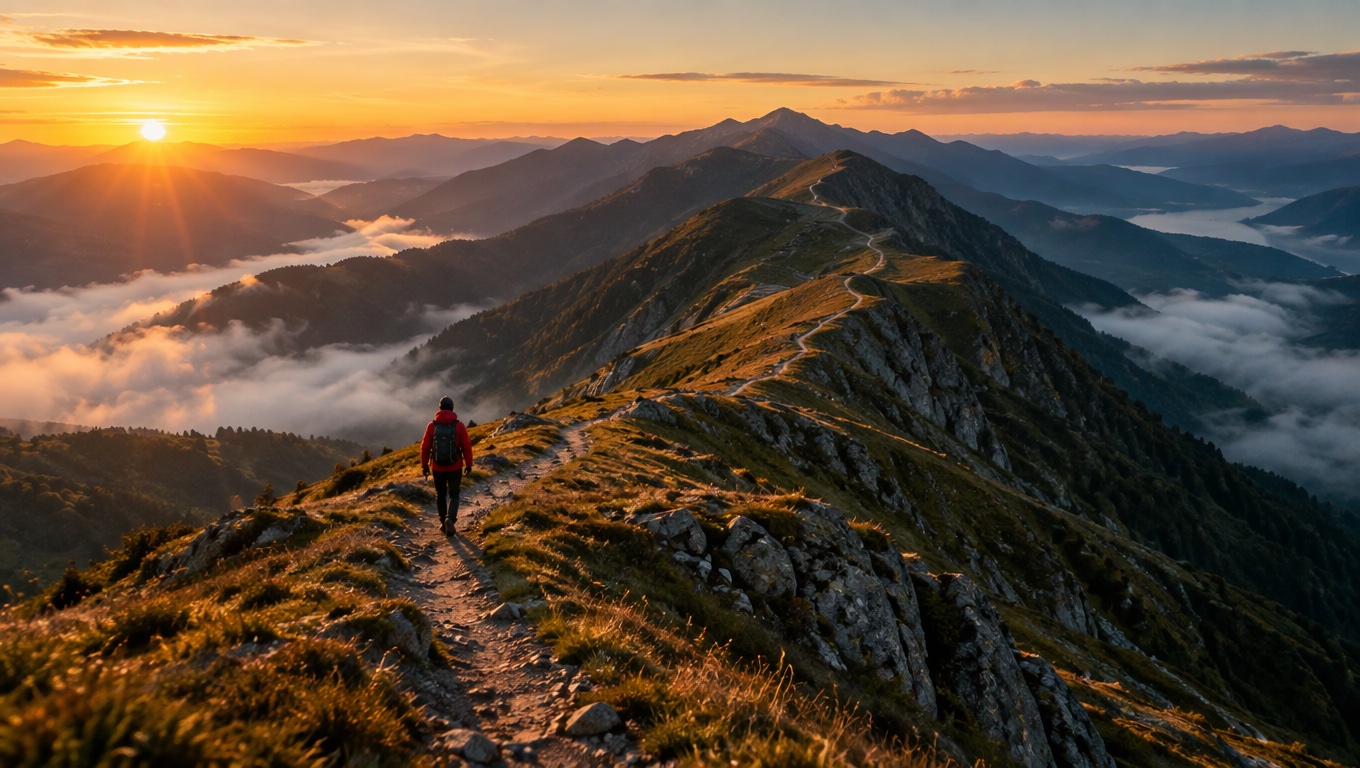

Direct answer: To extend a video with Seedance 2.5 on Yovid, pick the model in the generator, upload one MP4 or MOV clip of 2 to 30 seconds (200 MB at most), start your prompt with "Extend @Video 1" and say what happens next, choose 4 to 30 new seconds, then generate. You get a new segment that starts where your clip stops, and you join the two in an editor because Yovid doesn't merge them for you. Extending suits a single continuous shot that ends on a clear moment. A clip that stops halfway through a cut or a fast whip pan gives the model much less to continue from. You pay for the seconds you upload plus the seconds you add, so trim the source first. Seedance 2.5 needs a paid plan or credit pack, and the AI video extender page shows the current rates.
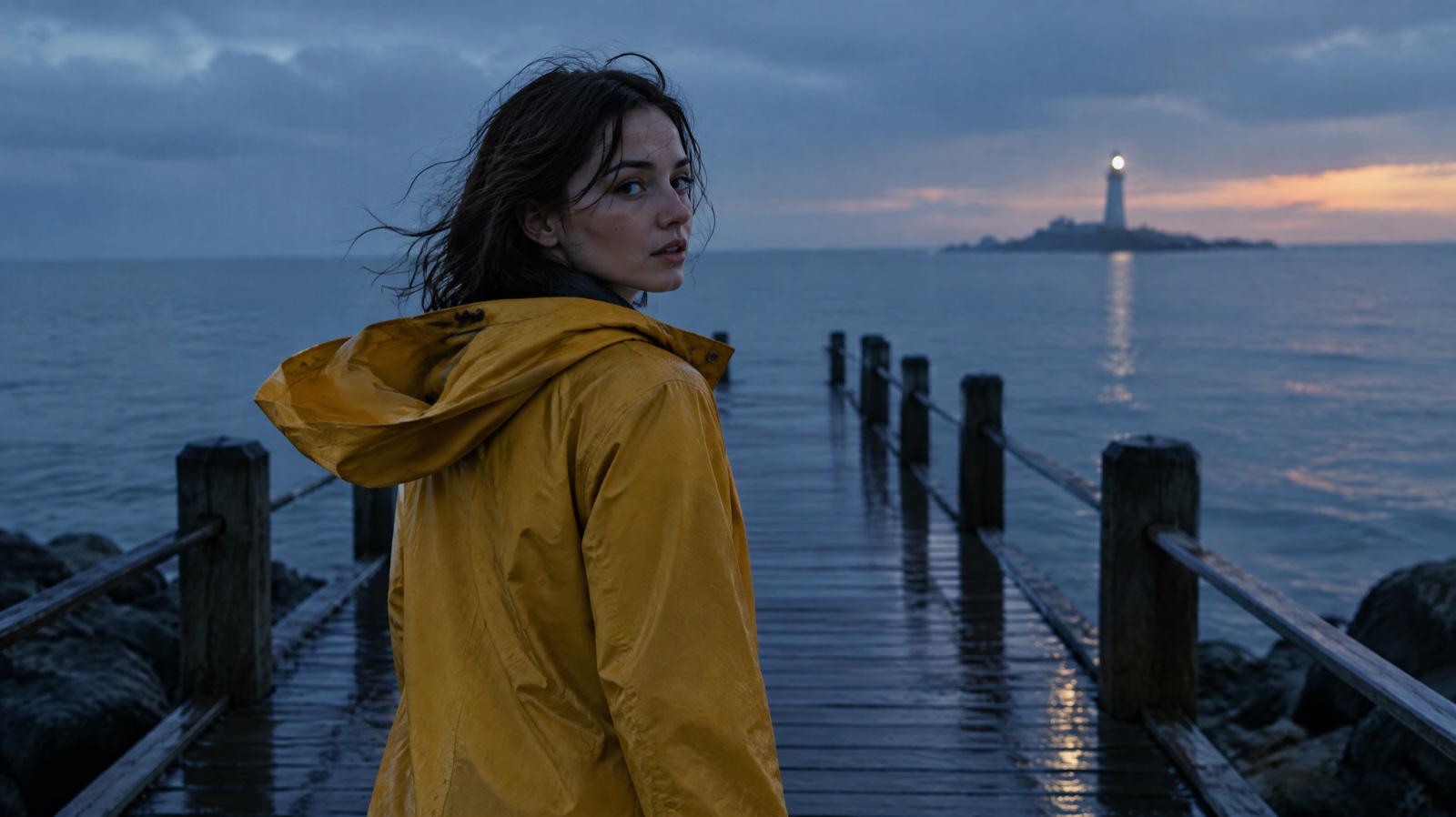
Image prompt: Cinematic film still of a woman in a mustard yellow raincoat reaching the end of a rain-wet wooden pier at dusk and turning to look back over her shoulder, her hood slipping down as the wind catches it. Soft blue evening light, a calm grey sea, a distant lighthouse on the horizon, shallow depth of field, 35mm look. Plain surfaces, no signs and no lettering anywhere in the frame.
What you need before you start
Last verified: 2026-11-08
| Setting | Limit on Yovid |
|---|---|
| Model | Seedance 2.5, the only model on Yovid with an extend mode |
| Source clip | One MP4 or MOV, 2 to 30 seconds, up to 200 MB |
| New footage per generation | 4 to 30 seconds |
| Resolution | 480p or 720p on any paid plan or credit pack. 1080p needs Pro, Premium or a credit pack |
| Aspect ratio | Follows your clip and can't be changed |
| Sound | On by default. Turning it off doesn't change the credits |
| Access | Any paid plan or credit pack. Free credits don't cover Seedance 2.5 |
Step 1: Upload the clip you want to extend
Open the video to video workspace, choose Seedance 2.5 in the model menu and add your clip to the Reference Video slot. Use a clip you shot or have the rights to.
Trim it before you upload. The source seconds are billed too, and the last few seconds matter most because the new footage picks up from there. Cut away anything after the moment you want to continue from, so the clip ends on a stable frame.
Step 2: Write the continuation and set the length
Start the prompt with "Extend @Video 1". That wording switches the job to extend mode, and there is no separate menu for it. If you write "replace" or "remove" without the word "extend", Seedance 2.5 edits your footage instead of adding to it.
After that opening, say what must stay the same and describe the next action. Then set the new length from 4 to 30 seconds and pick a resolution. Short extensions work best with one clear event. For longer ones, split the action into timed beats.
A quiet continuation of a single character:
Extend @Video 1. Keep the woman, her yellow raincoat, the wet pier and the dusk light exactly as they are. She pulls her hood back up, turns toward the sea and walks slowly to the railing. The camera holds, then eases forward. Only wind and waves on the soundtrack.
A dialogue beat that carries the room tone forward:
Extend @Video 1. Keep both people, their clothes and the cafe table in the same positions. The man sets down his cup and says quietly, "I took the job." The woman looks up and says nothing for a moment. Room tone and a spoon touching ceramic.
A longer extension split into beats:
Extend @Video 1. Same cyclist, red jacket, gravel road and morning light. For the first 4 seconds he takes off his helmet and looks across the valley. For the next 6 seconds he swings onto the bike and rolls downhill as the camera pans to follow. For the last 5 seconds, a wide shot of him getting smaller in the mist. Wind and tires on gravel.
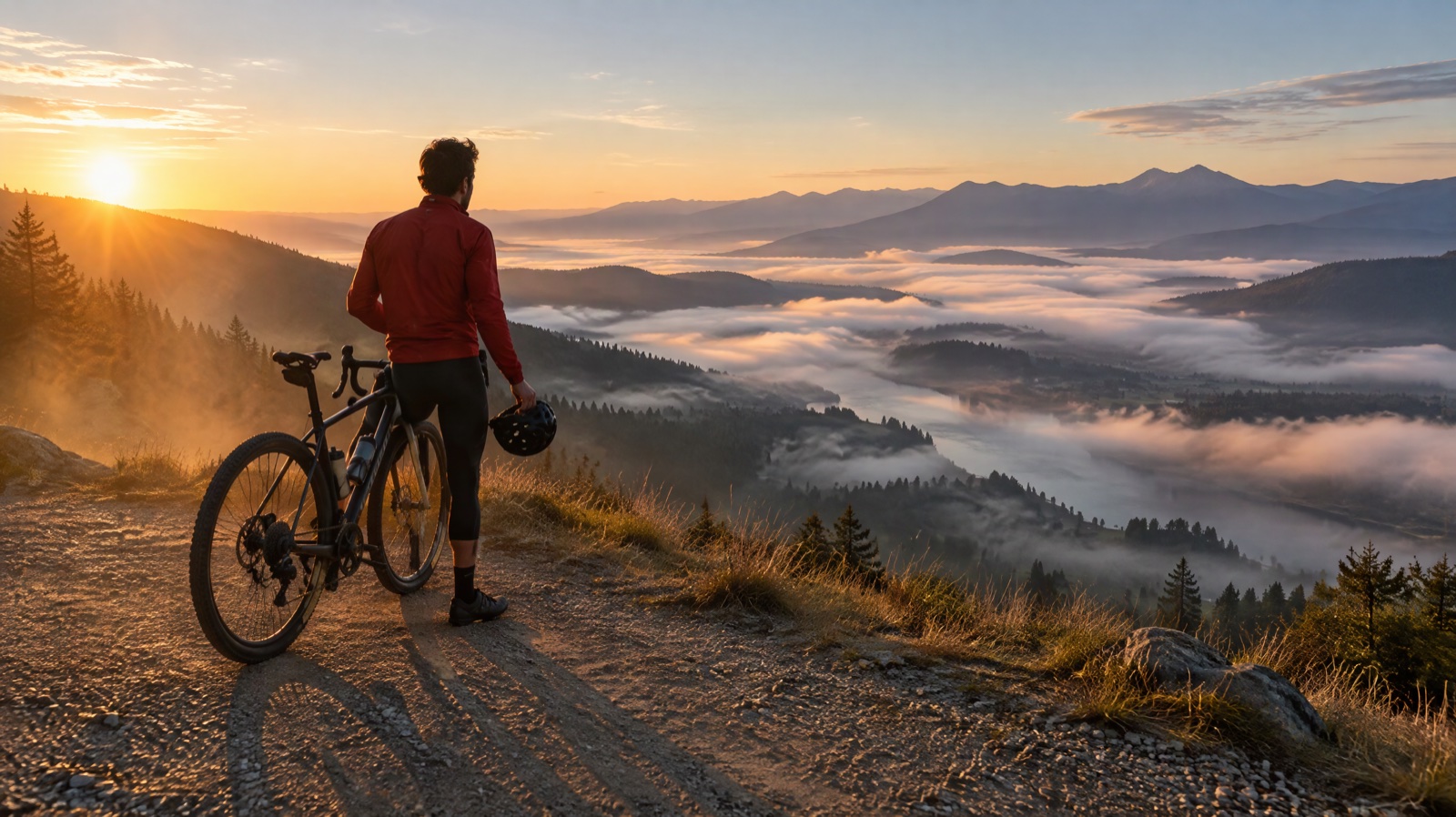
Image prompt: Cinematic film still of a cyclist in a red jacket stopping at a hilltop overlook at sunrise, one foot on the gravel, removing a helmet while looking across a valley filled with mist. Warm low sun from the left, long shadows, dust hanging in the air, wide 28mm framing, natural color grade. No signs and no lettering anywhere in the frame.
More wording patterns are in the Seedance 2.5 prompt guide.
Step 3: Generate, check the join and put the pieces together
The Generate button shows the credit cost before you commit. Failed generations aren't charged.
The result contains only the new footage. Your original clip isn't part of it, and Yovid doesn't stitch the two together. Download the new segment, place it right after your original in any video editor and watch the join at full speed. Because the source stays untouched, you can generate the extension again without losing anything.
To go past one generation, upload the new segment as the next source and extend again. ByteDance's Seedance 2.5 page describes up to 30 seconds per generation, "with the option to extend twice". Three full 30-second pieces joined together come to 90 seconds.
| Resolution | Credits per billed second | 5 s clip + 5 s new | 10 s clip + 10 s new | 8 s clip + 30 s new | Available on |
|---|---|---|---|---|---|
| 480p | 2.12 | 21 | 42 | 81 | Lite, Pro, Premium and credit packs |
| 720p | 4.58 | 46 | 92 | 174 | Lite, Pro, Premium and credit packs |
| 1080p | 10.21 | 102 | 204 | 388 | Pro, Premium and credit packs |
These are standard rates. Lite takes 10% off, Pro 30% and Premium 40%.
Extending or generating 30 seconds at once
If the scene doesn't exist yet and fits in 30 seconds, one long generation is simpler and usually cheaper. Extending earns its cost when you already have a take you want to keep, when you want to see the first part before deciding what happens next, or when the scene has to run longer than 30 seconds.
Here is the same 30 seconds of footage at 720p and standard rates:
| Approach | Credits | What you get |
|---|---|---|
| One 30-second generation | 183 | A single take, with no join to check |
| 15-second generation, then extend all 15 seconds by 15 more | 92 + 137 = 229 | Full context for the extension, at the highest cost |
| 15-second generation, then extend only its last 5 seconds by 15 more | 92 + 92 = 184 | About the same price as one take, with less context for the model |
An extension has a lower rate per second than a new generation (4.58 against 6.1 credits at 720p), but the uploaded seconds count too. Uploading a shorter source is the main way to save credits. The risk is that the model sees less of the scene, so check that the clothes and the set still match.
If the extension doesn't match
The join jumps
Open the prompt with one or two sentences about the final frame: the framing, the pose and who is where. Then check where your clip ends. A source that stops mid-gesture or in the middle of a camera move is hard to continue, so trim back to a steadier moment and generate again.
The character changes
Name what has to stay the same: hair, clothing, held objects and the position in the frame. Keep the action small for the first few seconds, so the model establishes the person before anything big happens. Faces of real people and protected characters may be refused by the model provider. Refused generations aren't charged.

Image prompt: Cinematic film still of a man in a dark green wool coat and grey scarf walking between flower stalls in an open-air market in the morning, mid-stride, carrying a paper-wrapped bunch of white tulips. Soft overcast light, buckets of flowers on both sides, gentle background blur, 50mm look. Blank paper wrap and plain stalls, no signs and no lettering anywhere in the frame.
When to use Kling or Wan instead
Neither has an extend mode on Yovid, so they can't continue your clip from its last moment. Kling 4.0 and Wan 3.0 can read a clip as a reference for motion or style, and then they generate a new shot. That is the right choice when you want a fresh shot that borrows from your footage, and the wrong one when the new footage has to follow directly.
Kling 4.0 takes up to 5 reference clips, 30 seconds in total. Wan 3.0 takes clips of 1 to 15 seconds, and the references plus the output can't pass 30 seconds. If something inside your clip is wrong and it doesn't need more time, use video to video instead. For a low-cost test of a new Seedance 2.5 shot, see draft mode. More walkthroughs are in the video workflow guides.
FAQ
How many seconds can I add to a video?
Each generation adds 4 to 30 seconds to a source of 2 to 30 seconds. To go further, upload the new segment as the next source and extend again.
How is a video extension billed?
You pay for the uploaded seconds plus the new seconds, at Seedance 2.5's reference clip rate: 2.12 credits per second at 480p, 4.58 at 720p and 10.21 at 1080p, before plan discounts. A 10-second clip with 10 new seconds at 720p costs 92 credits at standard rates.
Does the extended video keep the sound?
The new segment gets its own sound when Sound is on, and it carries the voices and room tone forward. Your original audio stays in your original file, since the result contains only the new footage. Write the footsteps, ambience or next line of dialogue into the prompt, or turn Sound off if you plan to score the clip yourself.
Can I extend someone else's video?
Only if you have the rights to it. Extending a clip creates a derivative of that footage, so use video you shot, generated or licensed, and get permission for anything else. Having the file doesn't give you the right to reuse it.
Does the Yovid API support video extension?
Yes. Send Seedance 2.5 the clip in video_urls and start the prompt with "Extend @video1", and the request goes to extend mode. The Seedance 2.5 API guide covers keys, parameters and task polling.
To try one of these prompts, open the Yovid online AI video generator, choose Seedance 2.5, attach your clip and paste the prompt.