
Direct answer: An AI explainer video generator makes short clips, not finished explainers, so you build the video in three steps. First, write the script as a shot list: six to eight shots, one sentence of narration and one picture per shot. Second, write one prompt per shot that describes the picture, the sound and any spoken line. Third, render each shot as its own clip and stitch the clips together in a video editor, where you also add captions, charts and your logo. For shots where a presenter speaks to the camera, use Seedance 2.5, which renders speech and picture together and runs 4 to 30 seconds per clip. For visual metaphors and b-roll, Kling 4.0 renders 3 to 30 seconds at 720p or 1080p. This workflow suits 30 to 60 second concept explainers. It does not suit long voiceovers, screen recordings or data charts, which belong in the editor.
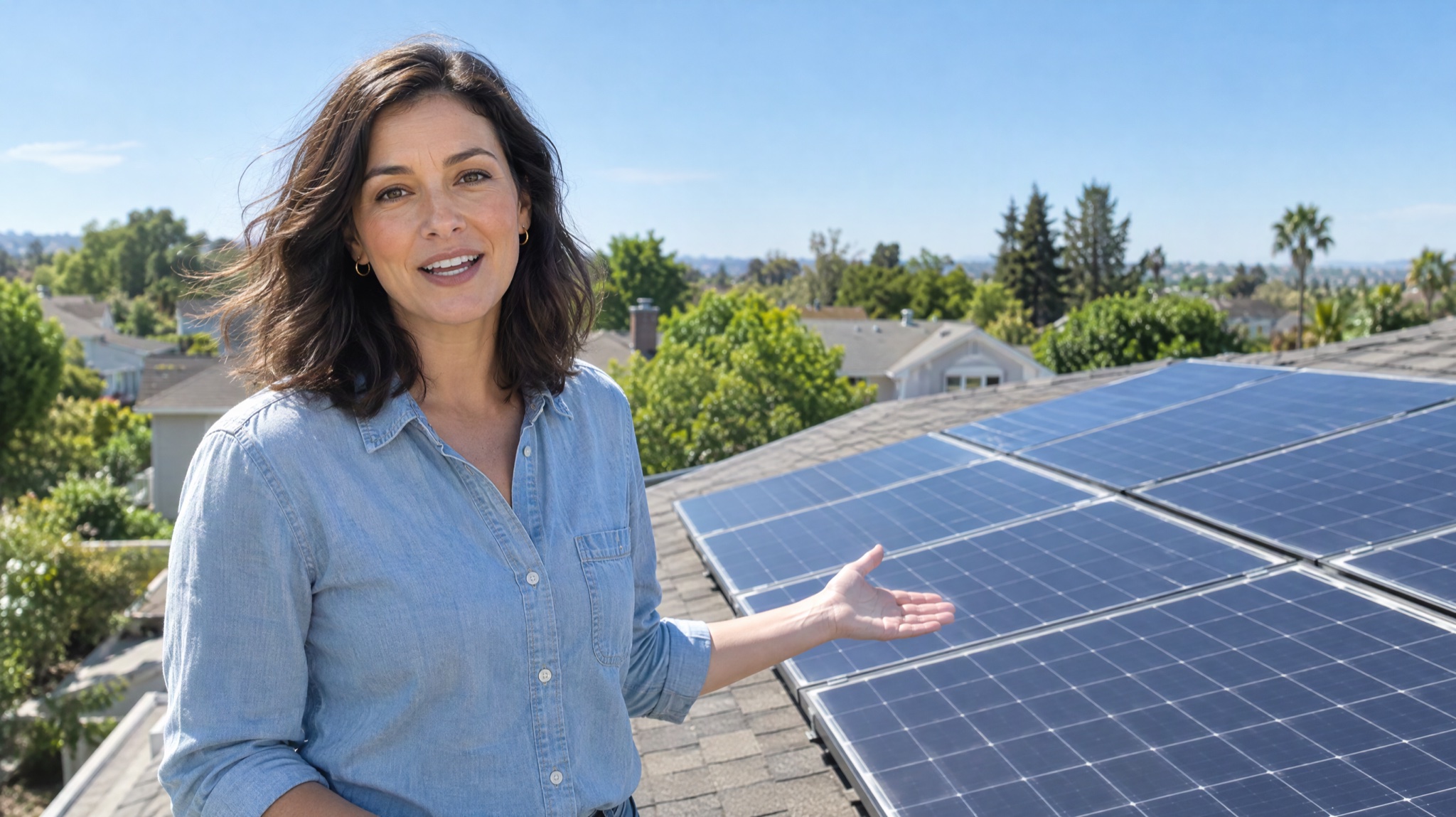
Image prompt: Cinematic film still of a friendly woman in her thirties in a light denim shirt, standing on a sunny suburban rooftop beside a row of dark blue solar panels at midday, looking into the camera mid-sentence and gesturing toward the panels, clear blue sky, natural light, shallow depth of field, eye-level medium shot, widescreen composition with the presenter on the left third.
Last verified: 2026-11-22
What an AI explainer video generator can and can't make
An explainer has one job: get a single idea across in under a minute or two. AI video models are good at the pictures that carry that idea, and weak at the parts that need exact words, numbers or interface details.
| Explainer part | Generate it with AI? | Better approach |
|---|---|---|
| Presenter saying one short line to camera | Yes | One shot per line, 5 to 10 seconds |
| Visual metaphor or b-roll scene | Yes | Describe the scene, the camera move and the sound |
| Continuous narration longer than about 30 seconds | No | Record or generate the voiceover separately and lay it over the cut |
| Charts, numbers, on-screen text | No | Add them as graphics in your editor |
| Screen recordings of software | No | Capture the real screen and cut it in |
| Logo and brand colors | Partly | Describe colors in the prompt; add the logo as an overlay |
Best for: 30 to 60 second concept explainers, product ideas, how-it-works videos and social cutdowns built from six to eight shots.
Not for: training videos with long narration, software walkthroughs, or anything that must show exact figures on screen.
The running example in this guide is a 40-second explainer called "How a home solar battery works", built from eight 5-second shots.
Step 1: Write the explainer video script as a shot list
Write the narration first, then split it into shots. Give each shot one sentence and one picture. Spoken English runs at roughly two to three words per second, so a 5-second shot holds about 10 to 15 words. If a sentence runs longer, split it across two shots or cut words.
| Shot | Narration line | Picture | Sound | Length |
|---|---|---|---|---|
| 1. Hook | "Solar panels make the most power at noon, when most homes need it least." | Presenter on a sunny rooftop, speaking to camera | Presenter's voice, light wind | 5 s |
| 2. Problem | "So the spare power goes back to the grid, often for less than you pay for it." | Suburban street at midday, panels on the roofs | Voiceover, birdsong | 5 s |
| 3. Idea | "A home battery keeps that power for later." | Close-up of a wall battery in a garage, status light on | Voiceover, soft hum | 5 s |
| 4. Charging | "During the day, spare solar power charges the battery." | Clouds drifting over rooftop panels, light shifting | Voiceover, light music | 5 s |
| 5. Discharging | "After sunset, the house draws from the battery first." | House at dusk, windows lighting up one by one | Voiceover, evening ambience | 5 s |
| 6. Payoff | "You use more of your own power and buy less at peak times." | Family cooking dinner in a bright kitchen | Voiceover, kitchen sounds | 5 s |
| 7. Caveat | "How much you save depends on your tariff and battery size." | Presenter in the garage beside the battery | Presenter's voice | 5 s |
| 8. Close | "Check your evening usage before you choose a size." | Presenter walks out into the garden at sunset | Presenter's voice, music fades | 5 s |
Two choices to make before you write any prompt:
- Who speaks the narration? Shots 1, 7 and 8 have a presenter on screen, so the model can speak those lines. For the other shots, either record one voiceover track for the whole video or let each clip carry ambient sound only. Each generation creates its voice from scratch, so a narrator voiced clip by clip can sound slightly different from shot to shot.
- Which frame shape? Pick one aspect ratio for every shot: 16:9 for websites and YouTube, 9:16 for Reels, TikTok and Shorts. Mixing ratios forces crops in the edit.
Step 2: Write one AI explainer video prompt per shot
Each prompt covers one shot and four things: who or what is in frame, what moves, what the camera does, and what the clip sounds like. Put spoken lines in quotation marks and name the language. The three prompts below cover the three kinds of shots in most explainers. For more prompt patterns, see the text-to-video prompt guide.
How do you prompt a presenter shot that speaks the narration?
Model: Seedance 2.5 · Ratio: 16:9 · Length: 5 s · Quality: 720p · Sound: on
Medium shot of a friendly woman in her thirties with shoulder-length dark hair and a light denim shirt, standing on a sunny suburban rooftop beside a row of solar panels at midday. She looks straight into the camera and says clearly in English, in a warm and even tone, "Solar panels make the most power at noon, when most homes need it least." She gestures toward the panels on the last words. Light breeze, faint birdsong, no music, no text on screen, static camera at eye level.
Keep the line short enough to say comfortably in the clip, and give the presenter one small action so the shot doesn't look frozen. The Seedance 2.5 dialogue prompts cover accents, tone and two-person scenes in more depth.
How do you prompt a visual metaphor shot with no dialogue?
Model: Kling 4.0 · Ratio: 16:9 · Length: 5 s · Quality: 720p
Wide shot of a two-storey suburban house at dusk, the sky fading from orange to deep blue, dark solar panels on the roof. The windows light up one by one, starting on the ground floor and moving upward as evening falls. Slow push-in toward the front door. Quiet evening ambience with distant crickets and a car passing far away. No people, no text, no music.
Kling 4.0 always renders sound, so describe the sound you want instead of leaving it to chance. If you plan to lay a voiceover on top, keep the ambience quiet so it sits under the voice.
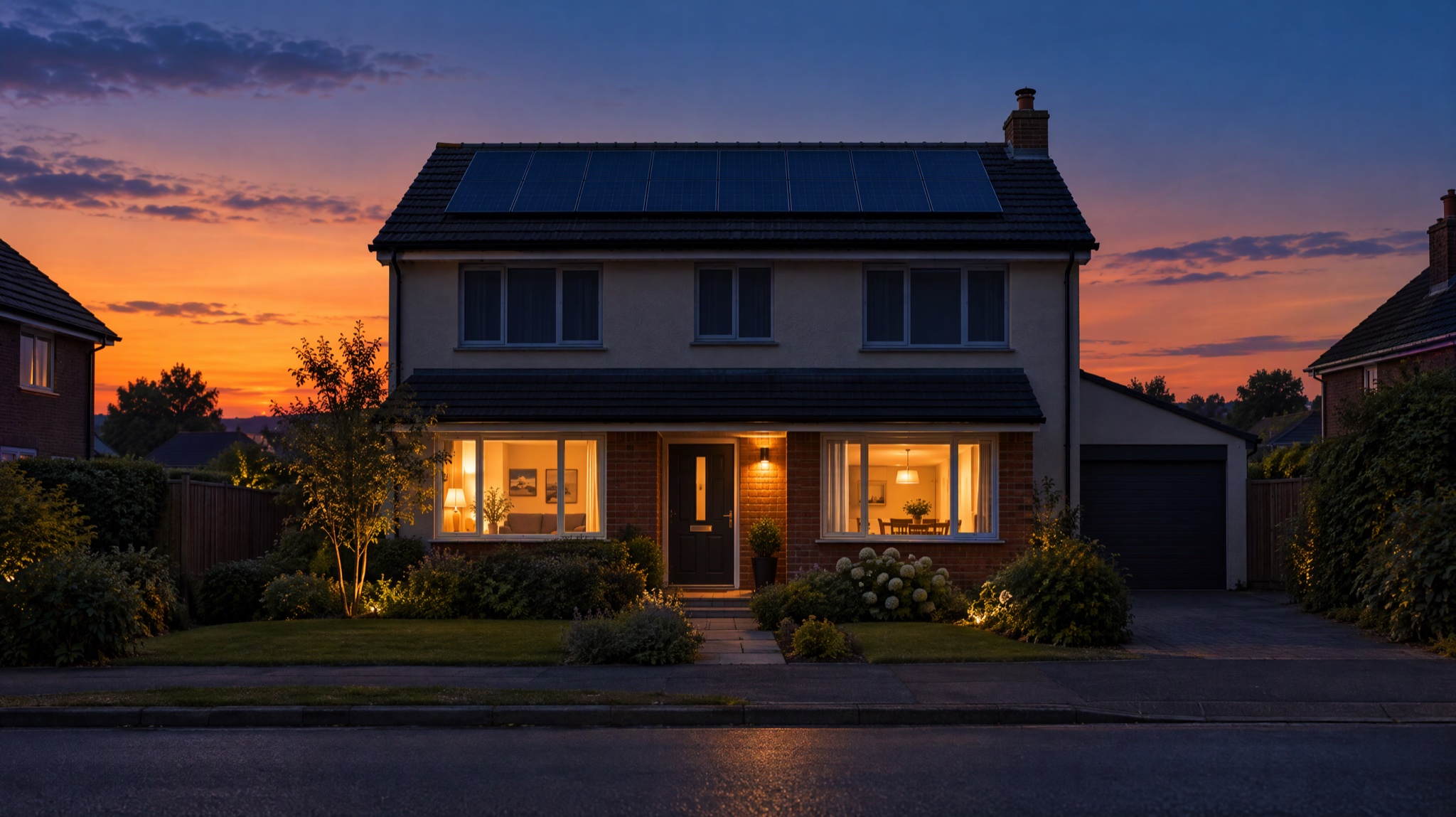
Image prompt: Cinematic wide shot of a two-storey suburban house at dusk, sky fading from orange to deep blue, dark solar panels on the roof catching the last light, some windows glowing warm while the upper floor is still dark, quiet street, no people, calm evening mood, widescreen composition with the house centered.
How do you prompt the closing shots of an explainer?
Model: Seedance 2.5 · Ratio: 16:9 · Length: 10 s · Quality: 720p · Sound: on
- 0–5sMedium shot of a woman in her thirties with shoulder-length dark hair and a light denim shirt, standing in a tidy garage beside a plain white wall-mounted home battery with a small green status light. She says to camera in English, calm and direct, "How much you save depends on your tariff and battery size."
- 5–10sShe walks out through the open garage door into a garden at sunset, turns back to the camera and says, "Check your evening usage before you choose a size." Soft piano enters and fades out at the end. No text on screen
Timed beats keep each line in its own half of the clip, which makes shots 7 and 8 one render instead of two. Repeat the same wardrobe and hair description in every presenter prompt; for a closer match, add a reference image of the presenter (see the FAQ).
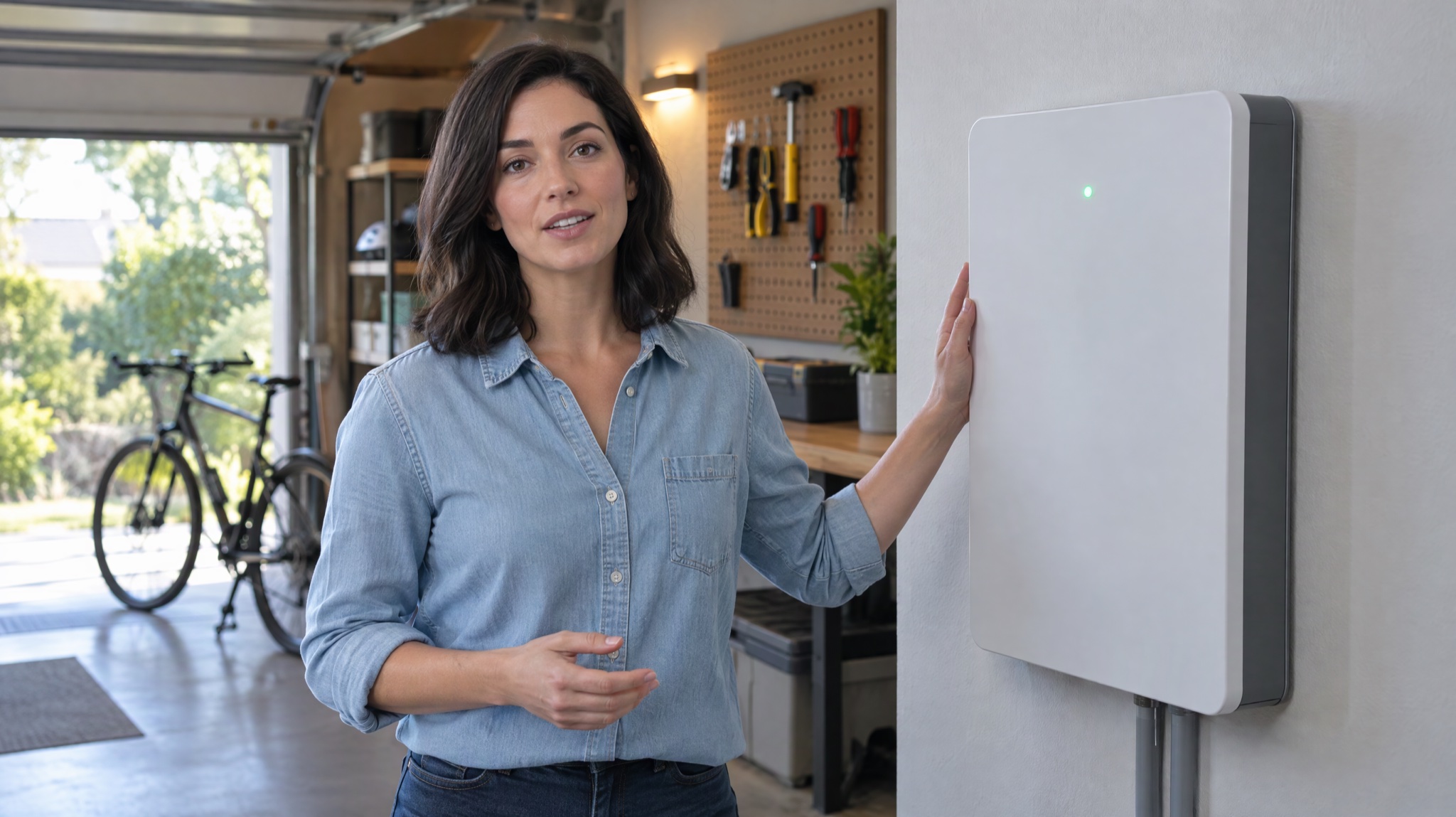
Image prompt: Cinematic film still of a woman in her thirties with shoulder-length dark hair in a light denim shirt, standing in a tidy, softly lit home garage beside a plain white wall-mounted home battery with a small green status light, facing the camera and speaking calmly, pegboard and a bicycle in soft focus, warm light mixed with daylight from an open garage door, eye-level medium shot.
Step 3: Render the explainer video shot by shot and stitch it
- Test the shot list cheaply. Render every shot once at 480p to check framing, timing and whether each spoken line fits its clip. Fix the prompts that miss before you pay for higher resolution.
- Render the finals. Use the same aspect ratio for all shots, and 720p or 1080p for delivery. Generate two takes of any shot where the presenter speaks, since lip movement varies between takes.
- Download and order the clips. Import them into any video editor in shot-list order and trim each clip to its line. Leave a few frames before and after speech so cuts don't clip words.
- Add the voiceover. If shots 2 to 6 carry ambient sound only, record or import your narration and lay it across them, then lower the clips' own sound under the voice.
- Add text and graphics in the editor. Captions, numbers, charts, the product name and the logo all go on as overlays. Generated lettering is often misspelled, which is why every prompt above says "no text".
- Export once per platform. A 16:9 master for websites and YouTube; re-render the key shots in 9:16 if you also need a vertical cut, rather than cropping the wide version.
Which AI model to use for each explainer video shot
| Shot type | Model | Why | Length per clip | Resolution |
|---|---|---|---|---|
| Presenter speaks a line | Seedance 2.5 | Speech and picture in one pass; sound can be switched off | 4–30 s | 480p, 720p, 1080p |
| B-roll and visual metaphors | Kling 4.0 | Cheaper per second at 720p; 3-second minimum suits quick cutaways | 3–30 s | 720p, 1080p |
| Draft of the whole shot list | Seedance 2.0 Mini | Lowest credit cost; sound on by default | 4–15 s | 480p, 720p |
Seedance 2.5. Best for: presenter shots, short spoken lines, 9:16 and 16:9 explainers, timed multi-beat clips up to 30 seconds. Not for: one continuous take of narration longer than 30 seconds.
Kling 4.0. Best for: b-roll, object close-ups and scene metaphors in 16:9, 9:16, 1:1 or 21:9. Not for: shots you need silent from the model, because its sound can't be switched off (mute the clip in the editor instead).
Seedance 2.0 Mini. Best for: checking pacing and composition before you spend on final renders. Not for: final delivery above 720p.
What a 40-second AI explainer video costs in credits on Yovid
The table below prices the eight-shot example on Yovid, using the generator's own credit pricing on 2026-11-22. Every shot is 5 seconds.
| Route for 8 shots | Credit pack | Lite | Pro | Premium |
|---|---|---|---|---|
| 480p test pass, all shots on Seedance 2.5 | 120 | 112 | 88 | 80 |
| Final, all shots on Seedance 2.5 at 720p | 248 | 224 | 176 | 176 |
| Final, 3 presenter shots on Seedance 2.5 + 5 b-roll shots on Kling 4.0, all 720p | 168 | 154 | 121 | 116 |
| Same mix at 1080p | 395 | Not available | 279 | 271 |
Per shot, a 5-second clip costs 31 credits on Seedance 2.5 at 720p and 15 on Kling 4.0 at 720p (credit-pack rates), which is why the mixed route is cheaper. Plan figures are for monthly billing. Lite renders Seedance models at up to 720p, so the 1080p mix is not available there; Pro renders Seedance at up to 1080p.
What that means in money and plans:
- Creator pack ($49.90 for 375 credits, about $0.13 per credit): the 720p mixed route costs about $22, and a test pass plus the mixed final (288 credits) fits in one pack.
- Pro ($29 a month for 200 credits): the 720p mixed route (121) fits in one month with room for retakes.
- Lite ($14.90 a month for 100 credits): not enough for one full eight-shot final; plan on a credit pack or Pro for a complete video.
- Starter pack ($29.90 for 200 credits): covers Seedance 2.5 but not Kling 4.0, which needs a paid plan or the Creator pack or larger.
To render the shots, open the text-to-video generator, choose the model named in each prompt, set the ratio, length and quality, and paste the prompt. The Generate button shows the credit cost before anything is spent. To compare every model that renders sound, see the AI video generator with audio overview, and check plan details on the pricing page.
How to fix common AI explainer video problems
| Problem | Likely cause | Fix |
|---|---|---|
| The presenter's line gets cut off | Too many words for the clip length | Cut the line to about 2.5 words per second, or lengthen the clip |
| The presenter looks different in each shot | Each prompt is read on its own | Repeat the same appearance description and add a reference image |
| Garbled words appear on screen | The prompt asked for text or signs | Write "no text" and add captions in the editor |
| Background music clashes between shots | Each clip makes its own music | Ask for "no music" and add one music track in the editor |
| Cuts feel jumpy | Camera moves fight each other | Use one camera move per shot and match the direction between neighbors |
FAQ
Can I use my own voiceover in an AI explainer video?
Yes. Render the presenter-free shots with Sound off in Seedance 2.5, or mute Kling 4.0 clips in your editor, then lay your recorded voiceover across the cut. Time each shot to its sentence in the shot list so the picture changes with the narration.
Can I add subtitles to an AI explainer video?
Add them in your video editor after you stitch the clips. Don't ask the model to draw captions, because generated lettering is often misspelled. Burned-in captions also help on social feeds, where many videos start muted.
How long can an AI explainer video be?
Each clip has a limit: up to 30 seconds on Seedance 2.5 and Kling 4.0, and up to 15 seconds on Seedance 2.0 Mini. The finished explainer can be as long as you like, because you stitch the clips in an editor. The shot-by-shot method works best for 30 to 60 seconds; beyond that, the number of shots and retakes grows quickly.
How do I keep the same presenter in every shot?
Use the same reference image in every presenter shot and repeat the same appearance description in each prompt. Seedance 2.5 reference inputs accept up to 30 reference images and up to 10 reference videos, and Kling 4.0 takes up to 10 reference images. Check faces in every take before you edit, since a match is likely but not guaranteed.
How much does an AI explainer video cost?
The eight-shot, 40-second example costs 168 credits on a credit pack at 720p when presenter shots use Seedance 2.5 and b-roll uses Kling 4.0, or 121 credits on Pro. Free credits only cover Seedance 2.0 Mini: new accounts get 5, enough for one 4-second 480p Mini draft, and the no-sign-up trial makes one watermarked 4-second 480p Mini clip.
Make your first AI explainer video
Write your shot list first, copy the three prompts above, swap in your own topic and presenter, and render a 480p test pass before the final. For more step-by-step guides, browse Video Workflows, or see how the same shot-by-shot approach works for ads in AI product video prompts.
When you are ready, open the free AI video generator and start with your hook shot. The free part covers Seedance 2.0 Mini test clips only; Seedance 2.5 and Kling 4.0 use paid credits.