Direct answer: To turn a photo into a video with AI, you need three steps. First, choose a sharp photo with one clear subject and upload it as the start frame. Second, write a short motion prompt that says what moves, how the camera moves and what you hear; the photo already sets the scene, so you only describe the change. Third, pick a model, generate the clip and download the MP4. A first 4-second 480p test with Seedance 2.0 Mini costs 5 credits, the amount a new free account starts with, and a clip made from a photo usually takes four to eight minutes. The steps below follow one photo of a lighthouse from upload to finished settings.
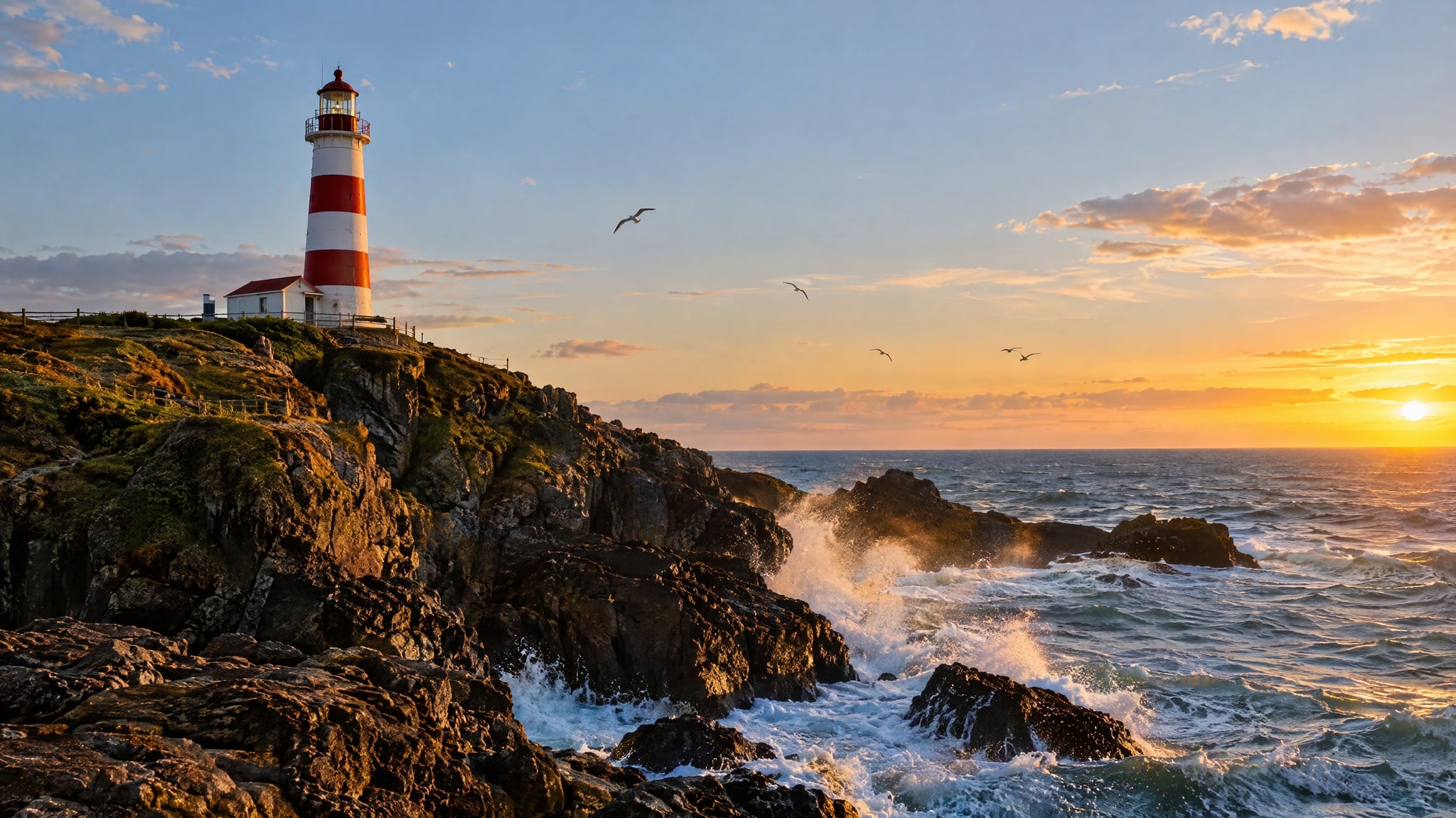
Image prompt: Realistic landscape photograph of a red-and-white striped lighthouse on a rocky cliff at golden hour, waves breaking against dark rocks below, a few seagulls in the sky, warm low sunlight, light sea spray in the air, wide composition with open sky.
Last verified: 2026-11-25. Limits and credits come from the live model settings on that date; timings come from completed clips over the 30 days before it. The screenshots show the English interface.
Photo to video AI in 3 steps at a glance
| Step | What you do | Time | What to watch for |
|---|---|---|---|
| 1. Choose the photo | Pick a sharp photo with one subject and upload it as the start frame | 1–2 minutes | Crop it to the shape you want first |
| 2. Write the motion | Describe what moves, the camera and the sound in 1–3 sentences | 2–5 minutes | One main movement per clip |
| 3. Generate and download | Pick a model, check the credits on the button, run it, download the MP4 | About 4–8 minutes for a short test | Change one thing per retry |
Step 1: choose a photo that photo to video AI can animate
The photo is the first frame of your video, so everything in it carries over: the subject, the light, the colors and the framing. A photo that works well has:
- One clear subject. A person, a pet, a product or a landmark that fills a good part of the frame and is in focus.
- A calm background. Sky, sea, plain walls and soft-focus streets move cleanly. Crowds and clutter tend to warp.
- Room to move. If the waves should roll in or the camera should push closer, leave space in the frame for that.
- The right shape. Crop to 16:9 for YouTube, 9:16 for Reels, TikTok and Shorts, or 1:1 for feeds before you upload, and pick the same aspect ratio in the settings.
The upload has a few limits that are easy to miss until a photo is rejected. For Seedance 2.0 Mini and Seedance 2.5 they are:
| Check | Limit |
|---|---|
| File type | JPG, PNG or WebP |
| File size | Up to 30 MB |
| Each side | 300 to 6,000 pixels |
| Shape | Between 2:5 (tall) and 5:2 (wide) |
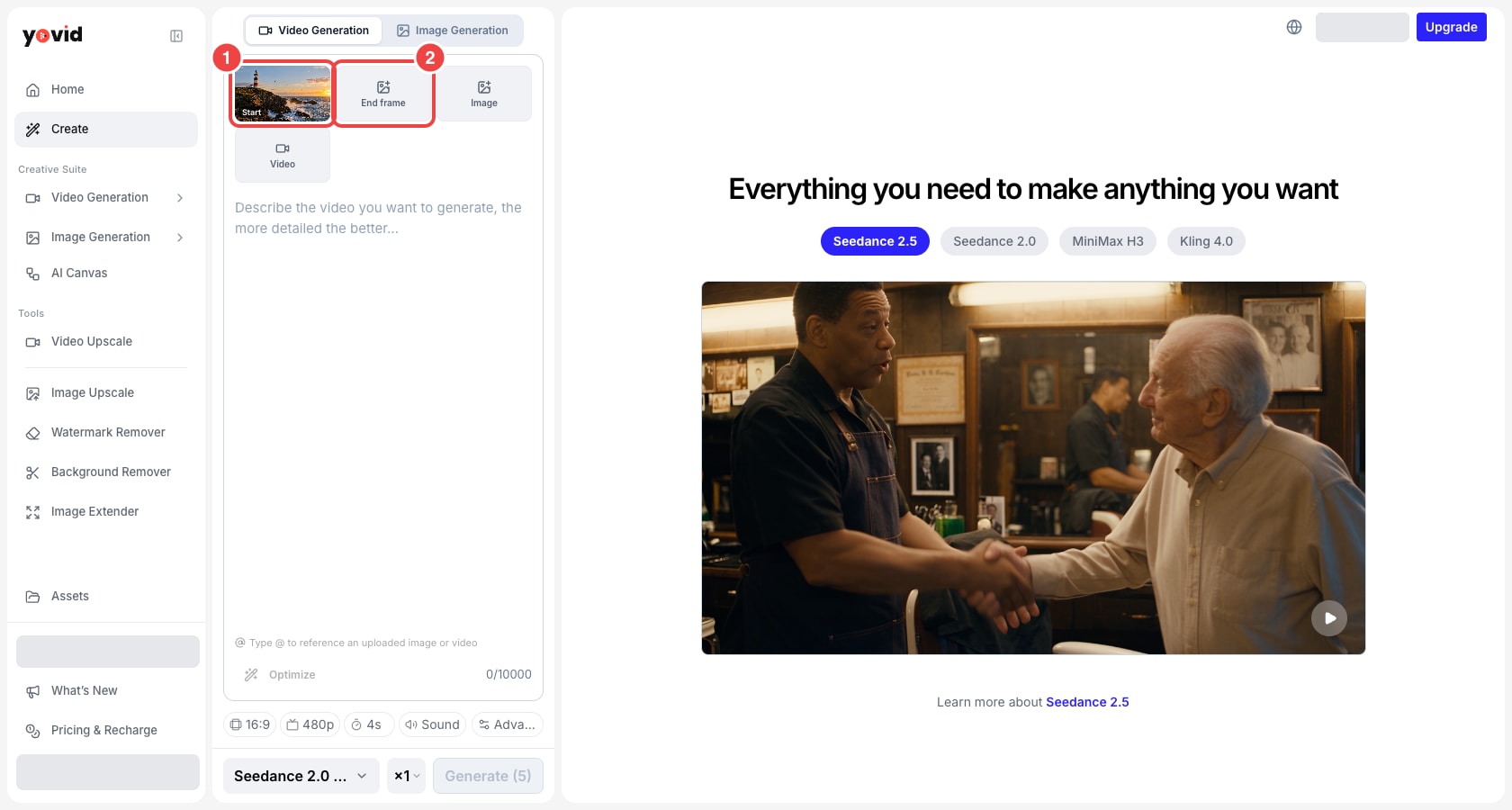
Step 1 in Yovid's image to video form (English interface): (1) the photo uploaded as the start frame; (2) an optional end frame, for when the clip should finish on a second picture.
Step 2: write a photo to video motion prompt
Because the photo already shows what is on screen, the prompt only has to describe the change. A reliable order is:
What moves + how much + camera + sound
- What moves: the parts of the photo that should come alive, such as waves, hair, clouds or steam.
- How much: "slowly", "gently" and "a slight turn" keep faces and products intact; "rolls in" and "drifts across" suit landscapes.
- Camera: "static", "slow push-in" or "pan to the right". One camera move is enough.
- Sound: if sound is on, name the sounds you want to hear.
This is the prompt used for the lighthouse photo in the screenshots:
The waves roll in and break against the rocks below the lighthouse, sending up white spray. Seagulls glide slowly across the sky and the clouds drift to the right. The camera holds still with a slow push-in toward the lighthouse. Sound of surf and distant gulls.
Two more for common photos:
The woman in the portrait slowly turns her head toward the camera and smiles, a few strands of hair moving in a light breeze. The camera stays still. Soft room tone and distant birdsong.
The coffee cup on the wooden table steams gently while morning light shifts across the table and a curtain sways behind it. Very slow push-in toward the cup. Quiet cafe sounds.
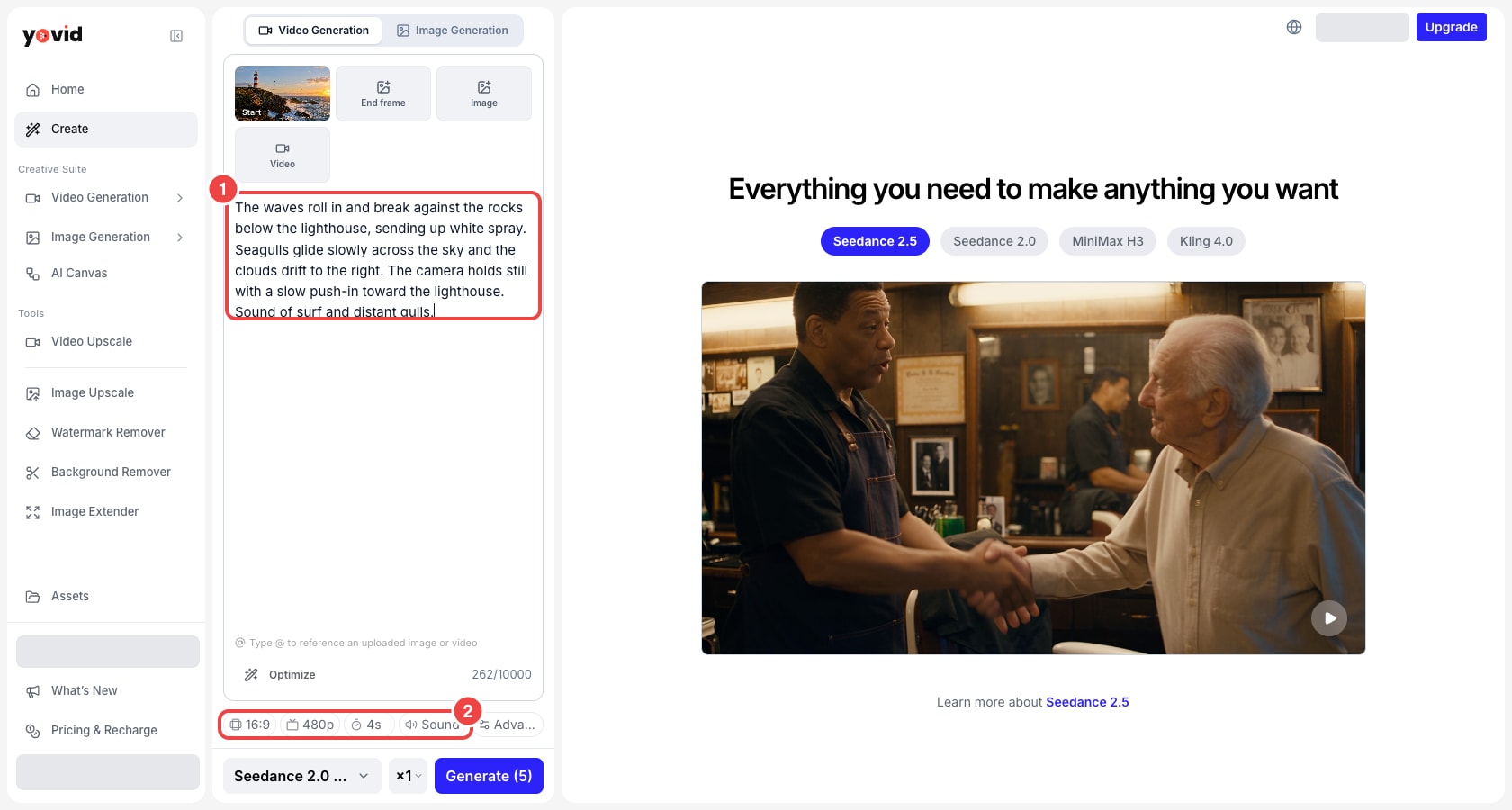
Step 2: (1) the motion prompt in the prompt box; (2) the settings row with aspect ratio, resolution, length and sound, here at the defaults of 16:9, 480p, 4 seconds and sound on.
If you are not sure how to phrase the motion, click Optimize under the prompt box to have it expanded, then trim anything that changes the scene instead of moving it. The image to video prompt examples break down six more prompts line by line.
Step 3: pick a model, generate and download your photo video
The model decides how long the clip can run, how sharp it gets and what it costs. For a first photo, start with the cheapest test and move up once the motion looks right:
| Your goal | Model | Length | Resolution | Credits for a 4-second 480p test |
|---|---|---|---|---|
| A free first try | Seedance 2.0 Mini | 4–15 s | 480p, 720p | 5 |
| Longer, sharper clips and spoken lines | Seedance 2.5 | 4–30 s | 480p up to 4K | 12 |
Credits are standard credit-pack rates. Seedance 2.5 needs a paid plan or a credit pack; 1080p on it needs Pro and 4K needs Premium, while credit packs can use every resolution the model offers.
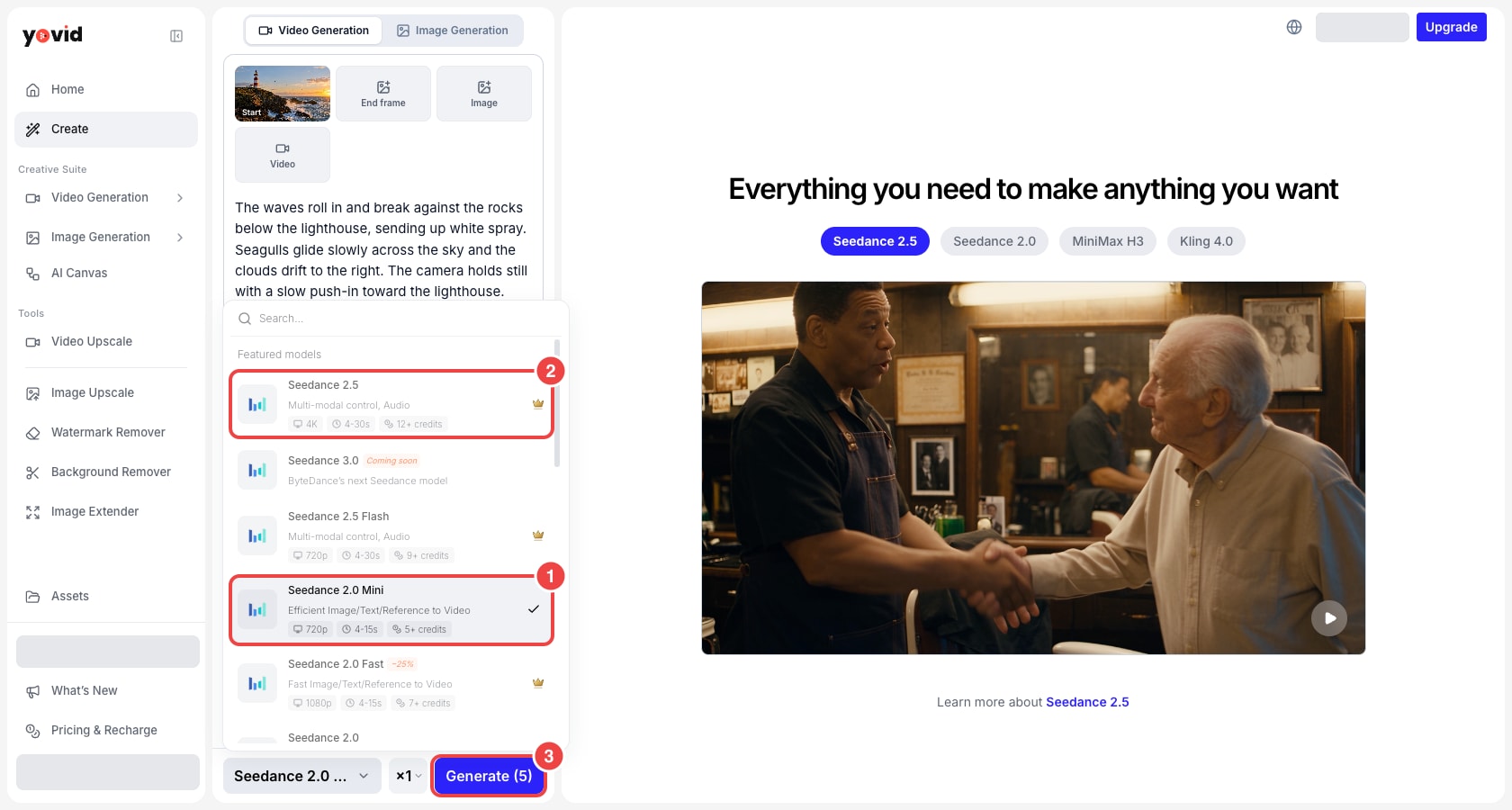
Step 3: (1) Seedance 2.0 Mini, from 5 credits, for a free first test; (2) Seedance 2.5, from 12 credits, for longer and sharper clips; (3) Generate shows the credits the run will use before you start.
Click Generate. Over the past 30 days, half of the 4-second 480p Seedance 2.0 Mini clips made from a photo on Yovid were finished within about five and a half minutes of clicking Generate, and the middle half took between four and eight minutes. The same clips made from text alone took about three minutes, so expect a photo run to take a little longer. When it finishes, the clip plays in the result panel; watch it once for the subject and once for the edges and background, then click Download to save the MP4.
Photo to video AI fixes when the clip goes wrong
- The scene changes instead of moving. Remove anything from the prompt that is not in the photo. Describe motion, not new objects.
- The background warps. Keep the camera static or use a slow push-in, and crop the photo tighter around the subject.
- Faces or hands distort. Ask for smaller movement ("a slight turn", "hands resting") and keep the clip short.
- The run is refused. Some photos are stopped by the safety check, for example a real person or a very photorealistic face. Try another photo or an illustrated version; credits for a failed run are refunded.
- It nearly works. Run it again with one change. The same prompt gives a different take each time.
- You need it longer or sharper. Re-run the version you like on Seedance 2.5 at 720p or above, or use the step-by-step AI video guide to plan a longer clip.
Should you write photo to video prompts in English or your own language?
You can type the prompt in the language you think in; the prompt box accepts any text, and spoken lines can be written in the language you want to hear. For the most predictable motion, keep the description short and concrete, whatever the language. If a result misses, run the same prompt once in English, the language the examples and prompt cards on Yovid use, and compare the two.
How to try photo to video AI for free
- Without an account: on Yovid you can make one watermarked 4-second 480p Seedance 2.0 Mini clip from text or from one photo of your own. Signing in is needed to download it. The no-sign-up trial is not offered on Android.
- With a free account: a new account gets 5 free credits, enough for one 4-second 480p Mini clip from a photo. Free clips carry a watermark.
- When you need more: a paid plan or a credit pack unlocks Seedance 2.5, longer clips and higher resolutions, without a watermark.
FAQ
Can I use any photo, or do I need the rights to it?
Use photos you took yourself or have the right to use. A photo of a famous person, a brand logo or someone else's artwork can be refused by the safety check, and publishing it can break copyright or personality rights even when the clip is generated.
Can I animate a photo of a face?
Often, yes, but the safety check can refuse photos of real people and very photorealistic faces. Keep the movement small for portraits. If a run is stopped, the credits are refunded; try a different photo or an illustrated version of the same one.
How long can a video made from a photo be?
Seedance 2.0 Mini makes 4 to 15 seconds per run and Seedance 2.5 makes 4 to 30 seconds. Start with 4 seconds to check the motion, then render the full length.
Is photo to video AI free?
You can try it without paying. One watermarked 4-second 480p Seedance 2.0 Mini clip can be made without signing up, and a new account's 5 free credits cover one 4-second 480p Mini clip. Seedance 2.5, longer clips and higher resolutions need a paid plan or credit pack.
Can I use the videos commercially?
On Pro and Premium (monthly or yearly), on Lite billed yearly and on every credit pack, yes. Monthly Lite and the free plan do not include commercial use, and free clips carry a watermark. You remain responsible for the rights to the photo you upload.
Turn your first photo into a video
Pick one photo, crop it to the shape you need, write two sentences of motion and run a 4-second 480p test before you go longer. More walkthroughs like this one are in Video Workflows.
Ready to try it? Open image to video, upload your photo as the start image, choose Seedance 2.0 Mini for a free first run or Seedance 2.5 for longer and sharper clips, and paste the lighthouse prompt above into our AI video maker.