
Direct answer: To make an AI video, you need three steps. First, write a prompt that names a subject, an action, a setting, a camera move and the light. Second, pick a video model and set the length, resolution and aspect ratio. Third, generate the clip, watch the preview and download the MP4. A first 4-second 480p test with Seedance 2.0 Mini takes about two to three minutes and costs 5 credits, which is what a new free account starts with. Each step is walked through below with a real run of one prompt.
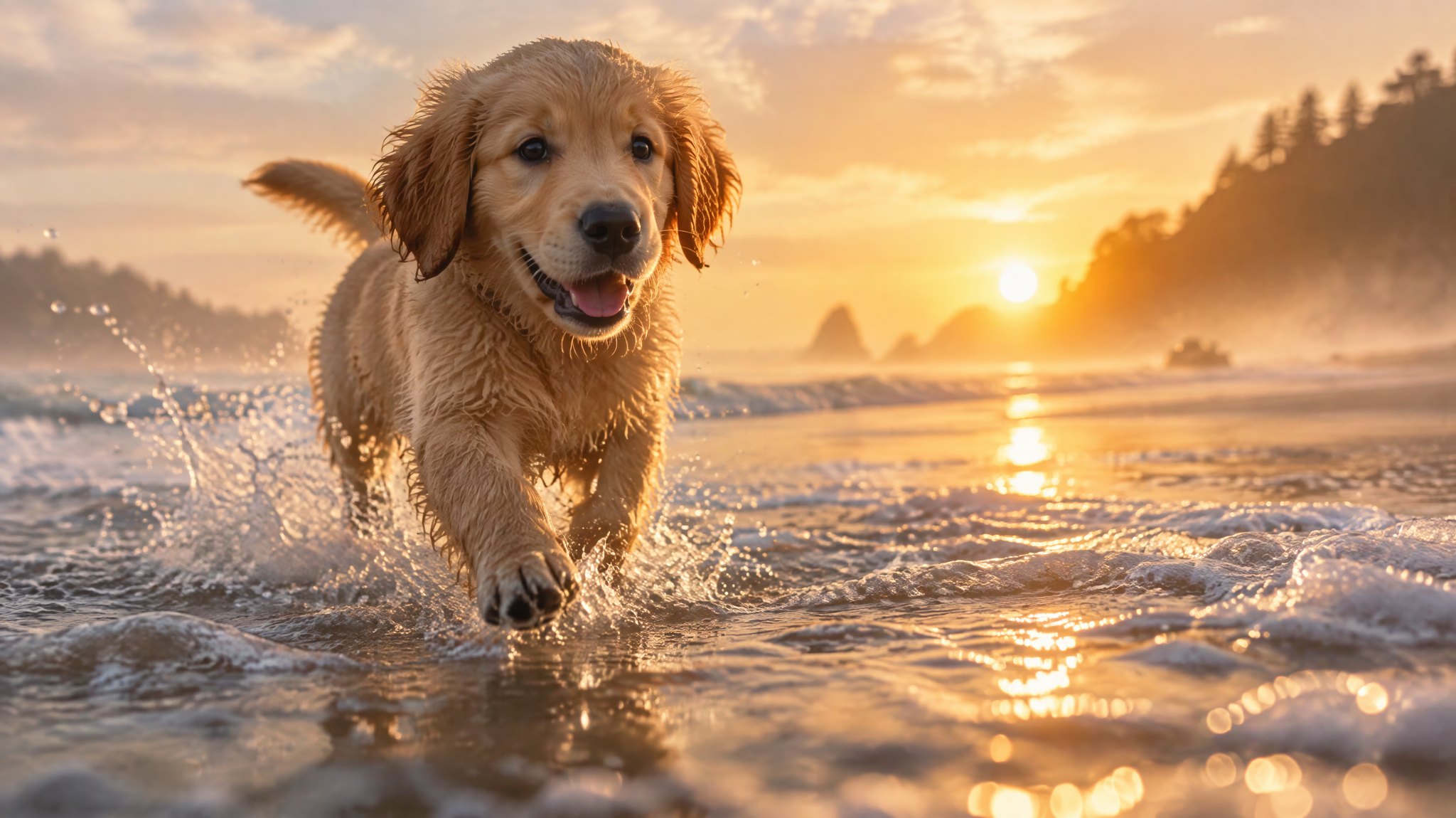
Image prompt: Cinematic film still, a golden retriever puppy runs through shallow waves on an empty beach at sunrise, water splashing around its paws, camera low at the waterline tracking alongside, warm golden backlight, soft sea mist, shallow depth of field, natural fur detail.
Last verified: 2026-11-24. Model limits and credit figures come from the live model settings on that date; the timings come from our own test runs.
How to make an AI video: the 3 steps at a glance
| Step | What you do | Time | What to watch for |
|---|---|---|---|
| 1. Write the prompt | Describe subject, action, setting, camera and light in 2–4 sentences | 2–5 minutes | One main action per clip |
| 2. Pick the model and settings | Choose a model, length, resolution, aspect ratio and sound | Under a minute | Start short and at low resolution |
| 3. Generate, preview, download | Run it, watch the result, download or adjust | About 2–3 minutes per short test | Change one thing per retry |
Step 1: write an AI video prompt that the model can follow
A video model needs to know what is on screen, what moves and how the camera sees it. A reliable order is:
Subject + action + setting + camera + light (+ sound)
- Subject: who or what, with one or two visual details. "A golden retriever puppy" beats "a dog".
- Action: one main action that fits the length. A 4–10 second clip has room for one clear movement.
- Setting: where and when. Time of day changes the whole look.
- Camera: a shot size and one move, such as a slow push-in, a tracking shot or a static wide shot.
- Light: golden hour, overcast, neon, window light.
- Sound: if the model generates audio, name the sounds you want, and put any spoken line in quotation marks.
Here is the prompt used for the screenshots in this guide:
A golden retriever puppy runs through shallow waves on an empty beach at sunrise, water splashing around its paws. The camera tracks low alongside at the same speed. Warm golden light, soft wind and wave sounds, shallow depth of field.
Two more examples that follow the same order:
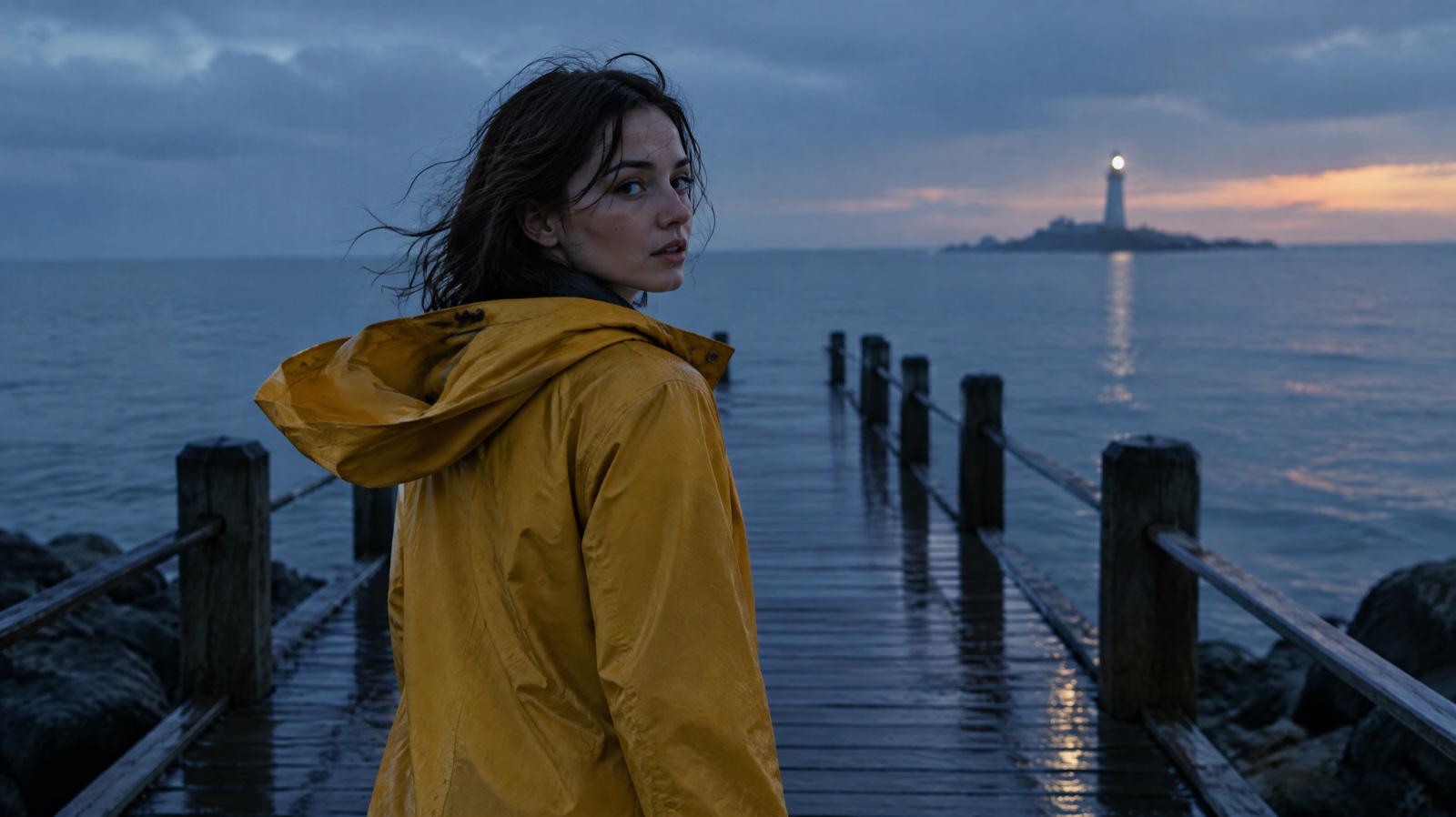
A woman in a yellow raincoat walks across a crowded city crosswalk at night in the rain, neon signs reflecting in the puddles. Static wide shot from across the street, cars hissing past, distant traffic and rain on umbrellas.
A ceramic mug of coffee steams on a wooden table by a window on a snowy morning. Slow push-in from a wide shot to a close-up of the steam, soft daylight, quiet room tone and a clock ticking.
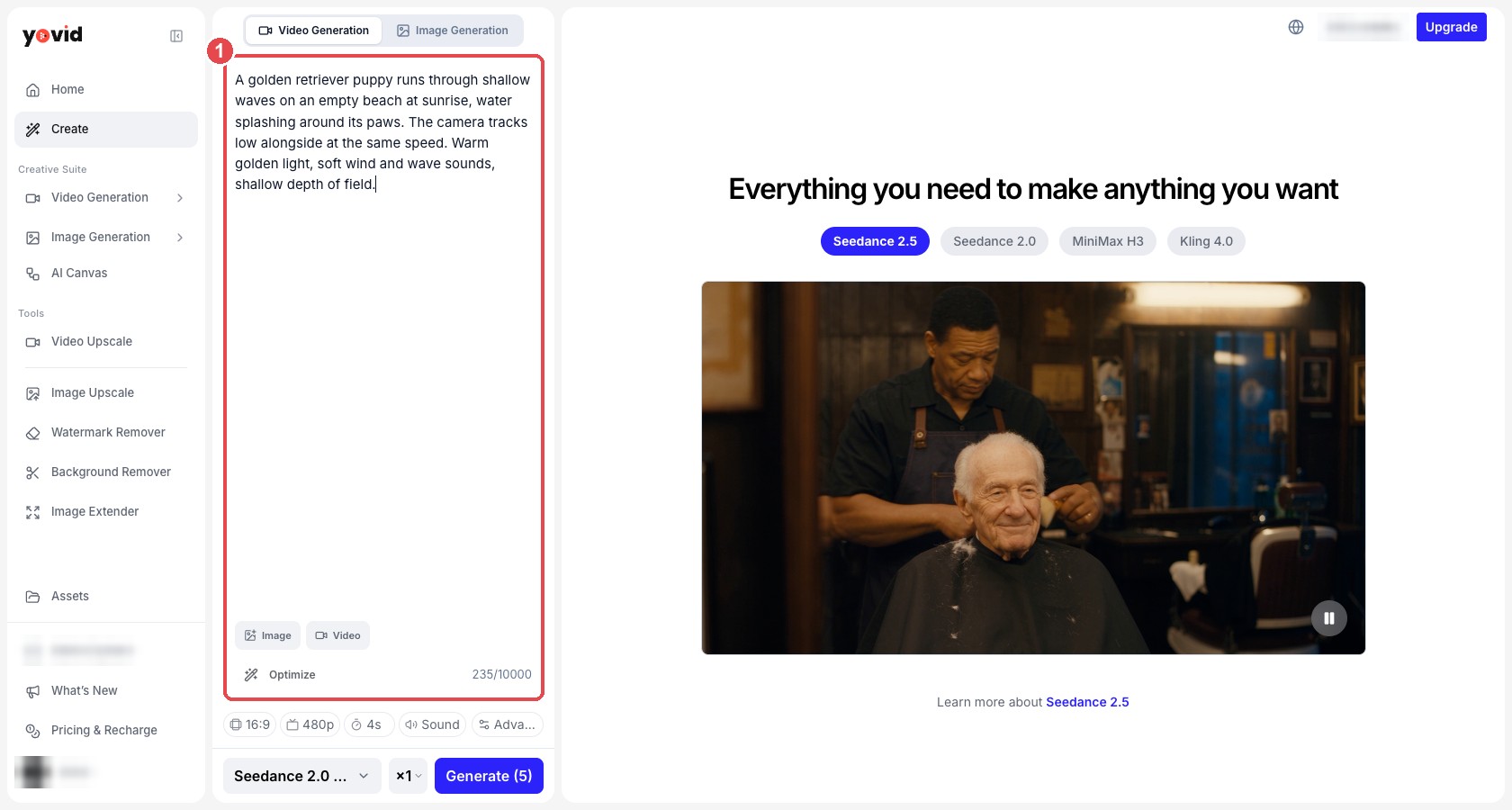
Step 1 in Yovid's video generator: (1) the prompt box, with the puppy prompt above typed in. The settings row underneath shows the defaults: 16:9, 480p, 4 seconds, sound on.
If you start from a photo instead of text, the prompt only has to describe the motion, because the picture already sets the subject and the scene. For more ways to phrase a prompt, see the text-to-video prompt guide.
Step 2: choose an AI video model and settings for your clip
The model decides what the clip can do: how long it runs, whether it speaks, how sharp it gets and what it costs. Three common goals and the model that fits each:
| Your goal | Model | Length | Resolution | Credits for a short test |
|---|---|---|---|---|
| Try it for free | Seedance 2.0 Mini | 4–15 s | 480p, 720p | 5 (4 s, 480p) |
| Characters who talk | Seedance 2.5 | 4–30 s | 480p up to 4K | 12 (4 s, 480p) |
| A cinematic look | Kling 4.0 or Seedance 2.5 | 3–30 s | Up to 1080p (Kling), up to 4K (Seedance 2.5) | 9 (Kling, 3 s, 720p) |
Credits are standard credit-pack rates; subscriptions charge 10–40% fewer per clip. Then set four things:
- Length: the shortest the model allows for a test (3–4 seconds), longer only once the motion looks right.
- Resolution: 480p for tests. Go to 720p or higher for the final.
- Aspect ratio: 16:9 for YouTube and websites, 9:16 for Reels, TikTok and Shorts, 1:1 for feeds.
- Sound: on for dialogue, effects and ambience; off if you will add your own music. Seedance 2.0 Mini and Seedance 2.5 charge the same either way.
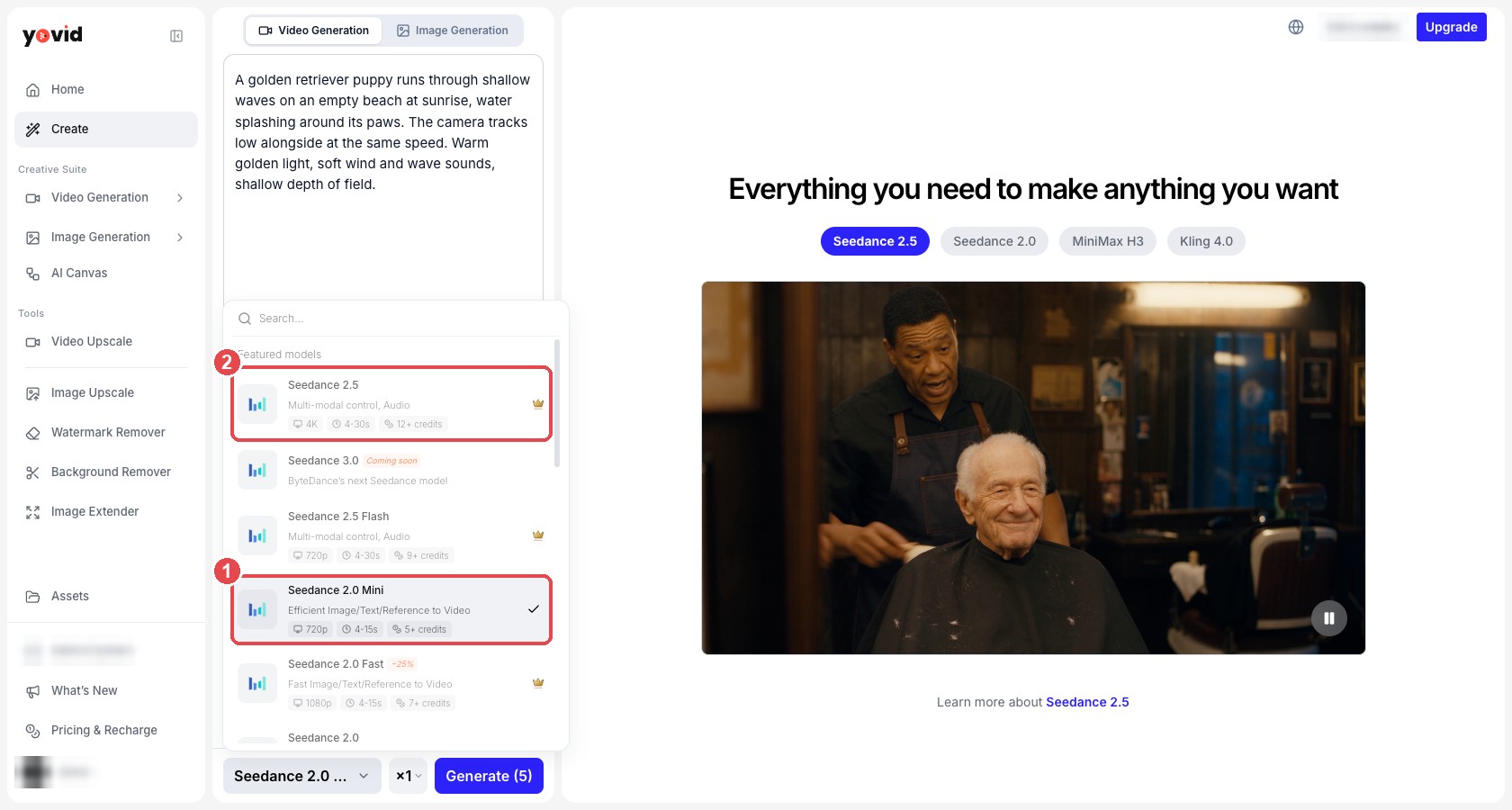
Step 2: the model picker lists each model's top resolution, length range and starting credits. (1) Seedance 2.0 Mini, from 5 credits; (2) Seedance 2.5, from 12 credits and marked for paid plans.
The full model list compares every video model's limits side by side.
Step 3: generate, preview and download your AI video
Click Generate. The button shows the credits the run will use, so you know the cost before you start. While the clip renders, the screen shows progress and an estimated time left.
Our test of the puppy prompt (Seedance 2.0 Mini, 4 seconds, 480p, 16:9, sound on) used 5 credits and finished in about three minutes. Over the past 30 days, the median 4-second 480p Seedance 2.0 Mini clip on Yovid took two and a half to three minutes from Generate to a finished video. Longer clips, higher resolutions and busy hours take longer.
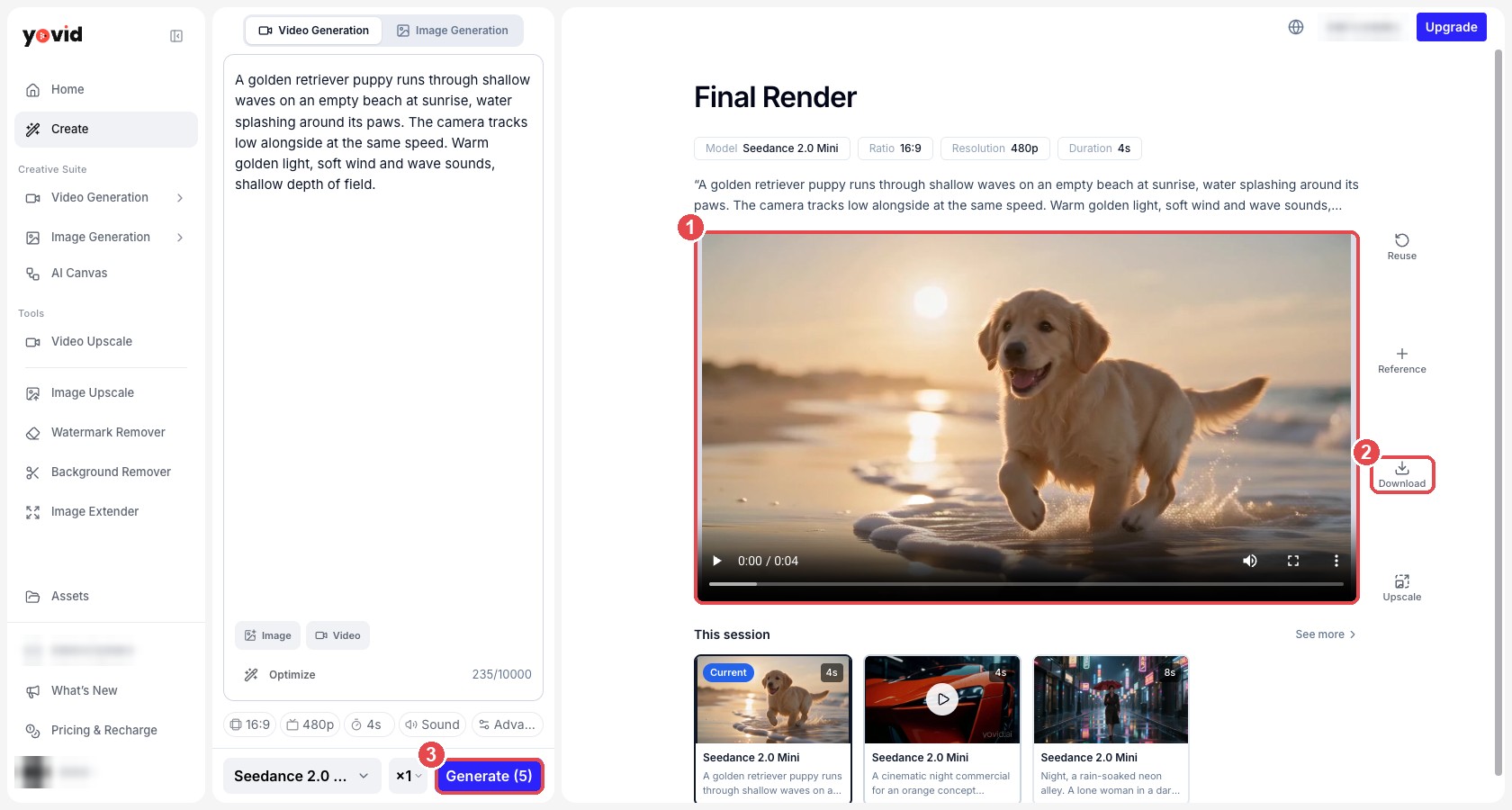
Step 3: (1) the finished clip plays in the result panel with its model, ratio, resolution and length; (2) Download saves the MP4; (3) Generate shows the credit cost of the next run.
When it finishes, watch it at least twice: once for the subject and once for the background, hands and edges. If it works, download it. If it nearly works, change one thing and run it again.
How to fix an AI video that is almost right
- Run it again. The same prompt gives a different take each time. The Reuse button puts the prompt and settings back into the form.
- Change one thing per retry. Swap the camera move or simplify the action, then compare.
- Start from an image. Use image to video to lock the look of the first frame, and describe only the motion.
- Draft, then finish. Seedance 2.5 can render a 480p draft and turn the same draft into a 1080p or 4K final, so you only pay for high resolution once the take is right.
- Edit or extend. Seedance 2.5 can change part of an existing clip from a text description, or continue a shot. The video extension guide shows how to take a clip up to 30 seconds.
- Raise the quality last. Re-run the version you like at 720p or 1080p, or use Upscale on the result.
FAQ
How long does it take to make an AI video?
Writing the prompt takes a few minutes. A 4-second 480p clip on Seedance 2.0 Mini typically renders in two to three minutes; longer and higher-resolution clips take longer. Plan on 10–15 minutes for a first clip you are happy with, including a retry or two.
Do I need to pay to make an AI video?
No, not for a first clip. You can try one watermarked 4-second 480p Seedance 2.0 Mini clip without signing up, and a new account gets 5 free credits, enough for one 4-second 480p Mini clip. Seedance 2.5, Kling 4.0 and resolutions above 720p need a paid plan or a credit pack.
Can I make an AI video on my phone?
Yes. The generator runs in a mobile browser, so there is no app to install. The steps are the same: type the prompt, pick the model and settings, generate, then download the MP4 to your phone.
Can I use AI videos commercially?
On Pro and Premium (monthly or yearly), on Lite billed yearly and on every credit pack, yes. Monthly Lite and the free plan do not include commercial use, and free clips carry a watermark. Check the terms shown at checkout if a project needs a specific right confirmed.
What if I am bad at writing prompts?
Use the five-part order above and keep it to one action. Click Optimize under the prompt box to have the prompt expanded for you, or copy a tested prompt from the Seedance 2.5 prompt guide and change the subject.
Make your first AI video now
Pick one idea, write it as subject, action, setting, camera and light, and run a 4-second 480p test before you commit to anything longer. For more step-by-step walkthroughs, browse Video Workflows.
Ready to try? Open the text to video form, choose Seedance 2.0 Mini for a free first run or Seedance 2.5 for dialogue, and paste one of the prompts above into our AI video generator.